Custom Pricing & Bold Subscriptions Integration
Custom Pricing integrates with Bold Subscriptions so you can extend your Custom Pricing discounts to subscription purchases.
This integration allows you to:
Offer products to your wholesale or VIP members on a subscription basis.
Layer Custom Pricing discounts with subscription discounts.
Create exclusive VIP Member Pricing programs using Bold Subscriptions' customer tagging feature.
Requirements
Bold Custom Pricing Standard Method (V2) with Shopify Functions enabled (default for new installs)
If you are unsure of which Custom Pricing version you have, please visit Discount Methods and How to Switch.
How to use this integration
Bold Custom Pricing lets you create product discounts for specific customers based on customer tags. Bold Subscriptions lets you offer products on a recurring basis with subscribe and save discounts.
To learn more about each app, please visit Custom Pricing Overview & Pricing and Subscriptions for Shopify Checkout Pricing & Overview.
Together, this integration supports two main use cases:
Extend Custom Pricing discounts to subscriptions: Custom Pricing discounts were previously limited to one-time purchases. This integration extends them to subscription purchases, so your wholesale or VIP members can now subscribe to the products they need at their exclusive price. Customers are tagged manually or automatically through Custom Pricing, and their discount eligibility isn't tied to subscribing.
VIP Member Pricing: With Bold Subscriptions' customer tagging feature, exclusive Custom Pricing discounts are automatically unlocked when a customer subscribes to a specific product, giving your most loyal customers an even better deal. To get started, visit VIP Member Pricing with Bold Custom Pricing & Bold Subscriptions.
Using Custom Pricing and subscription discounts together
Custom Pricing discounts can be used together with Subscription discounts. How they work together depends on the discount type used in Custom Pricing:
Percent discount: Subscription discounts are applied before Custom Pricing discounts.
Price discount: Subscription discounts are applied before Custom Pricing discounts.
Fixed price: The fixed price is used for both the one-time purchase and subscription price. Subscription discounts do not apply.
Note: Subscription group dynamic discounts work as expected with all Custom Pricing discount types except fixed price. When using a fixed price, customers won't receive the initial discount, but they will receive subsequent dynamic discounts on recurring orders.
Subscription widget & price display
When products are discounted in Custom Pricing, the final discounted prices are displayed to logged-in and tagged customers on the product page and across the storefront.
The subscription widget accurately displays the customer’s final price per delivery, however, the Subscribe and Save amount shows only the subscription discount (if one exists).
You can adjust the subscription widget language fields so that only the correct final price is displayed in the subscription widget. This helps align subscription discounts with customer expectations. For detailed instructions, please see Customize the subscription widget language fields below.
Example
Subscription discounts shown in red, the accurate final price in green:
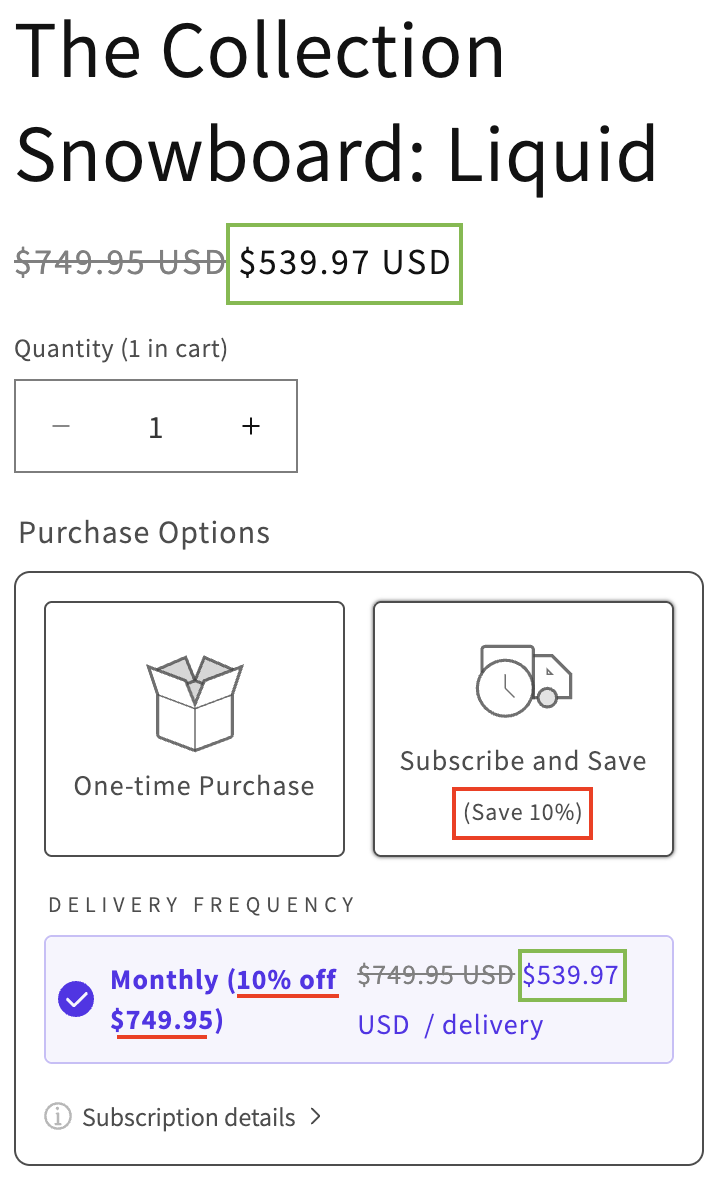
Pro-tip: By default, when tagged customers are logged into their store account, they only see the price available to them. To show both the original price with a strikethrough and the Custom Pricing price, you can enable compare-at pricing in Custom Pricing. For more information, please visit Display Regular Prices Beside Wholesale Prices.
Important considerations
Discount codes: Discount code should not be offered on subscriptions with Custom Pricing discounts. While they can be applied to the initial order, Shopify only allows the greatest discount per product, which may not be the Custom Pricing discount. If a customer later swaps their product, Custom Pricing discounts are automatically reapplied. This can lead to unexpected double discounting. Additionally, Custom Pricing discounts are not reapplied if a discount code expires.
Bold Upsell: Currently, Custom Pricing V2 does not integrate with Bold Upsell. Subscription related Upsells should not be offered to subscribers with Custom Pricing. Our team is working on supporting this integration.
Adding products to existing subscriptions: Products that are added to existing subscriptions from the customer portal or through the Express Add-Ons Widget won't display the Custom Pricing discount until added. Once added, the price reflects the discount.
Quantity Breaks: Custom Pricing’s Quantity Breaks and Mix & Match features are now fully supported in the integration. Customers receive the correct quantity break discount both on the initial subscription order and when they change the quantity later in the customer portal or on recurring orders. The discount tier automatically adjusts based on the new total quantity.
Custom Pricing discounts in the customer portal: Custom Pricing discounts appear as line item discounts.
Convertible subscription widget pricing: Custom Pricing is not able to display the correct final price on the Converts to price in the subscription widget. However, the correct price is applied to the product once the swap occurs.
Setup
To integrate Custom Pricing with Bold Subscriptions, please follow the steps below.
Note: If you already have Bold Subscriptions installed and want to use this integration to configure a VIP Member Pricing program for your existing subscribers, please visit VIP Member Pricing with Bold Custom Pricing and Bold Subscriptions.
Step 1: Install and configure Custom Pricing
If Custom Pricing is not yet installed and configured, please visit Set up Custom Pricing, and complete the necessary steps.
Step 2: Configure Shopify Functions
Configure your Shopify Functions settings to allow subscription purchases. For detailed instructions, please visit Shopify Functions for Custom Pricing (Standard Method V2).
Step 3: Install and configure Bold Subscriptions
To install and configure Bold Subscriptions, please visit Set Up Subscriptions for Shopify Checkout and complete the necessary steps.
Step 4: Configure your subscriptions
To configure subscription options for your products, add them to a subscription group. For detailed instructions, please visit any of the following articles depending on the type of subscription you’d like to set up:
Customize the subscription widget language settings
To ensure the best experience for subscriptions with Custom Pricing, we recommend adjusting the language settings in the subscription widget so that only the correct final price appears in the widget.
Follow the steps below to update the language settings.
From your Shopify admin, navigate to Sales channels > Online Store > Themes.
Click Edit theme.
Expand the top-center dropdown menu, and select the product template with the Subscription widget app block.
Click on the Subscriptions widget app block to expand the style and language settings.
Note: To see a live preview of the storefront subscription widget, view a product that belongs to an active subscription group. In the top-left corner of the theme editor, find the Default product, and click Edit to select a subscription product.
Make the following recommended changes depending on the discount type configured in Custom Pricing:
For Percent discounts:
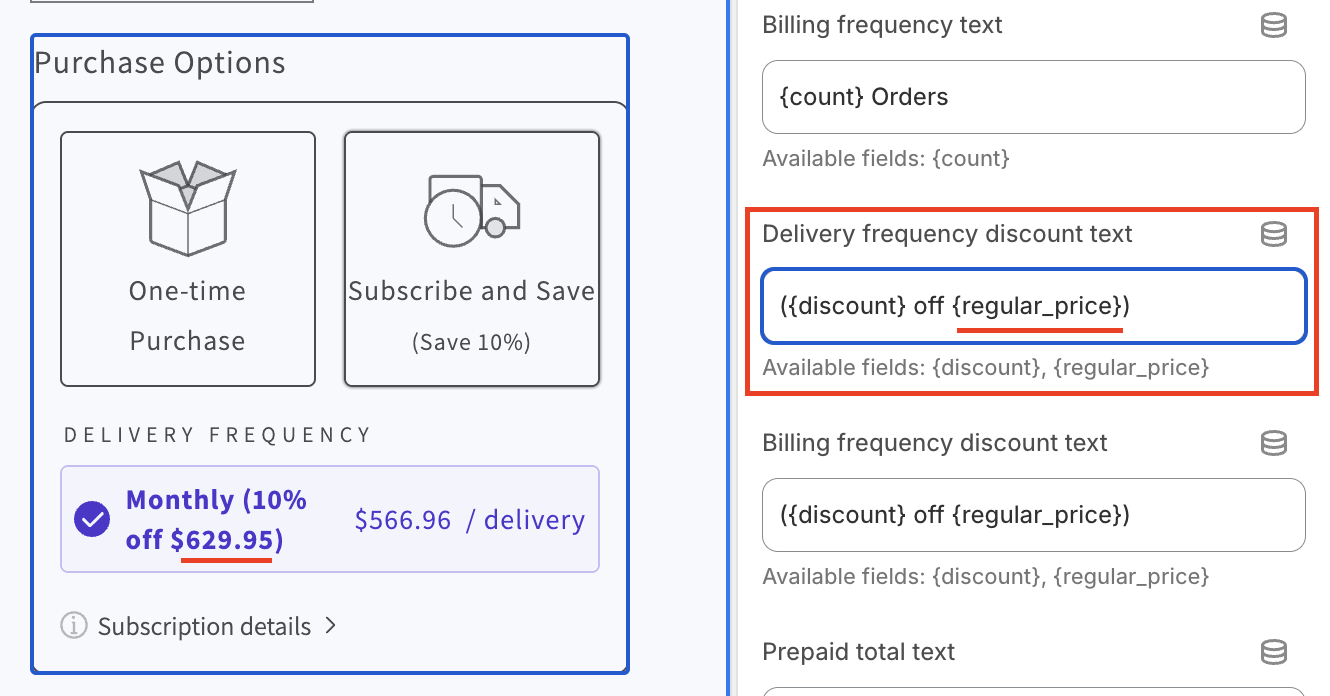
Locate the Delivery frequency discount text field and remove {regular_price}.
Note: The {discount} merge field can remain as the subscription percent discount provides a consistent experience when used with percent discounts in Custom Pricing.
Locate the Billing frequency discount text field (visible with prepaid subscriptions), remove {regular_price}.
For Price discounts:
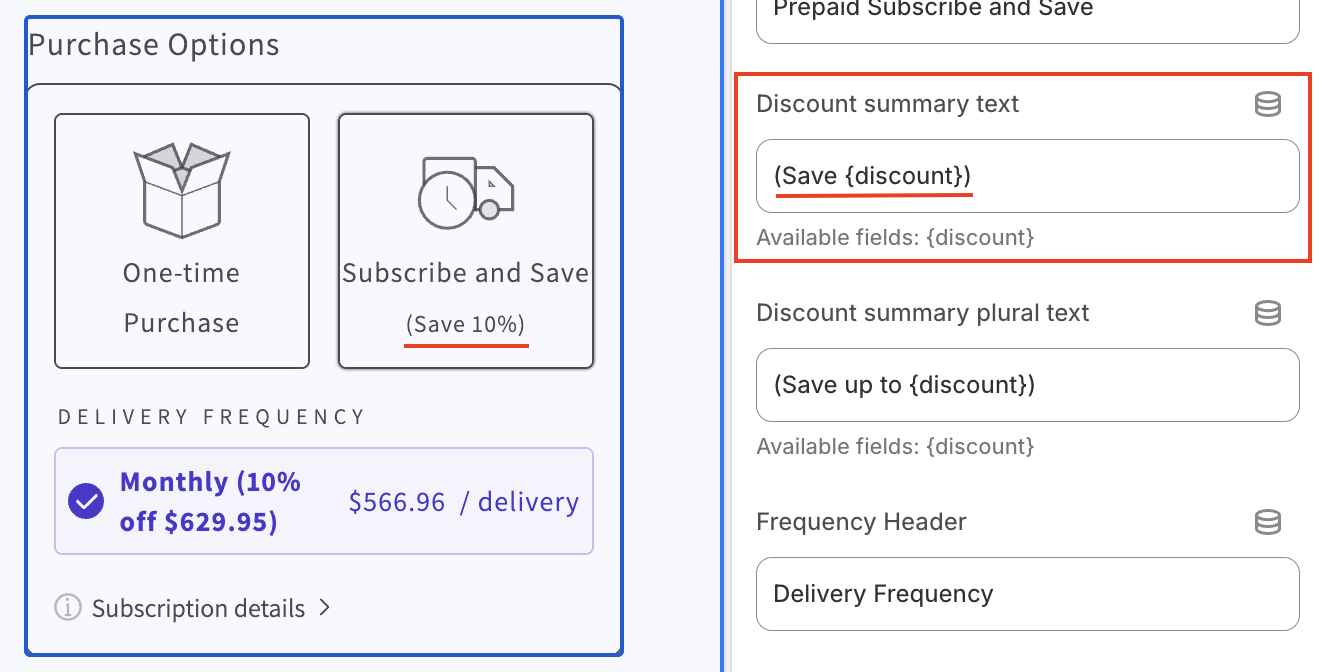
Locate the Discount summary text field and remove (Save {discount}).
Locate the the Discount summary plural text field (only visible with prepaid subscriptions), remove (Save up to {discount}).
Locate the Delivery frequency discount text language field and remove ({discount} off {regular_price}).
the Billing frequency discount text field (only visible with prepaid subscriptions), remove ({discount} off {regular_price}).
For Fixed Prices:
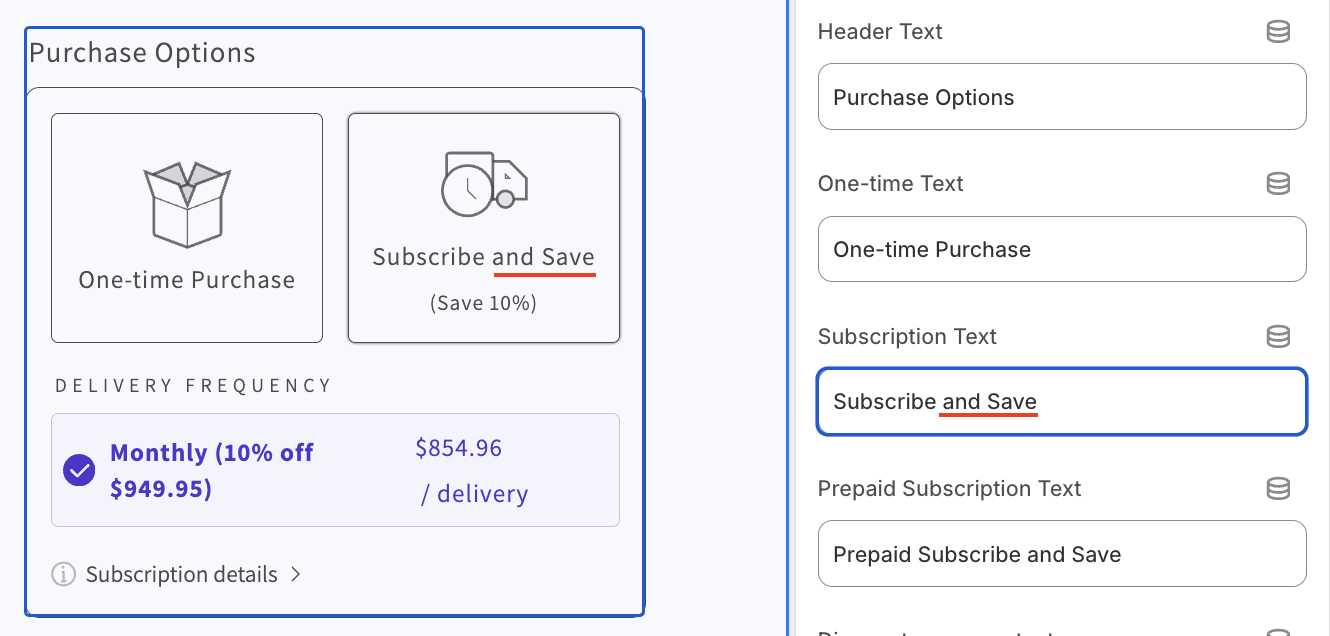
Locate the Subscription Text field and remove and Save. (Fixed prices are the same on both purchase types. Subscription discounts do not apply.)
Locate the Prepaid Subscription Text, and remove and Save.
Locate the Discount summary text field and remove (Save {discount}).
Locate the the Discount summary plural text field (only visible with prepaid subscriptions), remove (Save up to {discount}).
Locate the Delivery frequency discount text language field and remove ({discount} off {regular_price}).
the Billing frequency discount text field (only visible with prepaid subscriptions), remove ({discount} off {regular_price}).
Click Save in the top corner.
Once all changes are complete, make sure to test on your own store to see if there are additional language fields you'd like to edit.
To make more customizations to the widget, please visit Customize the Subscription Widget App Block.