Customizations in Bold Discounts
This guide outlines some additional customizations that can be applied in your theme to add to Bold Discounts functionality.
Note: Making these adjustments requires knowledge of Liquid code. If you are not comfortable with adding Liquid code to your theme, one of our partners could complete one of these customizations or a similar customization as a paid customization on your store. Please visit ShopExperts via this form.
Show the Discount Percentage
You can add custom code to display the discount percentage that the customer is saving.
Note: The discount percentage only appears on product pages that are in an active discount in Bold Discounts. Adding a product price and compare at price on a product does not apply the discount percentage on the product page.
To show the percentage saved automatically, please follow these steps:
Duplicate themes, to create a backup copy.
From Shopify's admin, select Online Store.
Select Actions.
Select Edit code.
Under "Snippets", select Add a new snippet.
Name the snippet bold-discount-saved.liquid.
Select Create Snippet.
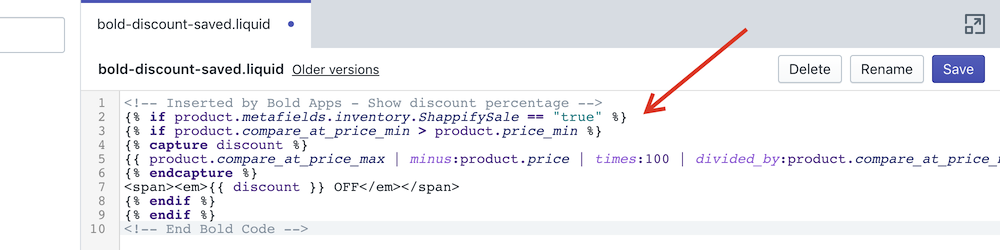
Copy and paste this code into the snippet:
<!-- Inserted by Bold Apps - Show discount percentage -->
{% if product.metafields.inventory.ShappifySale == "true" %}
{% if product.compare_at_price_min > product.price_min %}
{% capture discount %}
{{ product.compare_at_price_min | minus: product.price_min | times:100.0 | divided_by: product.compare_at_price_min }}
{% endcapture %}
<span><em>{{ discount | round }}% OFF</em></span>
{% endif %}
{% endif %}
<!-- End Bold Code -->
Select Save.
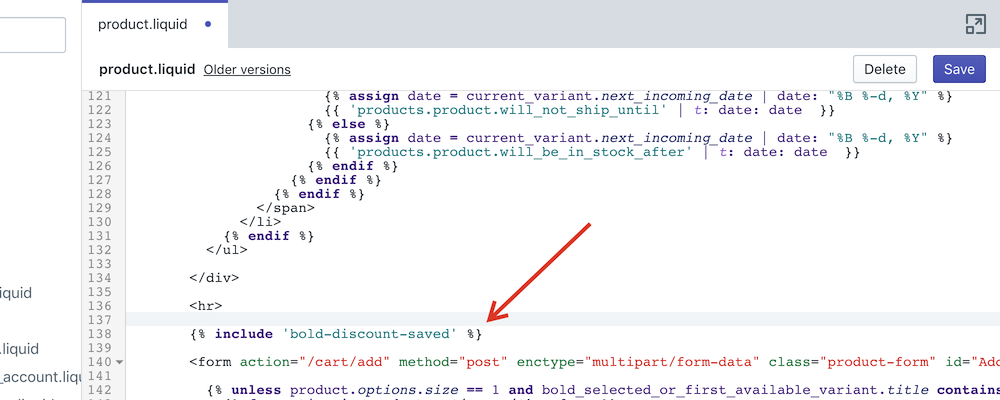
Under "Templates" select product.liquid.
Note: If your theme contains sections you may find this code within product-template.liquid under "Sections" instead.
Copy and paste this code into the desired location:
{% include 'bold-discount-saved' %}Note: If placing this on a collection or product page, the code should be placed above the "Img" source.
Select Save.
Use Custom Sales Text
Note: Discounts also allows you to upload and use your own custom sales icons. Visit Customize Sales Icons & Clock in Bold Discounts for more information.
The following steps require basic liquid knowledge. If you are uncomfortable with liquid code, please contact our Customer Success team for further assistance with adding a sales text to your theme.
Discounts allows you to add custom blocks of text to your sale items. This lets you provide your customers with additional information about sale items.
To add this to your store, please follow these steps:
From Shopify's admin, select Online Store.
Select Actions.
Select Edit code.
Under "Snippets", select Add a new snippet.
Enter bold-sales-text as the snippet name.
Select Create snippet.
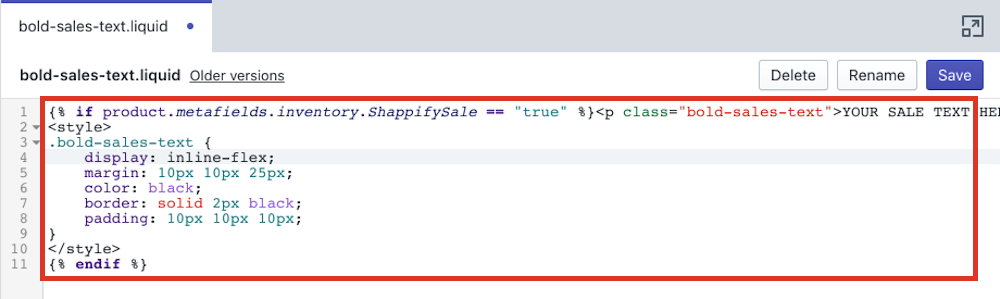
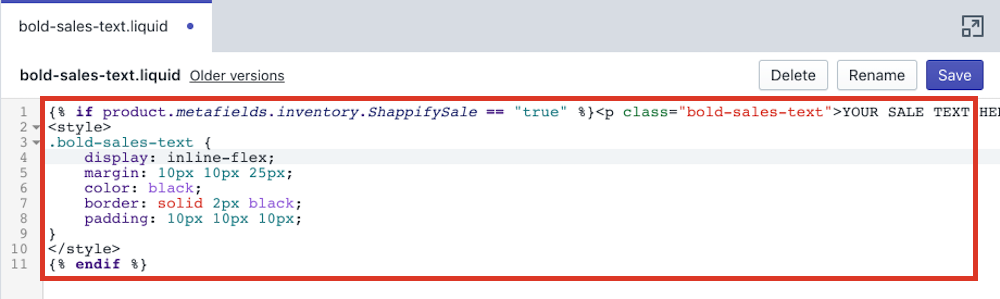
Copy and paste the following code into the bold-sales-text snippet file:
{% if product.metafields.inventory.ShappifySale == "true" %}<p class="bold-sales-text">YOUR SALES TEXT HERE</p>
<style>
.bold-sales-text {
 display: inline-flex;
 margin: 10px 10px 25px;
 color: black;
 border: solid 2px black;
 padding: 10px 10px 10px;
}
</style>
{% endif %}
Adjust the sales text and styling accordingly.
Note: Visit W3 Schools - CSS for more information on how to use CSS styling.
Select Save.
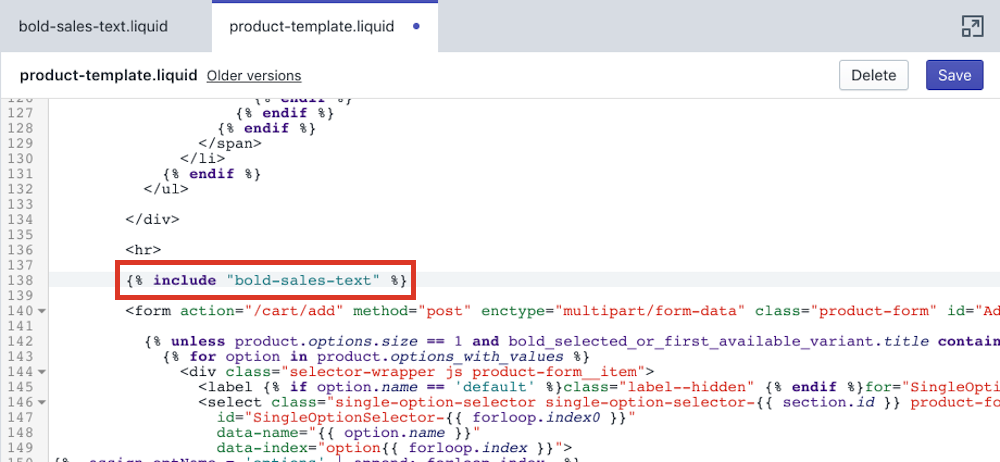
Under "Templates", select product.liquid.
Note: This file may be located under "Sections" as product-template.liquid.
Copy and paste the following code where you want this text to display:
{% include "bold-sales-text" %}Select Save.