Managing Predicted Schedules: Merchant View
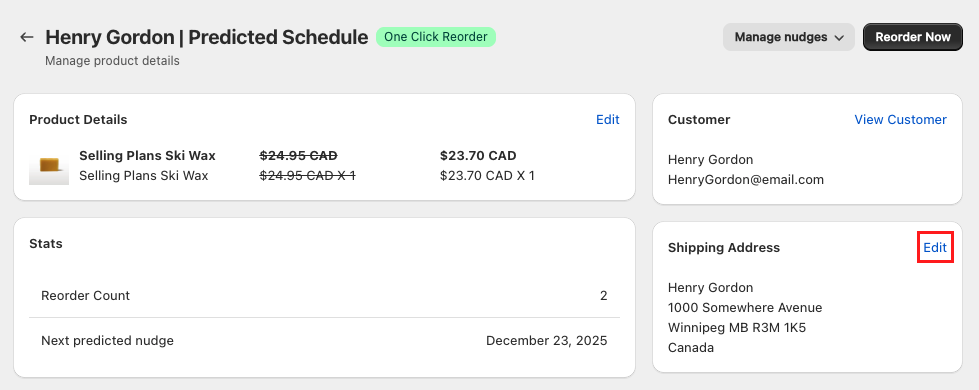
rePete provides tools to help you manage and the details of your customers’ Predicted Schedules. The features available depend on whether the schedule is tagged with One Click Reorder.
In all Predicted Schedules you can swap products, change the product quantity, and pause or resume nudge reminders. You can also place reorders on the customer's behalf and update the shipping address in schedules tagged One Click Reorder.
Pause or resume nudges
rePete allows you to pause and resume either all nudges for a customer or just the nudges for a customer's specific product.
Pause/Resume all nudges for a customer
In rePete, navigate to Customers.
Click on the customer's name, and use the following steps depending on your goal:
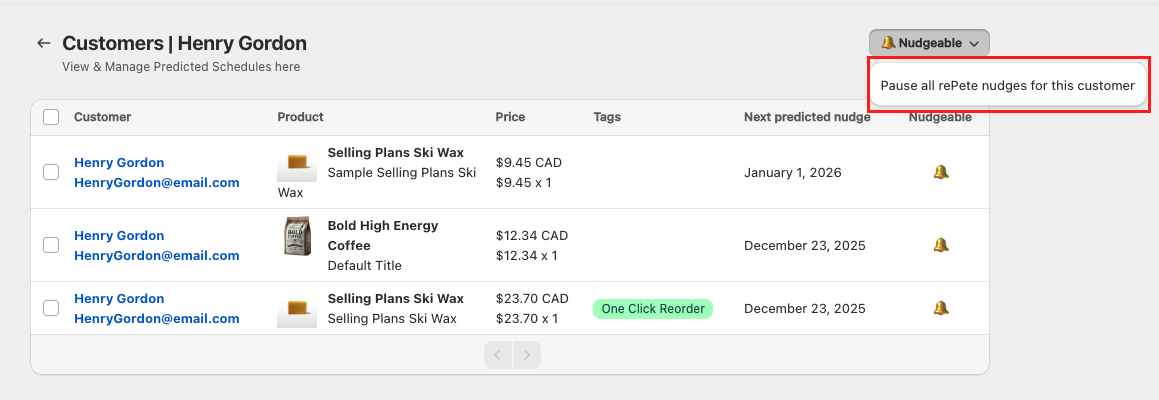
Pause all nudges:
Click the button labeled Nudgeable in the top right corner.
Select Pause all rePete nudges for this customer.
Resume all nudges:
Click the button labeled Nudges paused in the top right corner.
Select Resume rePete nudges for this customer.
Pause/Resume nudges for a customer’s specific product
In rePete, navigate to Customers.
Click on the customer’s name, then click on the Predicted Schedule containing the relevant product.
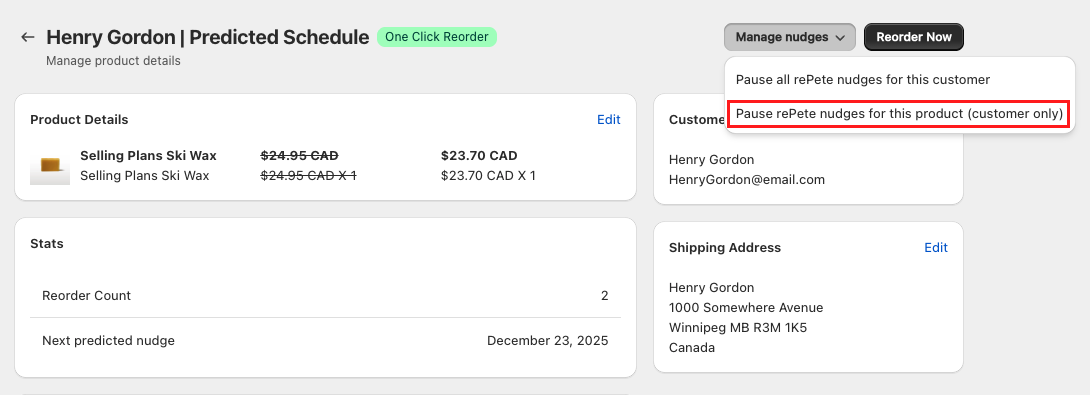
Pause nudges:
Click the button labeled Manage nudges in the top right corner.
Select Pause rePete nudges for this product (customer only).
Resume nudges:
Click the button labeled Manage nudges in the top right corner.
Select Resume rePete nudges for this product (customer only).
Swap a product
You can swap the products in your customer’s Predicted Schedules. This is useful if you discontinue a product and need to offer a new product or if you have seasonal variations.
Note: When you swap in a new product, it is automatically added to rePete (if it is not already included).
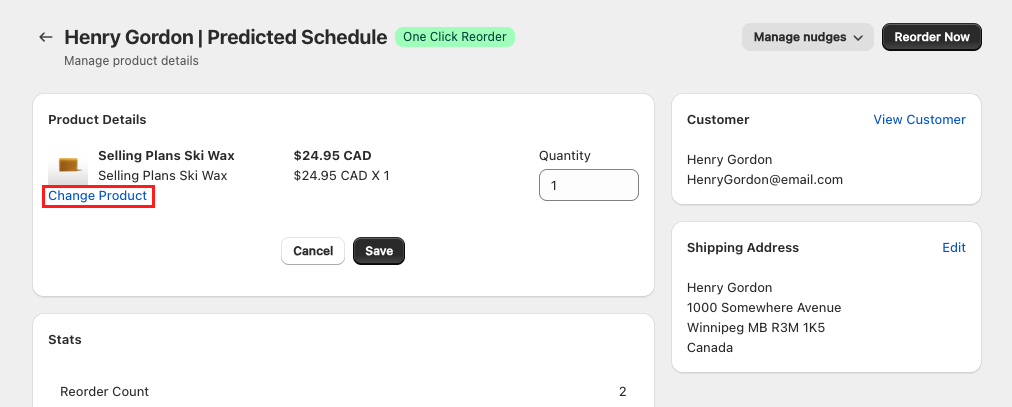
To swap the product in a customer’s Predicted Schedule, please follow the steps below.
In rePete, navigate to Customers.
Click on the customer’s name, then click on the Predicted Schedule containing the relevant product.
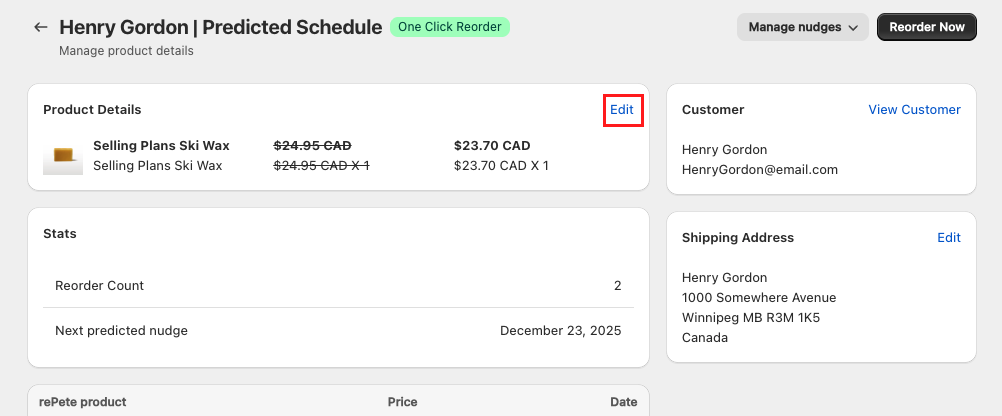
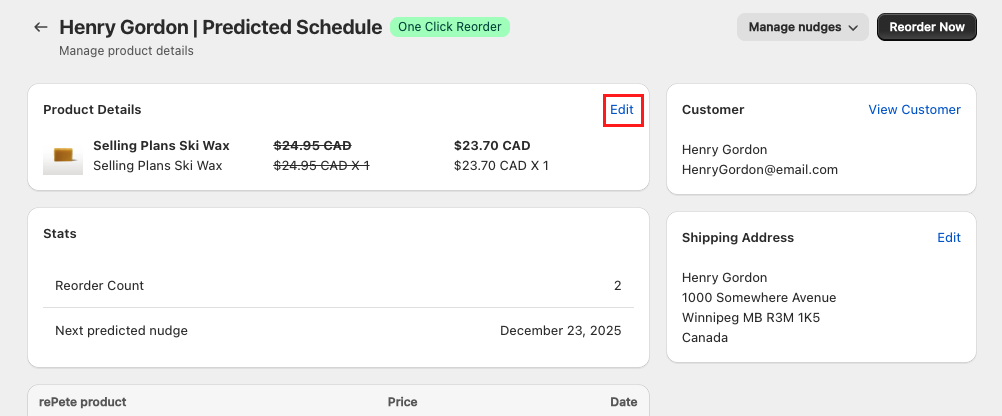
In the Product Details section, click Edit.
Click Change product.
In the product selector, select the new product.
Click the Select button.
Select which product price is offered in the customer’s nudge:
Honor Contract Price (default): Keeps the original product's price.
Use Product Price: Uses the new product’s price.
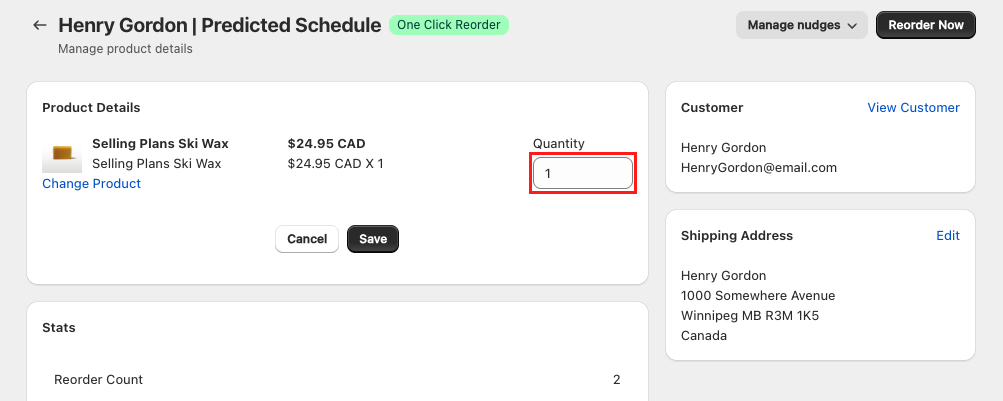
Optional: Change the quantity in the Quantity field.
Click Save.
Update product quantity
You can adjust the quantity of product that is offered in your customer’s nudge reminders. This is helpful for customers who prefer to order more products less often or less products more often.
Pro Tip: Nudges offer the same quantity of product the customer originally purchased. rePete automatically adjusts the timing of nudges when multiple quantities are purchased.
To update the quantity of a product in a Predicted Schedule, please follow the steps below.
In rePete, navigate to Customers.
Click on the customer’s name, then click on the Predicted Schedule containing the relevant product.
In the Product Details section, click Edit.
Updated the amount in the Quantity field.
Click Save.
Place a reorder (One Click Reorder only)
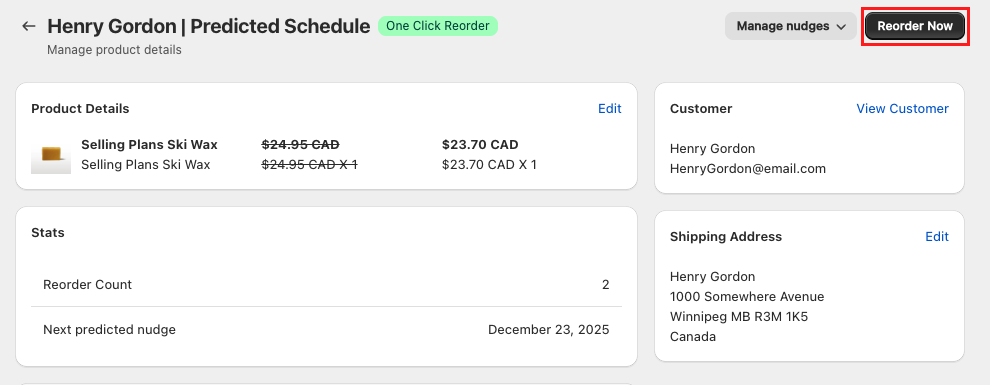
If needed, you can place reorders on behalf of customers who have the One Click Reorder tag applied to their Predicted Schedule.
To place a reorder for a customer, please follow the steps below.
In rePete, navigate to Customers.
Click on the customer’s name, then click on the Predicted Schedule containing the relevant product.
Click the Reorder Now button in the top right corner.
Click Confirm in the pop-up confirmation window.
Update shipping address (One Click Reorder only)
You can update the shipping address on a customer’s product schedule if the schedule has the One Click Reorder tag.
Note: This only changes the address for this specific schedule. It does not update the customer's Shopify profile or any other rePete schedules.
To update your customer’s shipping address, please follow the steps below.
In rePete, navigate to Customers.
Click on the customer’s name, then click on the Predicted Schedule containing the relevant product.
In the Shipping Address section, click Edit.
Enter the customer’s new shipping address.
Click Save.