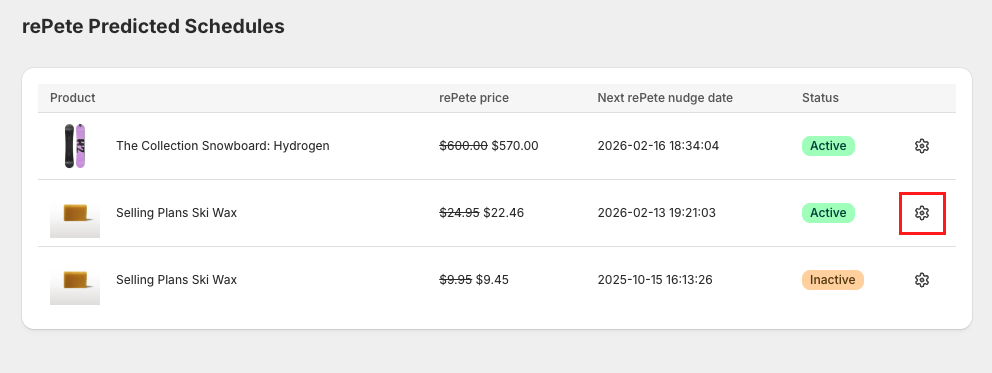
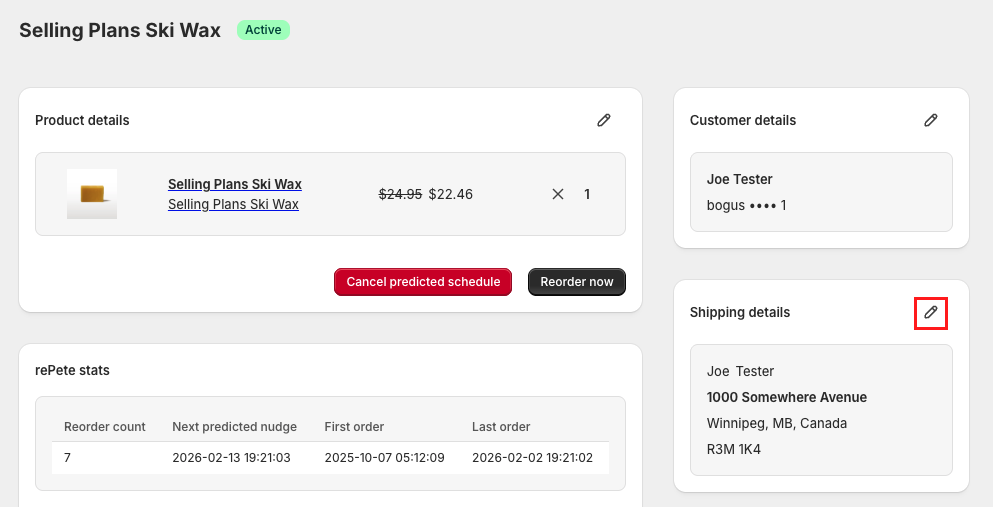
Managing Predicted Schedules: Customer View
The rePete Customer Portal gives your customers the ability to view and manage their Predicted Schedules. Customers can place reorders, cancel a Predicted Schedule, or update the quantity of product that appears in nudges, payment method, and shipping address.
The features available to edit can depend on whether the Predicted Schedule is tagged with One Click Reorder.
Note: Customers can also place reorders and manage nudges directly from Email & SMS Reorder Nudges and the rePete Widget.
This article shows you how customers can manage their Predicted Schedule details in the rePete Customer Portal.
Accessing the rePete Customer Portal
The rePete Customer Portal can be accessed through the storefront by clicking the gear icon in the rePete Widget.
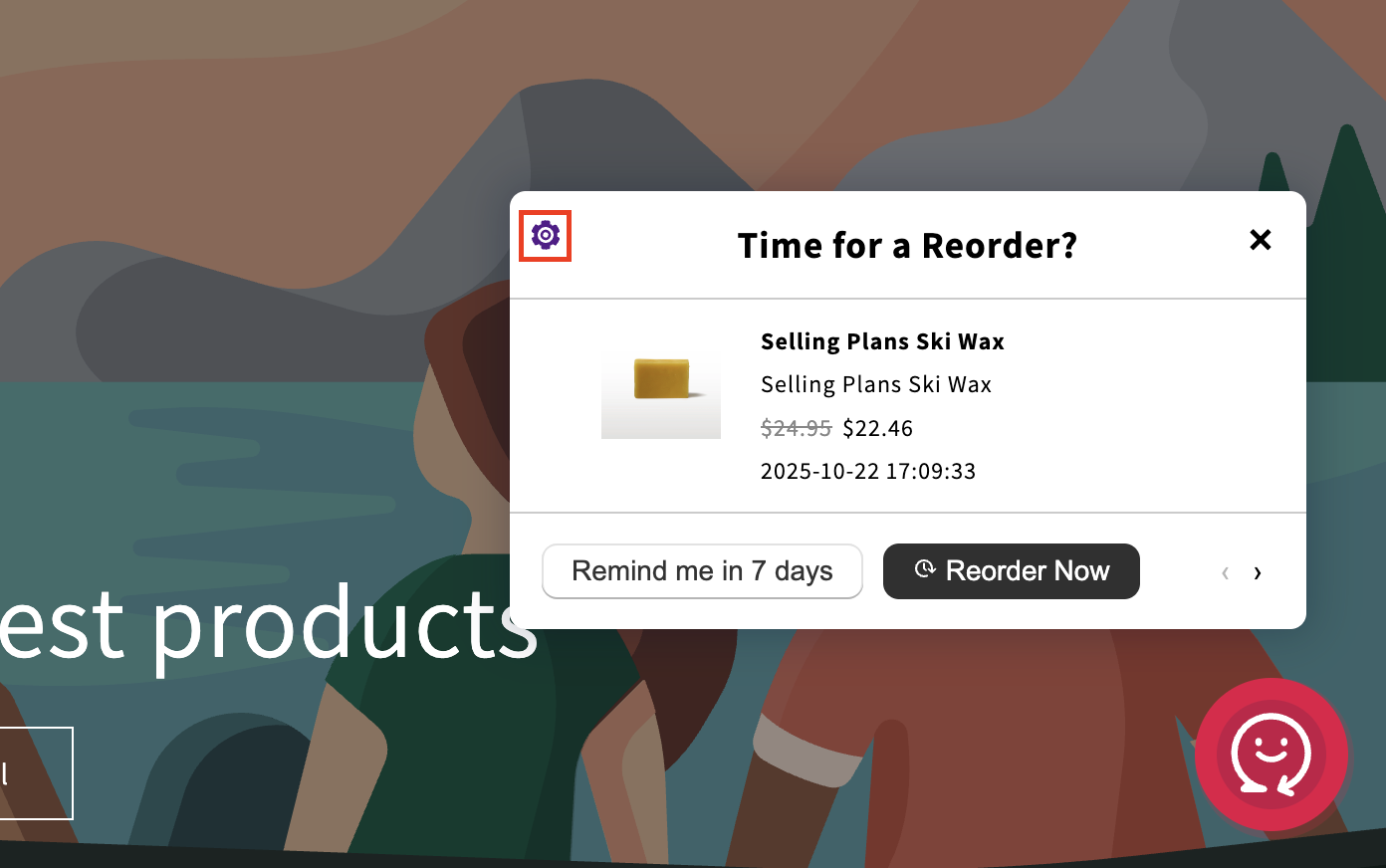
Your customers’ ability to access the portal can depend on the rePete Widget’s display configuration.
If the widget is configured to show on Reminders Only, customers won’t be able to access it until they have a reorder reminder due.
If the widget is configured to Never display, customers won’t be able to access the rePete Customer Portal at all.
If you want customers to be able to access the Customer Portal anytime, you can configure the rePete widget to display using the following configurations:
Always
With reminders
If subscribed customer
For step-by-step instructions on configuring the rePete Widget display, please visit rePete Widget.
Place a reorder
To access the rePete Customer Portal and place a reorder, your customers can follow the steps below.
Login to your store account and navigate to the storefront.
If the rePete Widget is not already open, click the rePete button to open it.
Click on the gear icon in the top left corner of the widget.
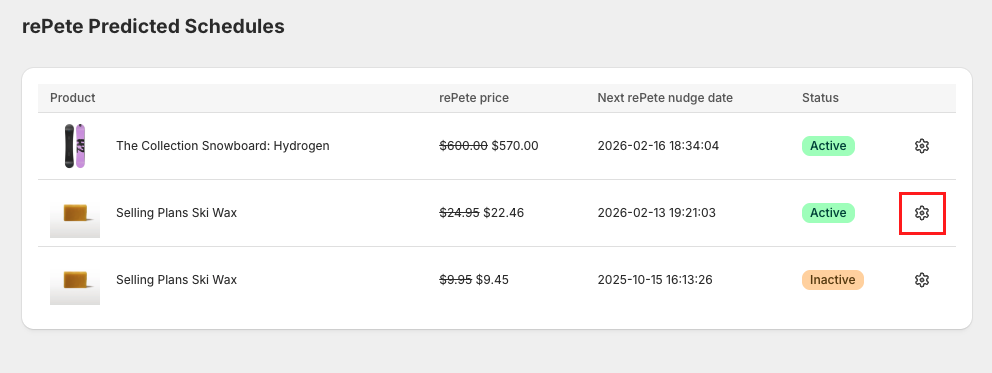
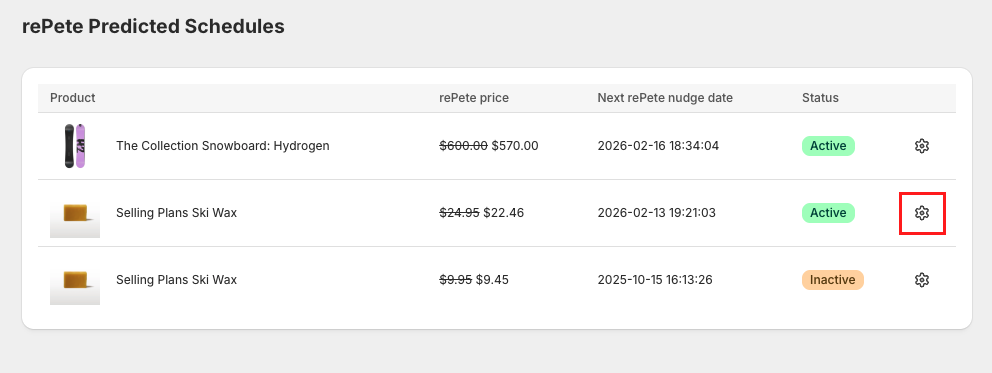
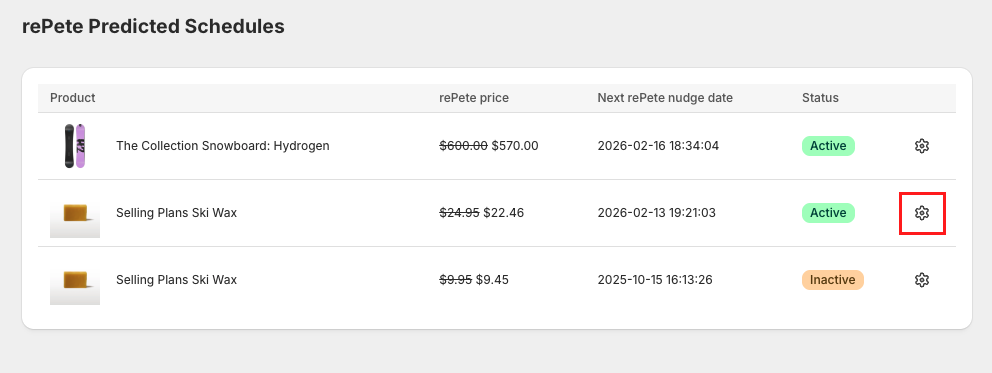
Click the gear icon for the relevant product's Predicted Schedule.
Click the Reorder Now button and use the following instructions to complete your order:
If you are directed to the store checkout page, complete the order as normal.
If you are directed to the storefront pop-up, click Reorder Now once more to confirm.
Cancel a Predicted Schedule
Customers can cancel a product's specific Predicted Schedule. This stops all reorder nudge reminders for that product.
To cancel a product's Predicted Schedule, your customers can follow the steps below.
Login to your store account and navigate to the storefront.
If the rePete Widget is not already open, click the rePete button to open it.
Click on the gear icon in the top left corner of the widget.
Click the gear icon for the relevant product's Predicted Schedule.
Click the button labeled Cancel predicted schedule.
Click Cancel in the pop-up modal to confirm.
Change product quantity (One Click Reorder only)
Customers can change the quantity of product that appears in their nudge reminders if they have the One Click Reorder tag applied to their Predicted Schedule.
Pro-Tip: Reorder reminders offer the same quantity of product the customer originally purchased. rePete automatically adjusts the timing of nudges when multiple quantities are purchased.
To change the product quantity for a specific Predicted Schedule, your customers can follow the steps below.
Login to your store account and navigate to the storefront.
If the rePete Widget is not already open, click the rePete button to open it.
Click on the gear icon in the top left corner of the widget.
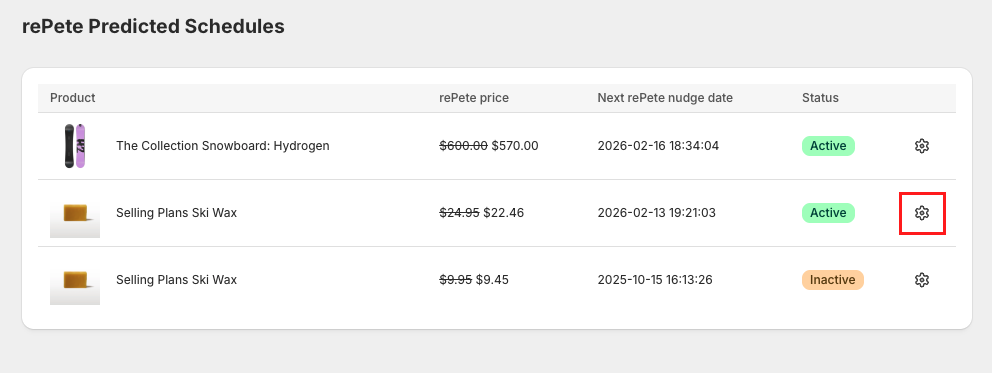
Click the gear icon for the relevant product's Predicted Schedule.
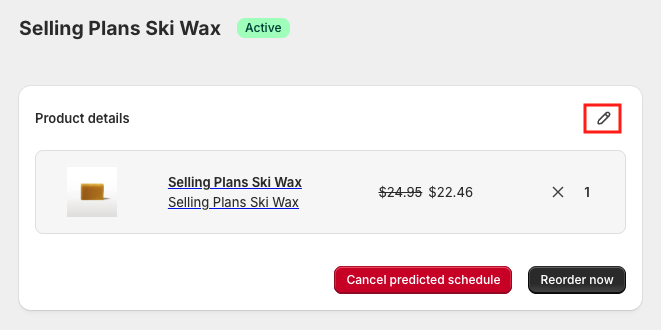
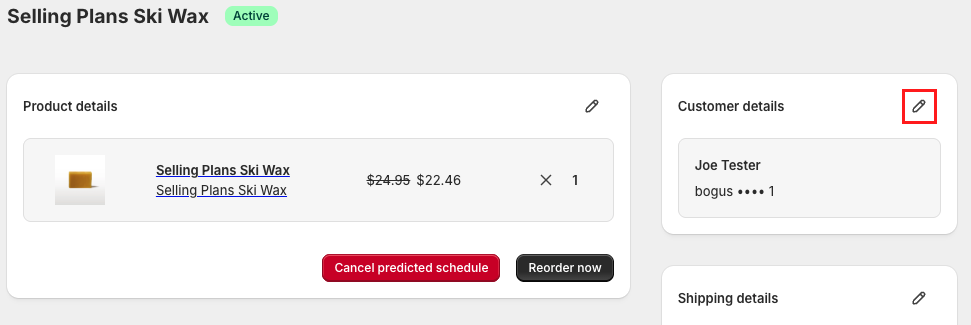
Click the pencil icon in the Product details section.
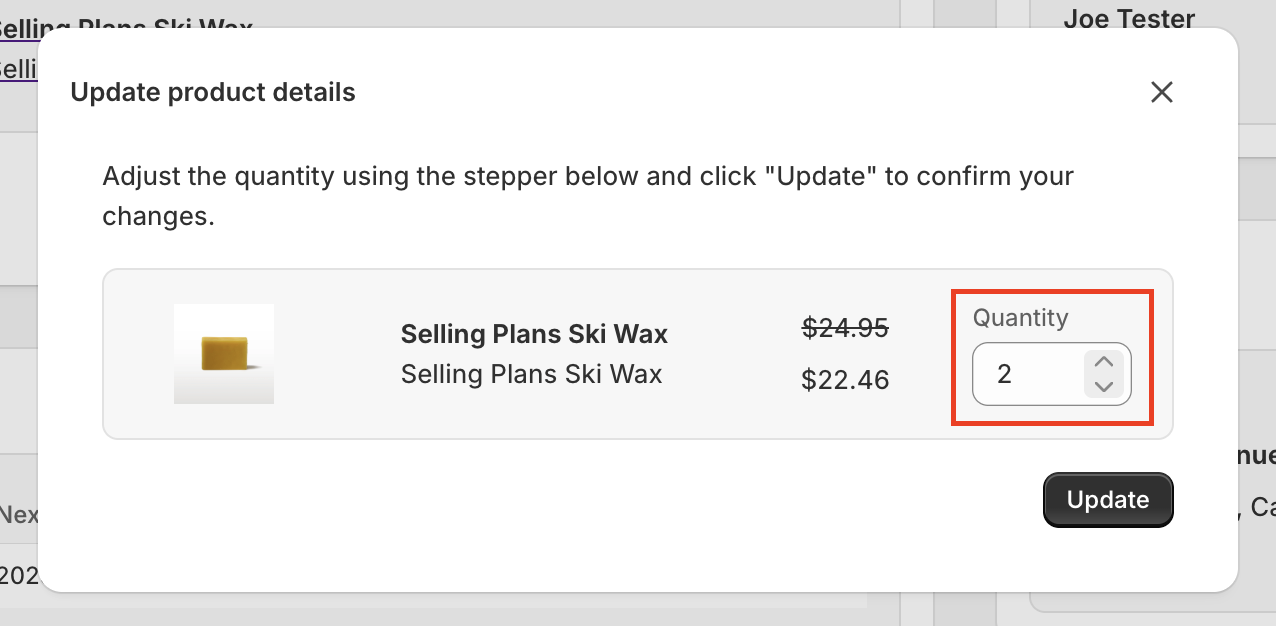
Update the quantity in the Quantity field.
Click Update.
Update payment method (One Click Reorder only)
Customers with One Click Reorder can select an alternate payment method for a specific Predicted Schedule, if they have more than one payment method in their Shopify profile.
To update their payment method, your customers can follow the steps below.
Login to your store account and navigate to the storefront.
If the rePete Widget is not already open, click the rePete button to open it.
Click on the gear icon in the top left corner of the widget.
Click the gear icon for the relevant product's Predicted Schedule.
Click the pencil icon in the Customer details section.
Expand the Payment method dropdown menu, and select the new payment method.
Click Update.
Update shipping address (One Click Reorder only)
Customers with One Click Reorder can select an alternate shipping address for a specific Predicted Schedule, if they have an alternate shipping address in their Shopify profile.
Note: This only changes the address for this specific Predicted Schedule.
To update their shipping address, your customers can follow the steps below.
Login to your store account, and navigate to the storefront.
If the rePete Widget is not already open, click the rePete button to open it.
Click on the gear icon in the top left corner of the widget.
Click the gear icon for the relevant product's Predicted Schedule.
Click the pencil icon in the Shipping details section.
Select an alternate address using the Select address dropdown menu.
Click Update delivery method.