Convertible Products
Convertible Products allow you to send reorder nudge reminders for a product different from the one the customer purchases.
This is great for:
Converting samples to full-size products.
Offering refills after a kit or starter product is purchased.
Offering related or higher-value items after an initial purchase.
Functionality
Convertible Products are managed as groups. Each group represents a single conversion setup.
Each Convertible Product group allows you to set:
One or more Initial Products (the products the customers purchase first)
One Converts to product (the product customers receive nudges for)
When a customer purchases an Initial Product, rePete creates a Predicted Schedule to nudge them to order the Converts to product.
Important considerations
Product rules and eligibility
Initial Products:
Do not need to be active rePete Products.
Can be Excluded Products.
Can belong to only one Convertible Product setup at a time.
Converts to products:
Must be an active rePete Product.
Cannot be an Excluded Product.
Can be used across multiple Convertible Product setups.
Excluding products
Products that belong to a Convertible Product setup can’t be excluded individually using the Exclude products action. To remove a product, the setup must be edited or deleted.
Create a Convertible Product
Before you can configure a Convertible Product in rePete, you must ensure all Convert to products (the products you want to appear in nudges) are first on the Standard rePete Products list.
Note: New Convertible Product setups do not affect customers with existing Predicted Schedules for standard rePete Products. They are available to new customers only.
To configure a Convertible Product setup, please follow the steps below.
In rePete, go to Products.
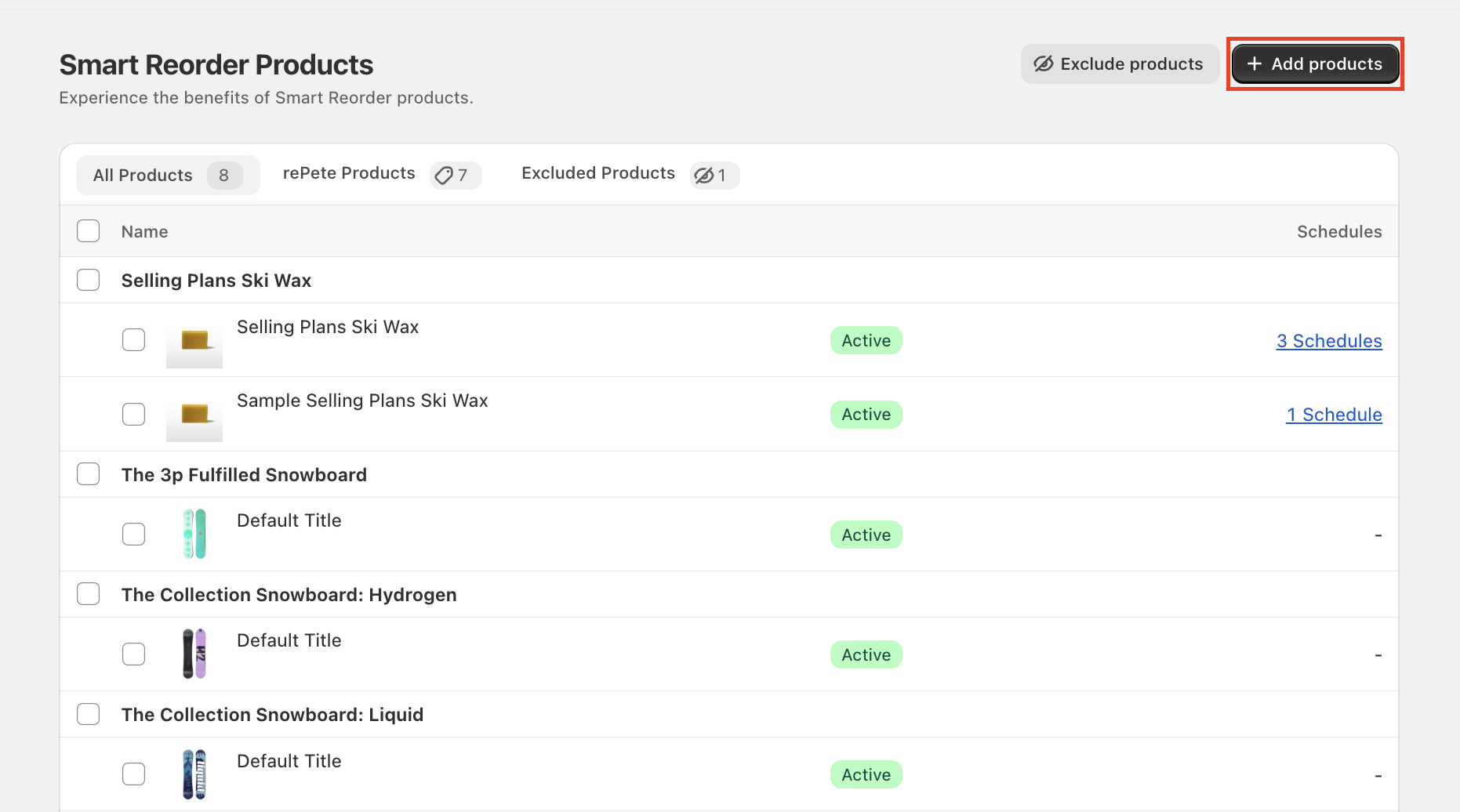
Click Add products in the top right corner.
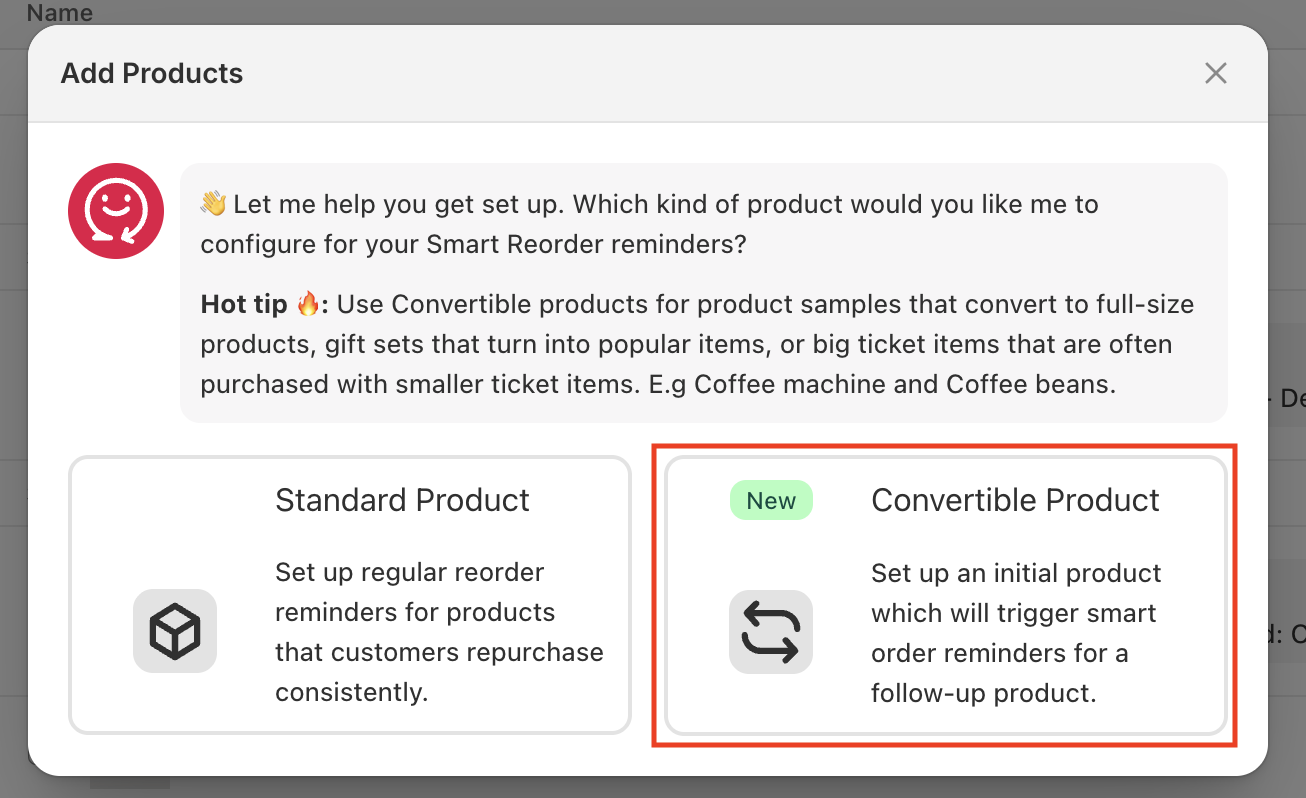
In the modal, select Convertible Product.
Follow the on-screen instructions to finish configuring your Convertible Product.
The conversion group will now appear in the Convertible Products tab.
Edit a Convertible Product
When multiple Initial Products convert to the same product with the same Initial Reminder Timeline, they are managed together as a group.
If you need different nudge reminder timing or a different Converts to product for a specific Initial Product, you must remove it from the group and create a new one.
Removing a product from this group excludes it from rePete and stops nudge reminders for any customers with existing Predicted Schedules associated with that product. You can swap the product for an active rePete Product, which resumes nudges.
To edit a Convertible Product setup, please follow the steps below.
Go to Products.
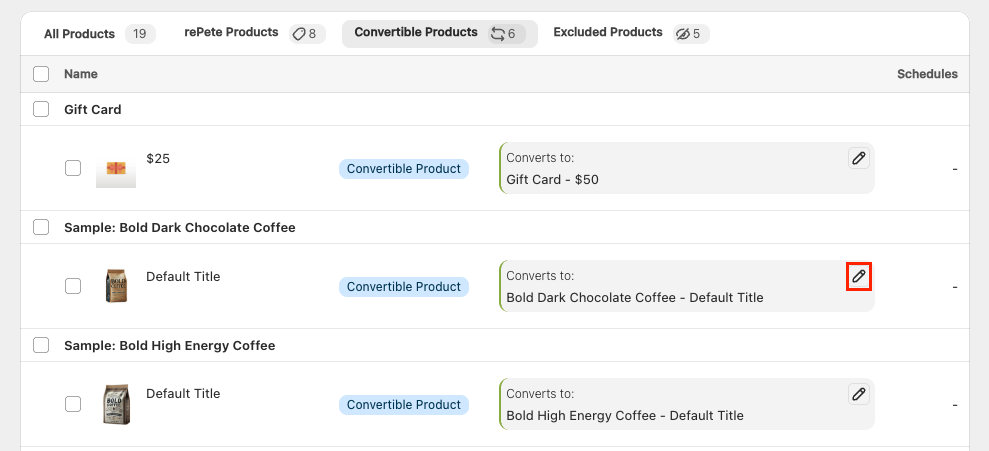
Click on the Convertible Products tab.
Click the edit (pencil) icon for the group you want to update.
Make your desired changes as needed.
Click Update Convertible Product.
Delete a Convertible Product
Deleting a Convertible Product has the following effects:
All initial and conversion products are moved to Excluded Products. To make these products eligible for nudges again, you must add them back to rePete.
Nudges stop for any existing customers with a Predicted Schedule for the conversion product. These Predicted Schedules are not deleted and can be updated by swapping the product to an active rePete Product.
To delete a Convertible Product group, please follow the steps below.
Go to Products.
Click on the Convertible Products tab.
Click the Edit (pencil) icon for the group you want to update.
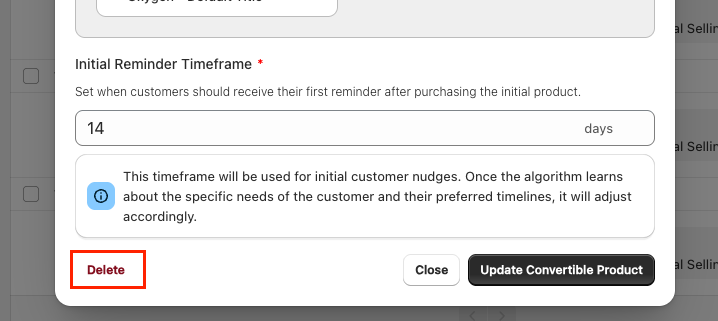
In the bottom left corner of the modal, click Delete.
Click the Delete button in the confirmation modal.