rePete Buy Button
The rePete Buy Button can be added to your store’s product pages to allow customers to benefit from rePete discounts from their very first purchase. In addition, once a customer places an order using the Buy Button, One Click Reordering is enabled for future nudge reminders.
Customer experience
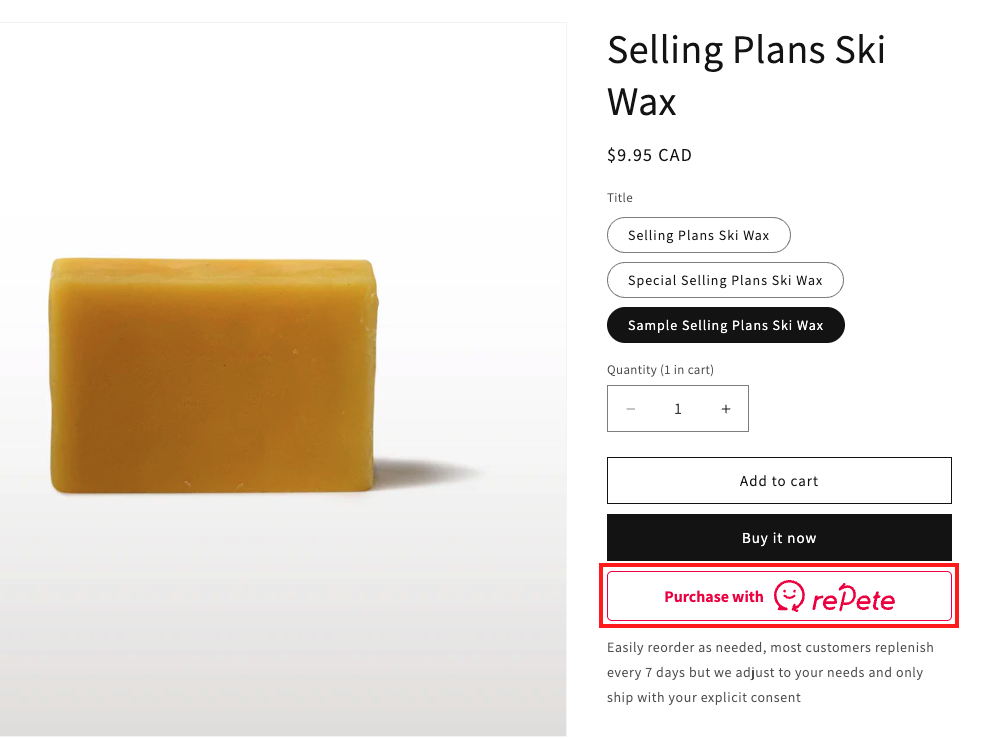
The rePete Buy Button appears on product pages of rePete Products. Using this button, customers can add the product to their cart and checkout with other non-rePete products at the same time. If a rePete discount has been configured for the product, customers will receive the discount on their order.
Because the rePete Buy Button is available for initial purchases and not reorders, customers will receive the rePete discount that is applicable on the first order count only, even if they have reordered before.
Once a customer completes their order, their payment information is securely saved for One Click Reorders on future nudges.
Example
Add, show, remove, or hide the rePete Buy Button
Note: The rePete Buy Button only appears only if it's been added to your theme (and configured to show) and One Click Reorder is enabled for your store. If One Click Reorder is not enabled, then the rePete Buy Button does not display. You can enable or disable One Click Reorder in your rePete Settings under Customer experience.
From your Shopify admin, navigate to Sales channels > Online Store > Themes.
Click Customize for the theme where rePete is installed.
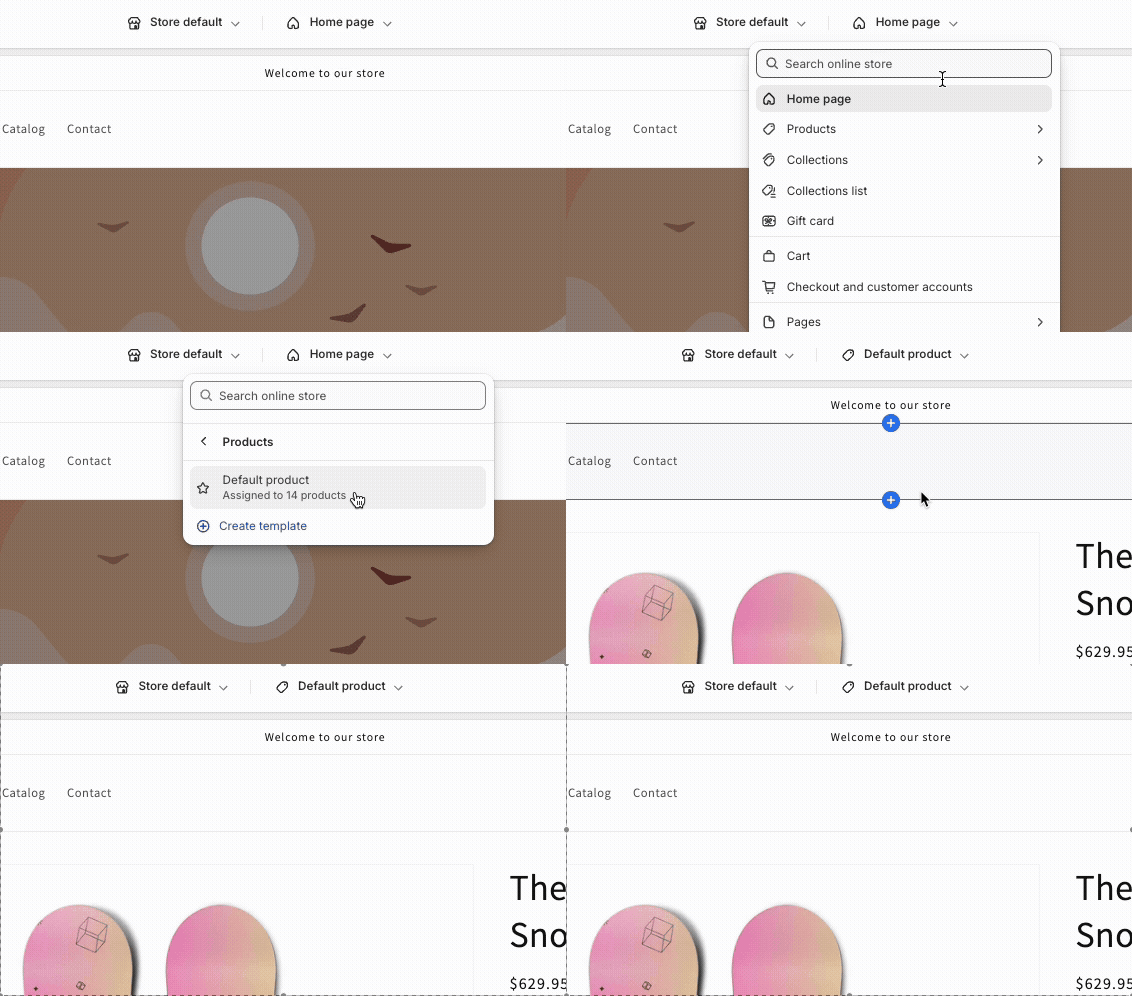
From the template dropdown menu at the top of the page, select Products, then select the product template you’d like to use.
Expand the Template section in the left menu.
Follow the instructions below depending on your goal:
Add the rePete button:
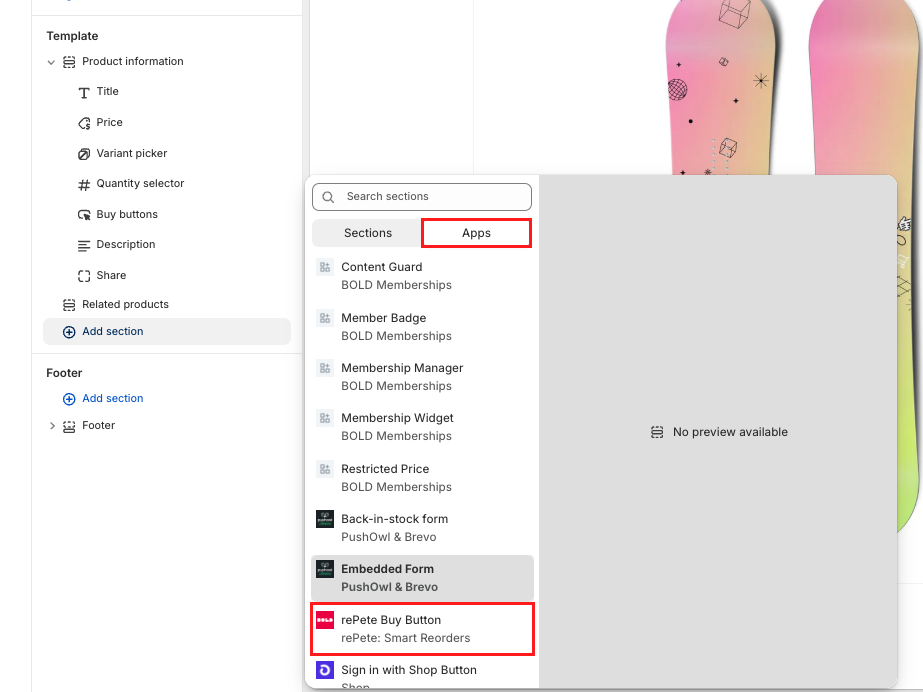
Click Add section.
Select the Apps tab, then click on rePete Buy Button to add it.
Optional: From the menu, drag and drop the rePete Buy Button to your preferred position on the page.
Show the rePete button:
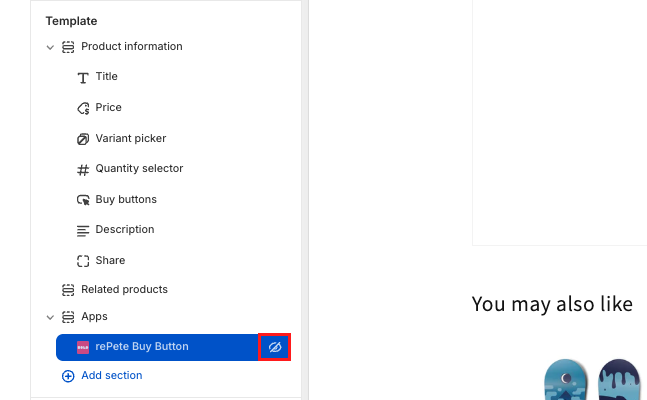
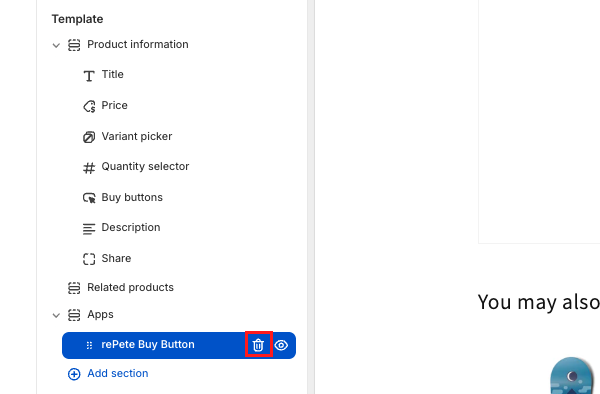
If the button is added but hidden, hover over rePete Buy Button and click the eyeball icon to show it.
Optional: From the menu, drag and drop the rePete Buy Button to your preferred position on the page.
Hide the rePete button:
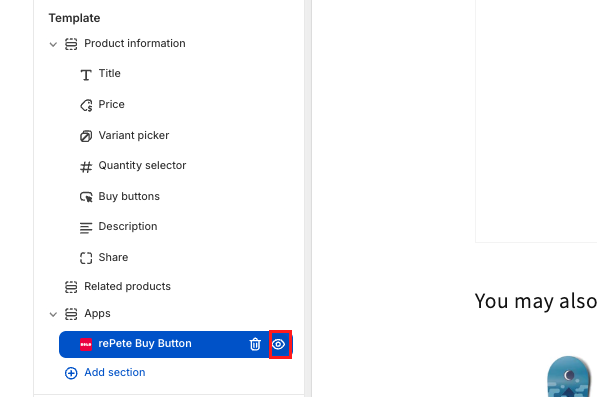
Hover over rePete Buy Button and click the eyeball icon to hide it.
Remove the rePete button:
Hover over rePete Buy Button and click the trashcan icon to remove it.
Click Save at the top of the page.