
rePete Widget
The rePete Widget gently nudges customers when they are due to reorder by displaying a reminder message on the storefront. In the widget, customers can see their rePete products, click to reorder, delay reminders, and more.
Customer experience
The rePete Widget consists of two parts, the button and the main widget panel. By default, the widget is configured to appear on the storefront only when customers are due for a reorder. The button can be used to expand the main widget panel if it's configured to display.
Note: Customers must be currently logged in to their store account to see the widget contents. If a customer is not logged in when they click the button, a No rePete Products message is displayed.
From the widget, customers can:
View all their scheduled rePete products.
See applicable rePete discounts.
Click Reorder Now to complete the purchase.
Delay nudge reminders.
Access the rePete Customer Portal by clicking the gear icon.
Example
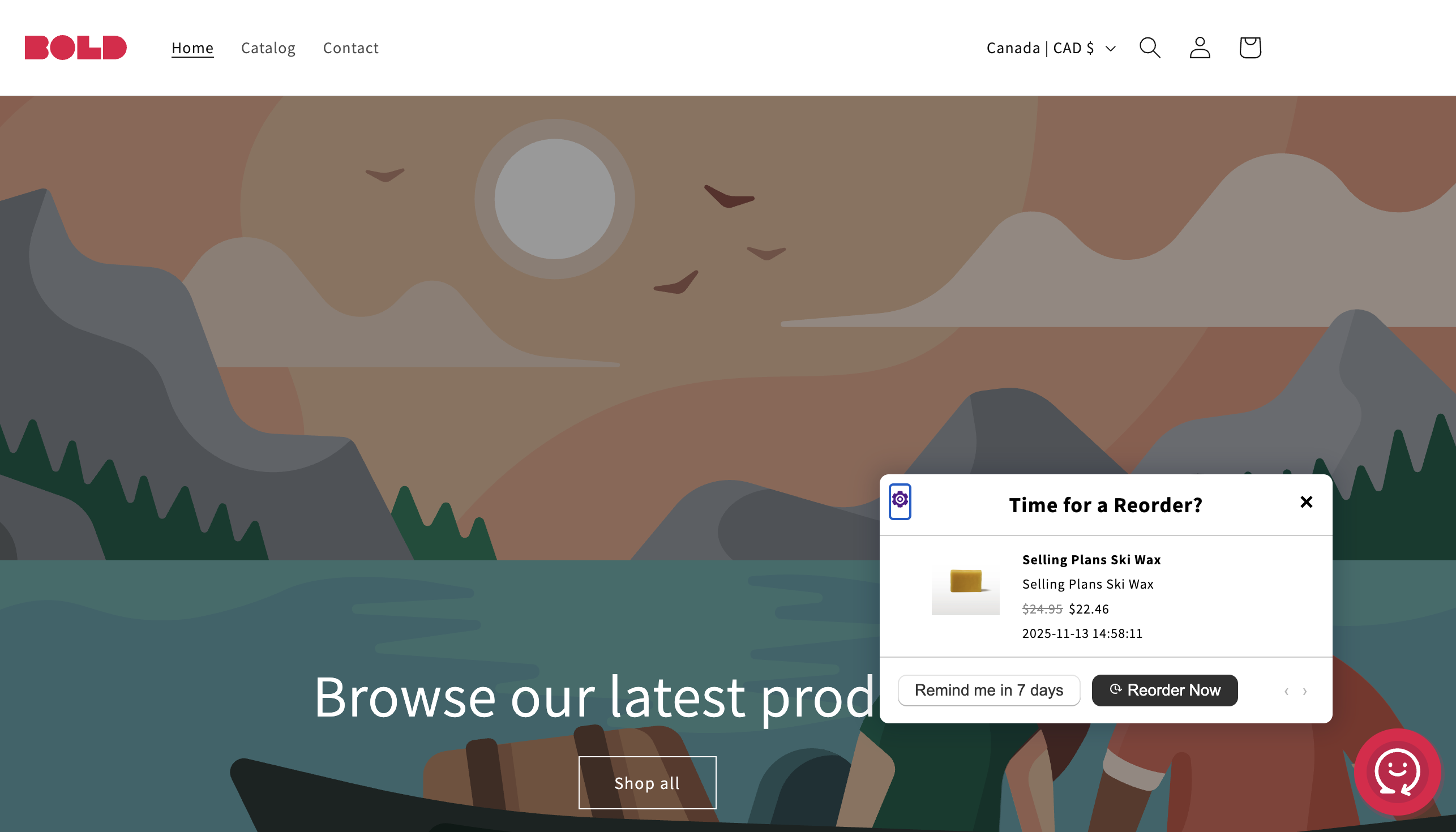
Reordering from the rePete Widget
When a customer clicks the Reorder Now button, rePete directs them to complete their order based on the Customer Experience that is enabled in your rePete Settings. By default the Smart Cart experience is enabled for all stores. Read more about this in Smart Cart.
Read more about the checkout experience in Order Experience & Channels Overview.
Configure the rePete Widget display
To customize how and when the rePete widget is displayed to customers, please follow the steps below.
From your Shopify admin, navigate to Sales channels > Online Store > Themes.
Click Edit theme for the theme where rePete is installed.
Click the app embeds icon in the left sidebar.
Find and click on the rePete Widget to expand the settings.
Expand the dropdown menu next to Show the rePete Widget, and select a setting to configure when the rePete Widget and button is displayed to customers.
Note: For more information on each setting, please see the What the customer sees section below.
Use the slider to choose how many Days before the next nudge to show the widget (between 1-5).
To configure the position of the widget on your storefront, adjust the following settings:
For Customer widget Y placement, select Top, Center, or Bottom.
For Customer widget X placement, select Left, Center, or Right.
Click Save in the top right corner of the page.
What the customer sees
The table below describes how each option in the Show the rePete Widget setting affects when and how the widget components are displayed to customers.
Setting | Logged-in (Nudge Due) | Logged-in (Nudge Not Due) | Guest Customers |
Always | Button & widget | Button only | Button only |
With nudges | Button & widget | Hidden | Hidden |
If subscribed customer (default) | Button & widget | Button only | Hidden |
Nudges only | Widget only | Hidden | Hidden |
Never | Hidden | Hidden | Hidden |