Shopify Flow & rePete
rePete is designed to work alongside the other apps in your Shopify ecosystem. Using Shopify Flow, rePete can share events with other apps and automate actions for more advanced customer experiences.
This article provides an overview of how rePete works with Shopify Flow and the types of automations you can build using rePete events and actions.
Shopify Flow automations
Shopify Flow allows you to build automated workflows that react to events inside your store. rePete exposes trigger events and actions that can be used as triggers or steps within these workflows.
You can use Shopify Flow with rePete to:
Send events to Klaviyio for custom email flows.
Trigger push notifications through PushOwl.
Convert churned subscribers into rePete customers.
rePete triggers & actions
Trigger events
Trigger | Data sent |
Nudge should be sent |
|
Actions
Actions | Required data |
Create Product Schedule |
|
Cancel Product Schedule |
|
Pre-built Shopify Flow templates
To help you get started, rePete offers pre-built templates inside Shopify Flow for both Klaviyo and Push Owl integrations.
Use-cases include:
Klaviyo: Send events to Klaviyo for custom messaging flows.
PushOwl: Trigger web push notifications when a reorder nudge should be sent.
Note: rePete also supports a direct integration with Klaviyo. For more information, please visit Klaviyo & rePete.
Important considerations
Shopify Flow must be installed and enabled in your Shopify admin.
Pre-built templates are available for some integrations, but you can also build custom workflows.
When using Shopify Flow, rePete sends timing signals only. Message content must be handled by the connected app as rePete generated messaging is not used.
Setup
Set up a pre-built Shopify Flow template
To install and customize a pre-built rePete template, please follow the steps below.
In the Shopify admin, navigate to Apps > Shopify Flow.
Click Browse templates.
Search for rePete.
Select a template (for example, rePete + Klaviyo or rePete + PushOwl).
Update the template’s conditions and actions to match your goals.
If you are using the rePete + Klaviyo template, you must enter your Klaviyo Public API Key in the Klaviyo action within Shopify Flow before the workflow can run.
Click Save and turn the workflow On.
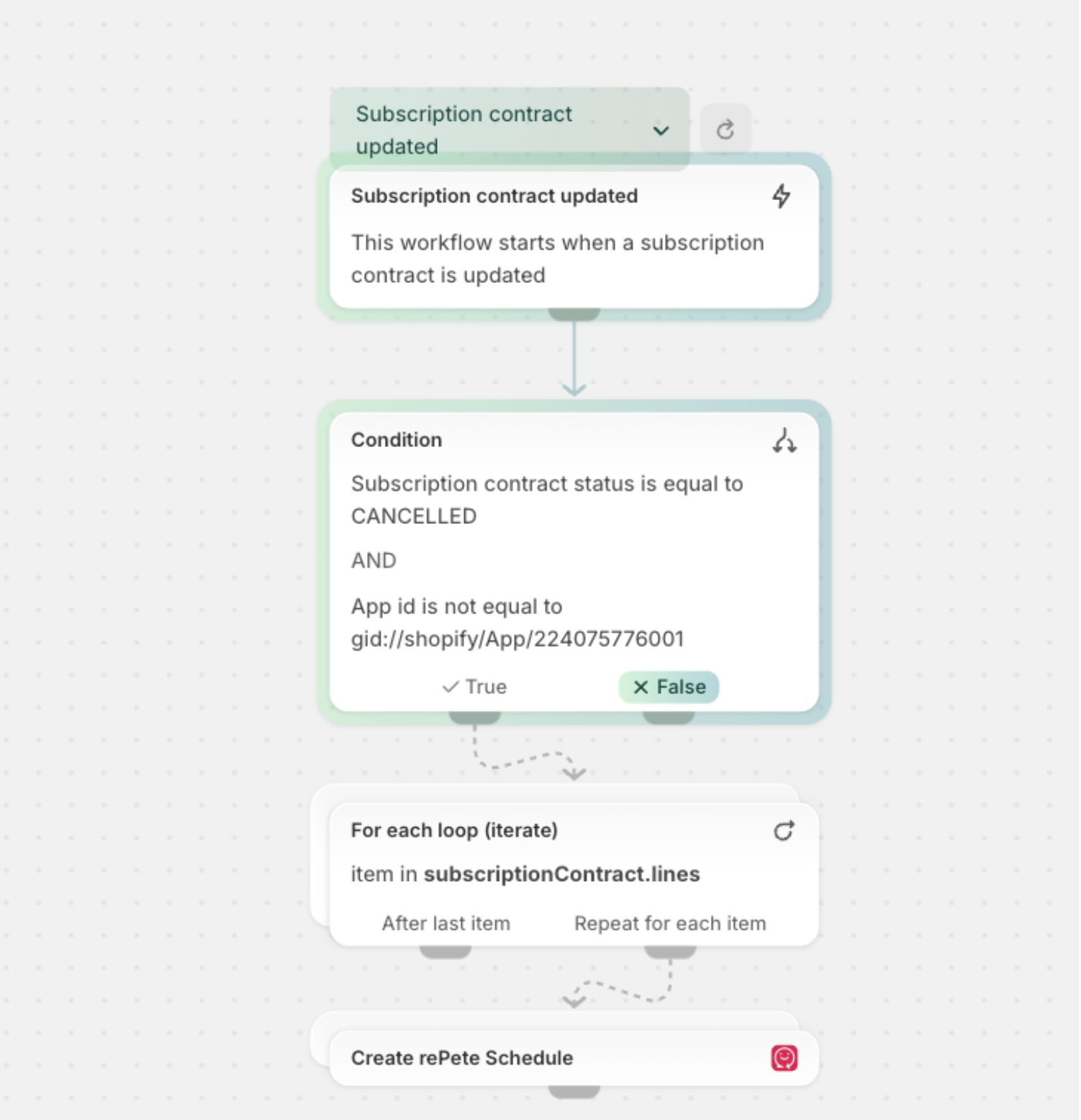
Set up a flow to give churned subscribers Predicted Schedules
You can use Shopify Flow to create a Predicted Schedule for a customer when they unsubscribe.
To create this workflow, please follow the steps below.
In the Shopify admin, navigate to Apps > Shopify Flow.
Download this file and import it into Shopify Flow.
Click Import.
A flow should be created as shown in the example below:
Example