
Create a Free Gift Offer
A Free Gift offer rewards customers with a bonus product when their cart meets a qualifying condition, for example, buy two of a featured product and receive a free sample, or spend $50 and get a free accessory. Free Gift offers are a great way to move slower-selling inventory, increase average order value, and surprise and delight your customers without changing their checkout flow.
Free Gift offers are always free and are added to the cart automatically as soon as the trigger and any optional conditions are met. The customer doesn’t need to click anything; the gift simply appears in their cart at $0.
Note: If you want to give customers a choice between multiple free gifts or samples, create a Cross-sell (Buy X Get Y) offer instead and set the discount to free. That offer type lets the customer pick which free gift they want from the products you present. See Create a Cross-sell Offer.
Before you start
-
Make sure the Bold Upsell app embed is enabled in your theme. See Activate Bold Upsell.
-
Choose the single product variant you want to give away as the free gift.
-
Decide on the qualifying condition for your offer, such as specific products or collections, a date range, cart value, or quantity threshold.
Step 1: Choose Free Gift as the offer type
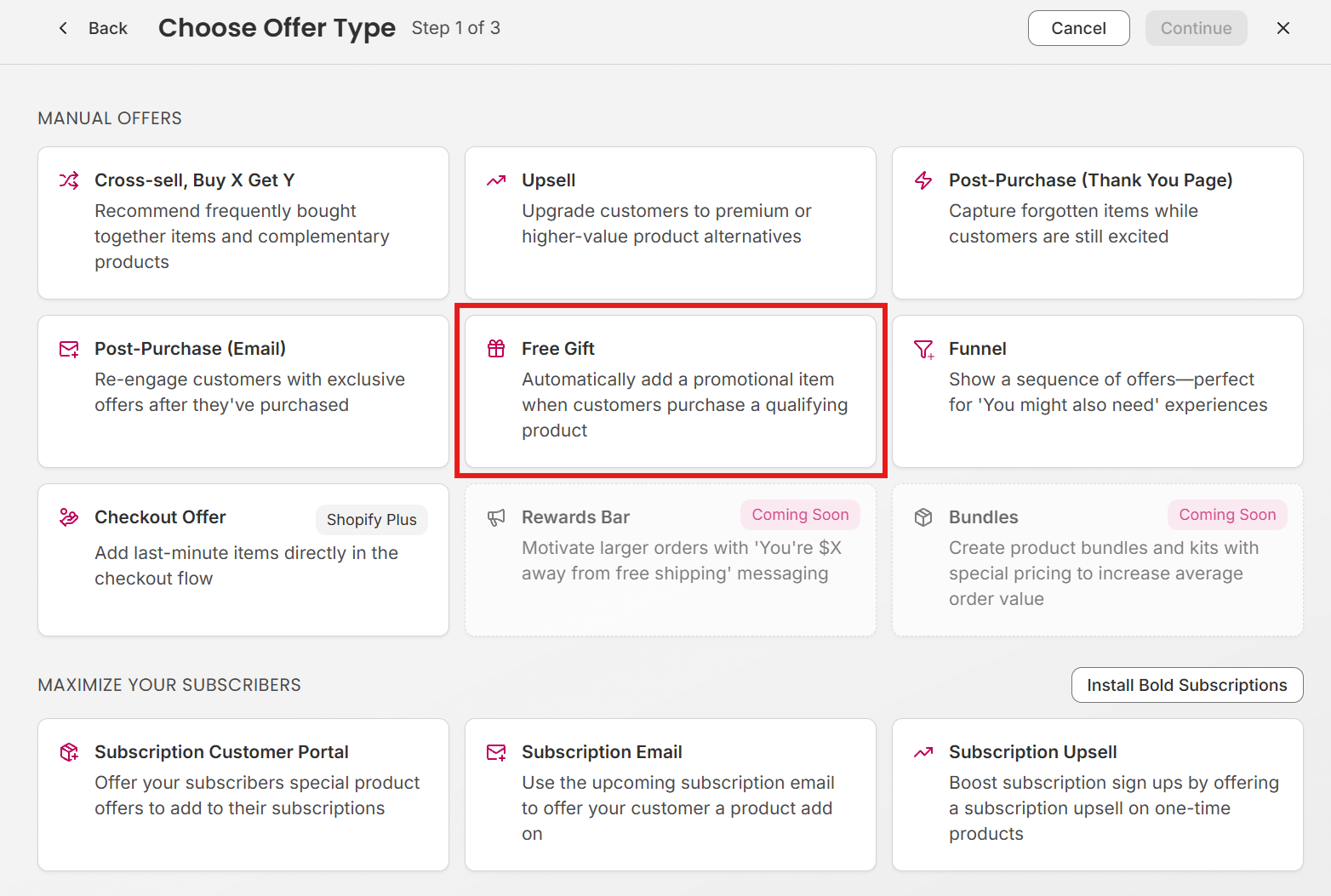
From the Bold Upsell dashboard, navigate to the manual offer page and click Create offer, then select Free Gift from the list of manual offer types.
Step 2: Configure your offer
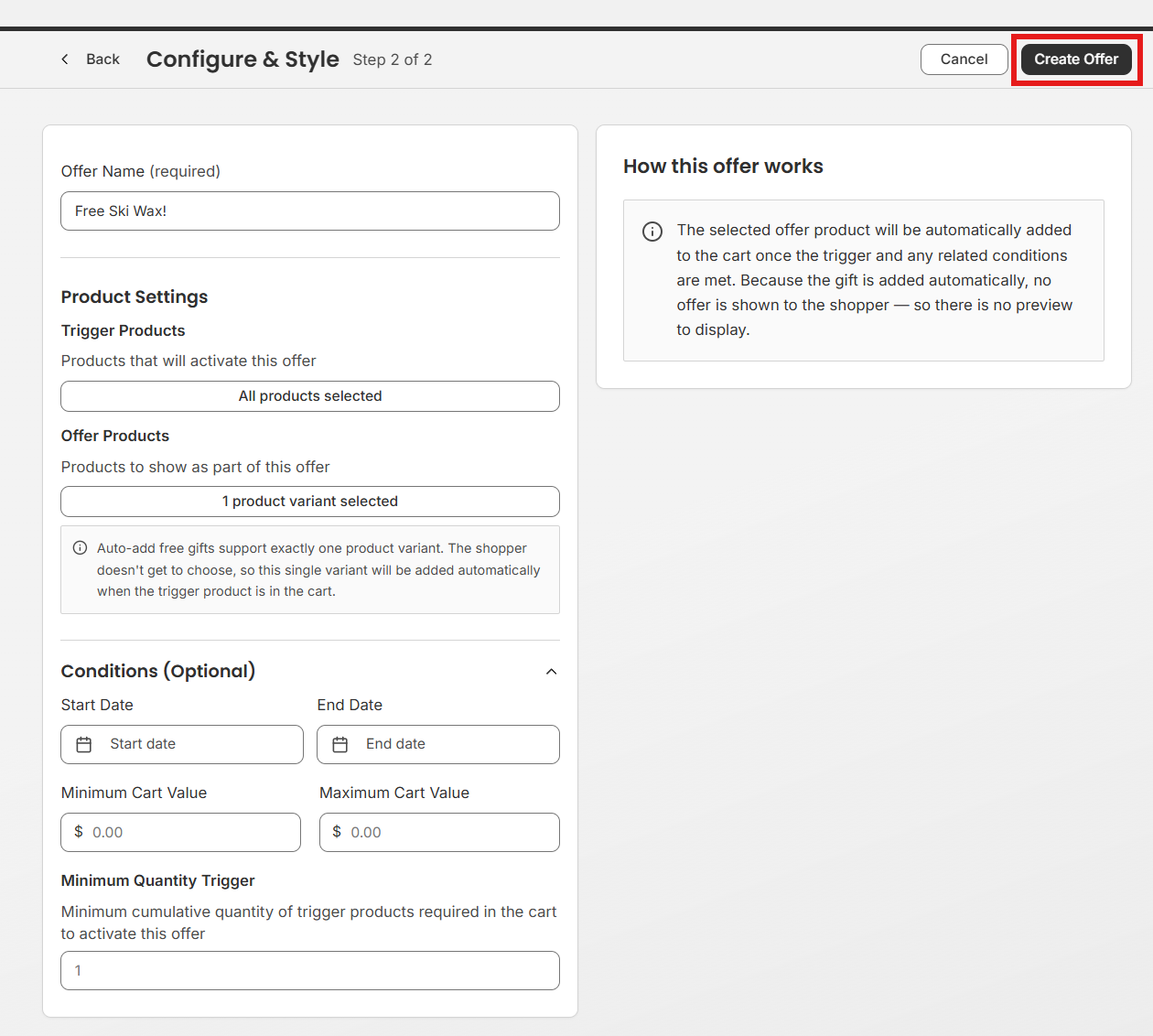
On the Free Gift configuration page, fill in the following details.
Trigger
Choose what must be in the customer’s cart for the free gift to be added. Options include:
-
Specific products - Select one or more products that must be in the cart.
-
Specific collections - Any product from the chosen collection or collections will qualify.
-
Any product - The gift is added to every cart that meets the other conditions.
-
Cart value threshold - The cart subtotal must reach a minimum amount.
-
Minimum quantity - The cart must contain at least a set number of qualifying items.
-
Date range - The window of time when you want the free gift promotion to qualify.
Step 3: Optional conditions
Use conditions to fine-tune when the Free Gift offer is eligible to run. The gift is added automatically as soon as the trigger and all selected conditions are met.
-
Date range - Schedule the offer to start and end on specific dates.
-
Cart value minimum - Require the cart subtotal to reach a specific amount before the gift is added.
-
Minimum quantity - Require a specific number of qualifying items in the cart.
Step 4: Save and publish
Click Create offer to publish your Free Gift offer. As soon as it’s active, the gift will be added to the cart automatically any time a customer’s cart meets the trigger and condition criteria. You can pause, edit, or duplicate the offer at any time from the offers list.
Tips for high-performing Free Gift offers
-
Pick a gift that complements the qualifying product. A relevant gift feels more valuable than a generic one.
-
Set a clear threshold customers can easily reach, such as being one item away from qualifying.
-
Use Free Gift for a single, curated giveaway. If you want shoppers to choose from multiple options, use a Cross-sell offer with a free discount instead.
-
Test your offer in an incognito browser to confirm the gift is added automatically and shows at $0.
-
Monitor performance from the Dashboard to see how the offer impacts average order value and conversion rate.