
Create a Checkout Offer
A Checkout offer is a pre-purchase upsell that appears on the Shopify checkout page itself, right where the customer is about to pay. It is a great spot for last-minute add-ons, warranties, samples, or low-friction complements to what is already in the cart. Checkout offers are available only on Shopify Plus stores.
Use cases
Offer a warranty or protection plan before payment.
Suggest a small accessory or sample that pairs with the cart.
Promote a limited-time add-on at the highest-intent moment.
Before you start
Your store must be on Shopify Plus. Checkout offers require Shopify Plus to render in the native checkout.
The Bold Upsell checkout extension is enabled in your checkout editor in your Shopify admin under Settings > Checkout > Configurations > Edit. In your checkout editor, navigate to the Apps icon and add In-Checkout Offer to your checkout.
Step 1: Choose Checkout as the offer type
From the Bold Upsell admin:
Go to Manual Offers and click Create Offer.
On the Choose Offer Type page, select Checkout Offer.
Click Continue.
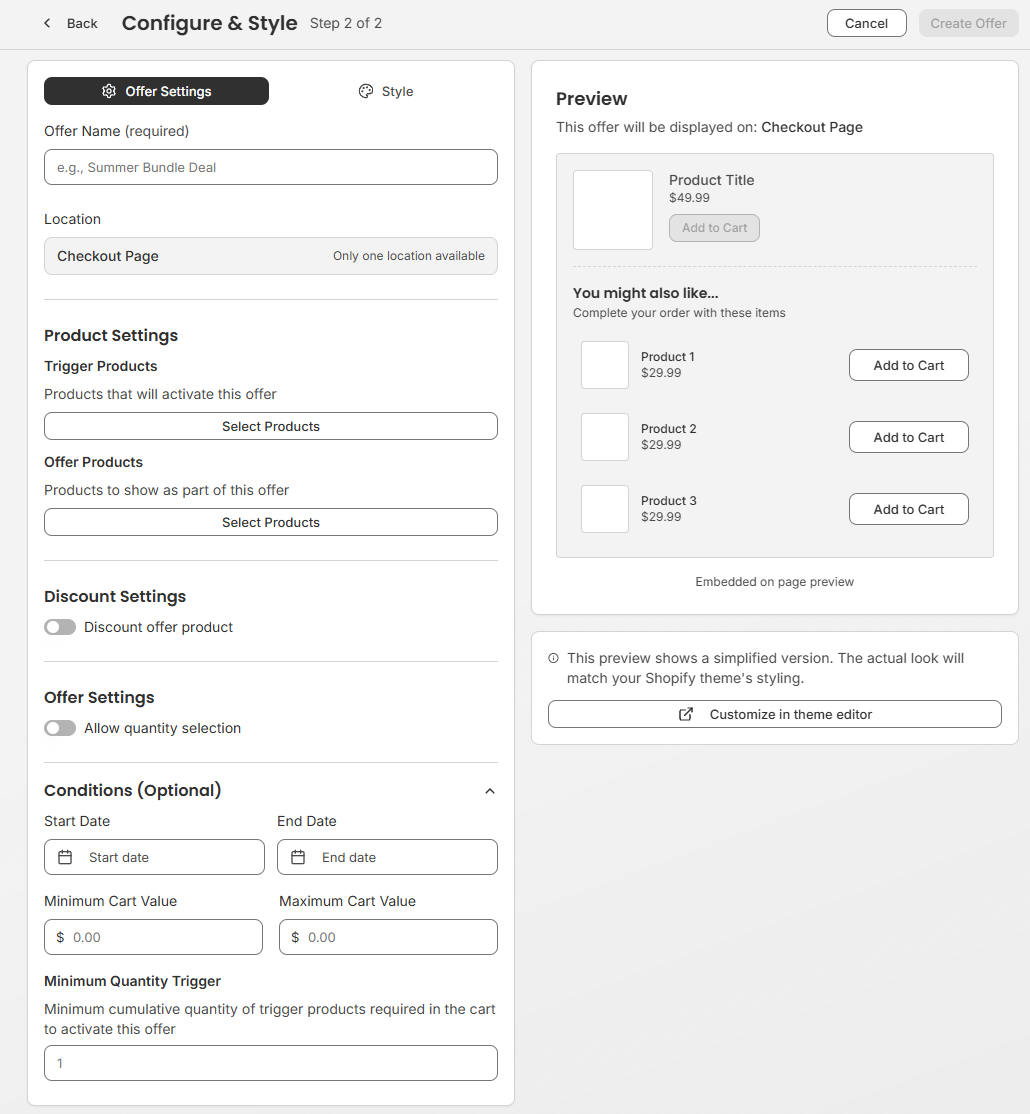
Step 2: Configure your offer
On the configuration page you will set up everything the shopper sees and how the offer triggers.
Name your offer
Give the offer an internal name so you can identify it later in the Manual offers list. Shoppers will never see this name.
Choose your trigger products
The trigger is the product(s) the shopper must have in the checkout for the offer to appear.
Click Select products.
Pick one or more products, specific variants, or an entire collection.
Click Save selection.
Choose the offer product
Pick the product or products you want to offer at the checkout.
Under Offer Products, click Select Products.
Pick one or more products, specific variants, or an entire collection.
Click Save selection.
Optional settings
Enable any of the following to fine-tune the offer:
Discount Settings - apply a percentage or fixed discount to the offer product as an incentive to accept.
Allow quantity selection - let shoppers choose how many of the offer product they add.
Optional: Add conditions
Conditions control when the offer is eligible to show:
Date range - run the offer only between a start and end date (great for launches and seasonal promos).
Cart value minimum/maximum - only show the offer when the checkout total reaches a threshold.
Minimum quantity trigger - only show the offer when the trigger product has at least a certain quantity in cart.
Step 3: Style the offer
Under Style, configure the title and description of the offer:
Write your title and description
Write a short, benefit-led title and a one-line description. Customize the call-to-action button text (for example, Add to next order).
Preview and publish
Use the live preview on the right to check the pop-up styling, then click Publish to take the offer live. You can return to the Manual Offers list any time to pause, edit, or delete it.