
Create a Post-Purchase (Thank You Page) Offer
A Post-Purchase offer appears after the customer completes checkout but before they land on the order status page. It lets shoppers add one more item to their order with a single click, with no need to re-enter payment or shipping details. The new item is billed against the original payment method and ships with the original order.
Because the customer has already committed to buying, post-purchase offers often convert at higher rates than pre-purchase upsells and add incremental revenue without disrupting your checkout flow.
Before you start
Make sure the Bold Upsell app embed is enabled in your theme. See Activate Bold Upsell.
Confirm that Shopify’s post-purchase page is enabled in your checkout settings (Settings > Checkout > Post-purchase page > Bold Upsell).
Note: Post-purchase offers are only shown when the customer pays with Shopify Payments or Shop Pay. Customers paying with PayPal, Amazon Pay, or other gateways will skip the post-purchase page.
Step 1: Choose Post-Purchase as the offer type
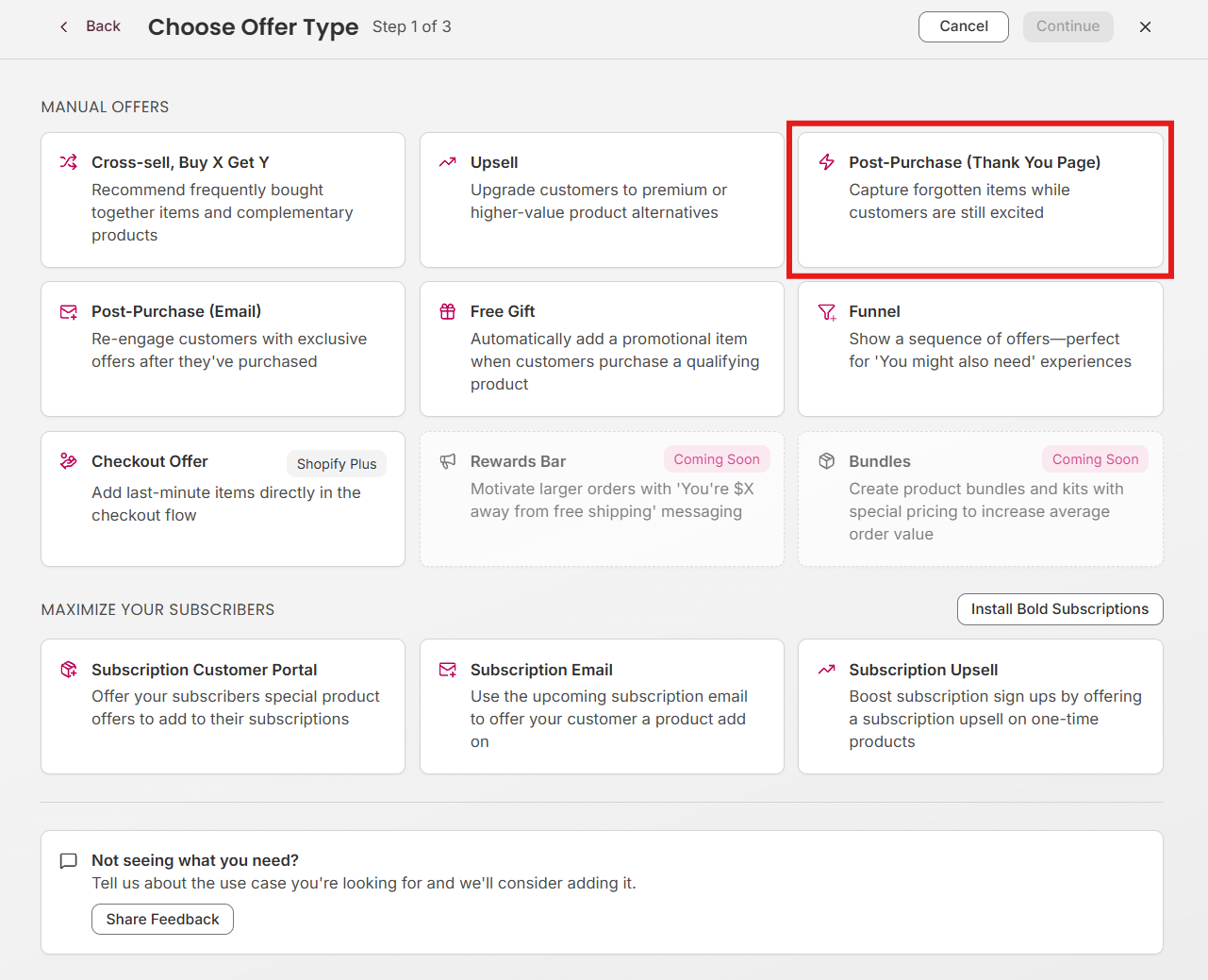
From the Bold Upsell dashboard, go to the manual offer page, click Create offer, then select Post-Purchase (Thank You Page) from the list of manual offer types.
Step 2: Configure your offer
On the Post-Purchase configuration page, fill in the following details.
Trigger
Choose which orders the post-purchase offer should appear on:
Any product - show this offer after any purchase.
Specific products - only trigger when one of the selected products is in the order.
Specific collections - only trigger when an item from the selected collection is in the order.
Offer product
Select the product(s) you want to offer on the thank-you page. You can offer one or more products, and the customer can add any of them with a single click.
Discount
Set the incentive for the post-purchase upsell. Options are:
Percent off - for example, 15% off the offered product.
Amount off - a flat dollar amount off the offered product.
No discount - offer the product at full price.
A meaningful discount (10–20%) typically lifts post-purchase conversion. Because the customer is already converted, even a small incentive can drive a strong conversion rate.
Title and description
Write a short headline and supporting description that explain the value of adding this product to the order. Keep the copy concise. The customer has already paid, and you have just a few seconds to land the post-purchase offer.
Step 3: Optional conditions
You can narrow when the offer is shown by adding optional conditions:
Date range - schedule the offer to start and end on specific dates, which is great for seasonal promotions.
Cart value minimum - only trigger when the original order total is at least a set amount.
Minimum quantity - only trigger when the order contains at least a set number of items.
Step 4: Save and publish
When you’re happy with the configuration, click Create offer to publish the offer. It becomes active immediately and will appear on the thank-you page for matching orders.
You can return to the offer at any time to update copy, swap the offered product, or pause it from the offers list.
Tips for high-performing Post-Purchase offers
Offer a complementary product, not a duplicate of what they just bought.
Use a real, visible discount. Post-purchase shoppers respond to “one-time only” pricing.
Keep the headline and description short. The thank-you page is a quick decision moment.
Use high-quality product imagery. The post-purchase page is visually minimal, so your image carries the offer.
Review your dashboard regularly and rotate offers that lose performance over time.