
Enable Smart Offers
Smart Offers are AI-generated cross-sell offers that Bold Upsell creates and manages for you. Instead of hand-building every offer, you turn Smart Offers on once and the app analyzes your catalog and order history to recommend the highest-converting product pairings, then displays them automatically on your storefront.
Use Smart Offers when:
-
You have a large catalog and want to use a data-driven approach in creating offers that work well together.
-
You want a “set it and forget it” cross-sell layer running across your store that will automatically create new batches of offers and disable underperforming offers.
-
You want a baseline of AI offers in addition to a few hand-crafted manual offers for hero products.
Before you start
-
Make sure the Bold Upsell app embed is enabled in your theme. See Activate Bold Upsell.
-
Your store should have a few products in the catalog and approximately 30 days of order data. The more order history and product variety, the better the AI recommendations.
Step 1: Open the Smart Offers page
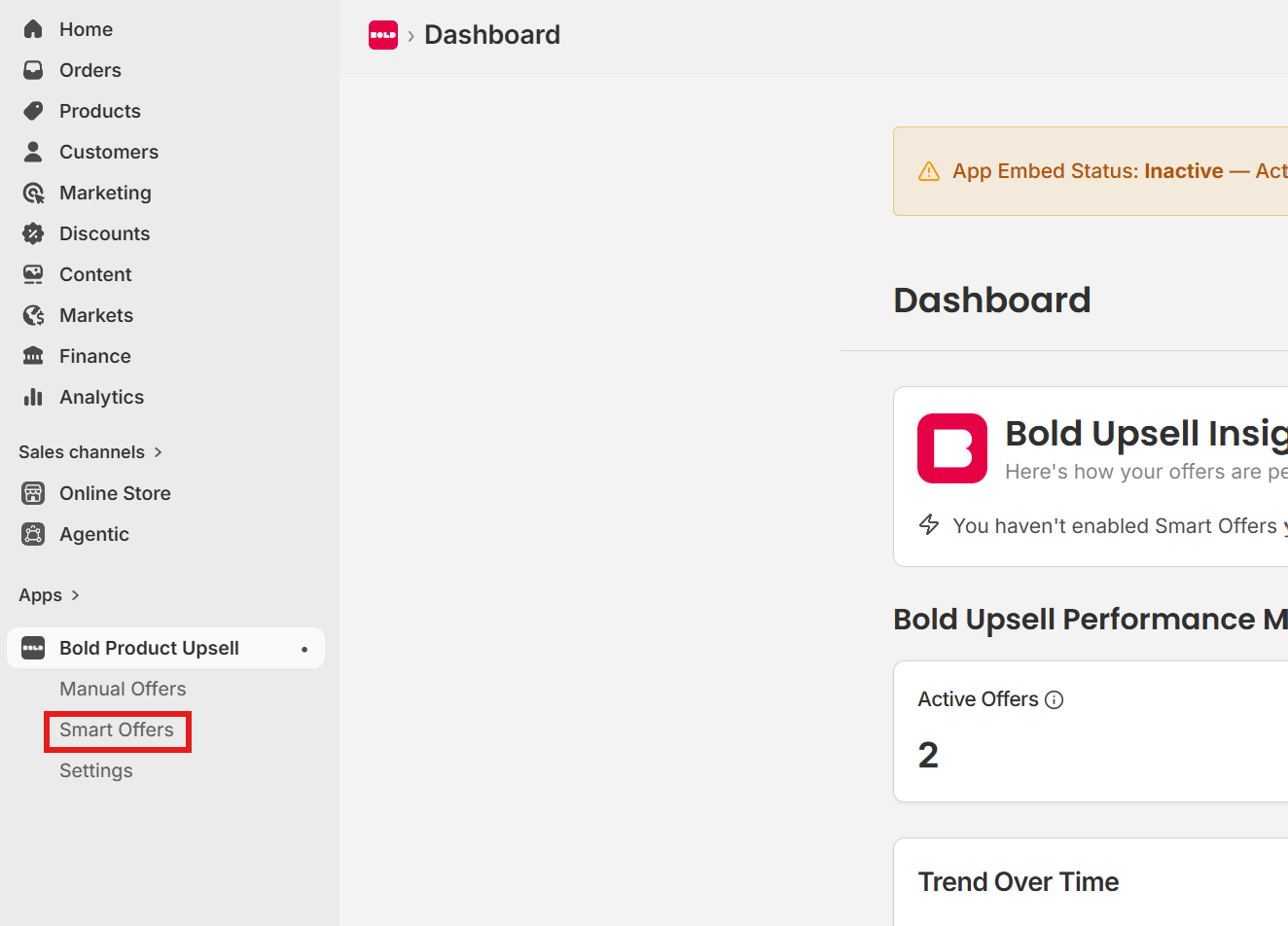
From the Bold Upsell admin, click Smart Offers in the left navigation. This page is the single home for enabling Smart Offers, configuring how they behave, and reviewing the offers the AI has generated.
Step 2: Enable Smart Offers
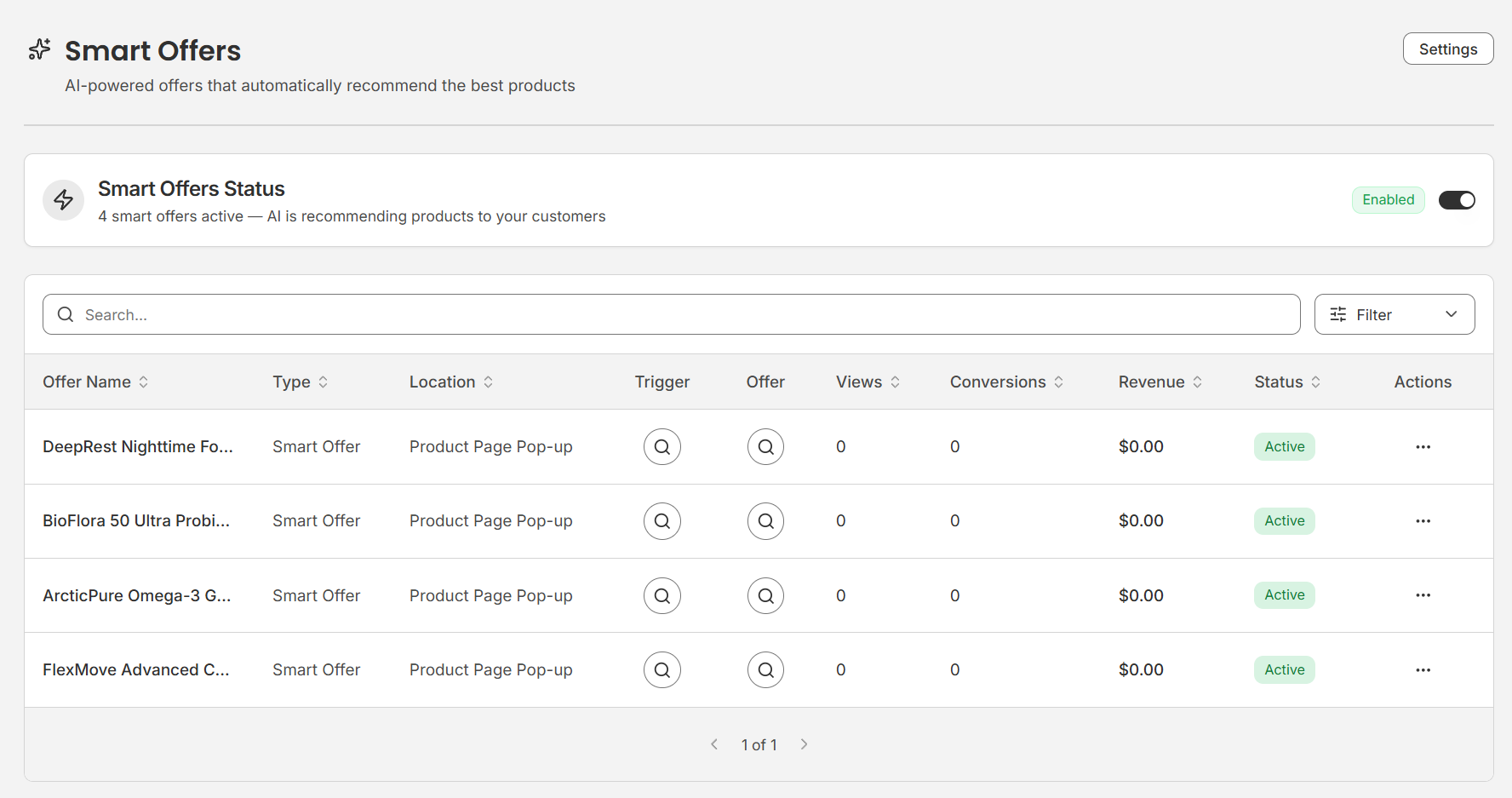
If you are enabling Smart Offers for the first time, you can click the Get Started button and you will be directed to the configuration page. If you have enabled Smart Offers in the past, enable the toggle next to Smart Offers Status to activate Smart Offers.
Product Settings
On the configuration page, you change choose if there are any items that should be excluded from Smart offer recommendations.
If your store is password protected, you’ll need to add your password to the Smart Offer settings so that the AI can access your storefront.
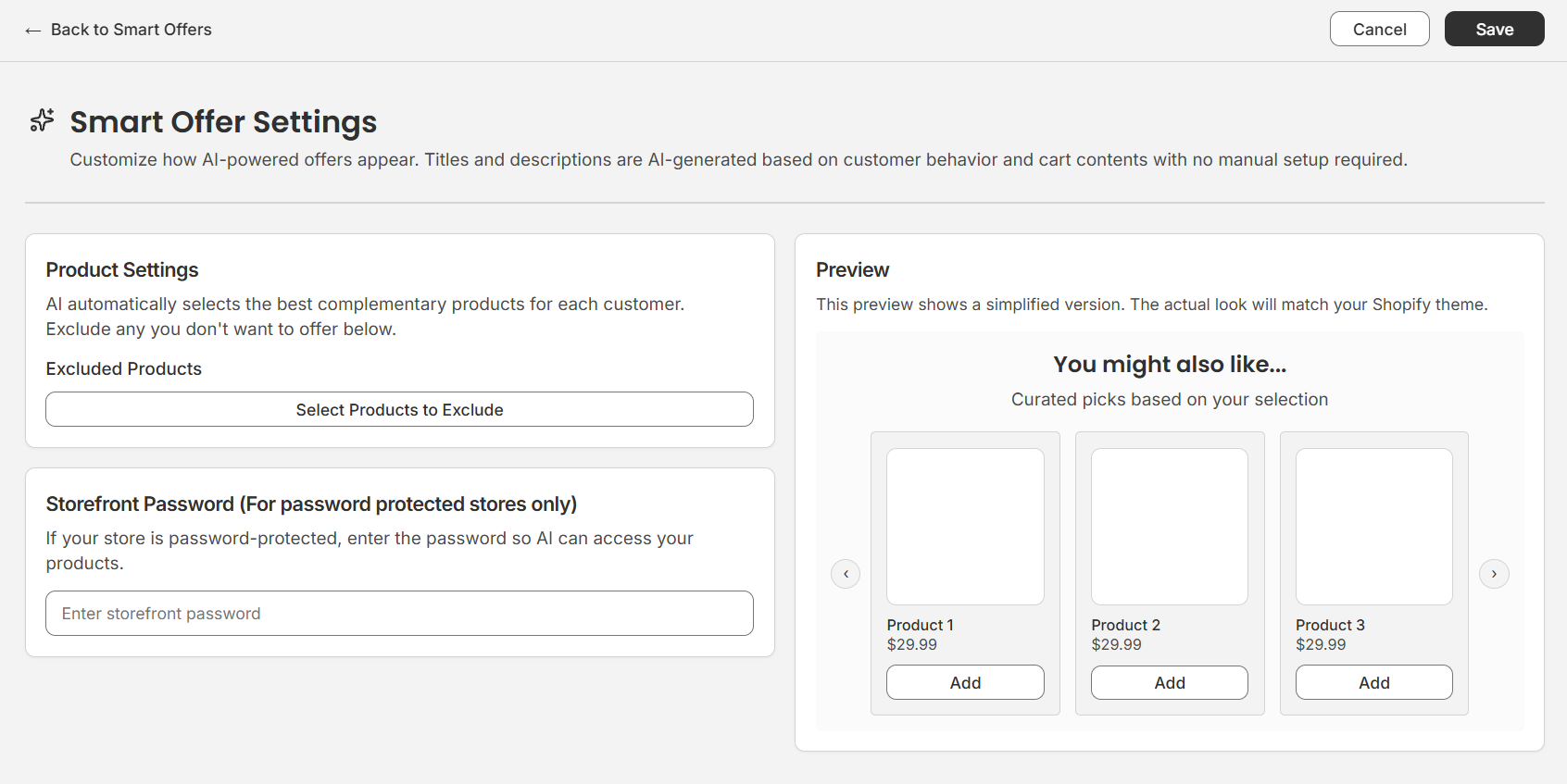
Once complete, you can click Save. Bold Upsell will queue an initial generation job, which typically takes a few minutes while the AI scans your catalog and order history to pick the best product pairings. The Smart Offers page will show a queued state while this is in progress; you can leave the page and come back.
Once generation completes, the page will list the AI-generated offers, each with a trigger product (or set) and the recommended offer product(s). You can preview the trigger and offer products from the Offers table without leaving the page.
Step 3: Smart Offers sync
Smart Offers refresh periodically as new orders come in, so the recommendations improve over time. Check the Dashboard to see how Smart Offers compare to Manual Offers in revenue, conversion rate, and AOV uplift.
Tips for getting the most out of Smart Offers
-
Give it time. Recommendations get sharper as Smart Offers learns from your order data.
-
Layer Smart Offers underneath a few hand-crafted Manual offers for your hero products , let the AI handle the long tail.
Turning Smart Offers off
Click the toggle next to Smart Offers Status on the Smart Offers page. All AI-generated offers stop displaying immediately. Your manual offers are unaffected. You can turn the toggle back on to enable again.