Custom Pricing & Shopify POS Integration
Custom Pricing integrates with Shopify Point of Sale when on the Complete plan. With this integration, Customer Pricing discounts are automatically applied to your customers orders within Shopify POS.
This article provides instructions on how to connect Custom Pricing to Shopify POS, create an order, and outlines some important considerations.
Note: This integration is compatible with Custom Pricing Standard Method (V2) when using Shopify Functions and Accelerated Method (V3) only. For more information on each version, please visit Discount Methods and How to Switch.
Functionality
Custom Pricing applies its discounts via the Shopify POS Discount section. This happens if the following is true:
The product is discounted in Custom Pricing, the customer has a relevant Custom Pricing tag, and both the product and the customer are added to the cart.
The products have quantity breaks discounts in Custom Pricing and multiple products are added to the cart.
Note: If quantity breaks discounts are only available to specific customers, those customers must have the relevant tag and be added to the cart as well.
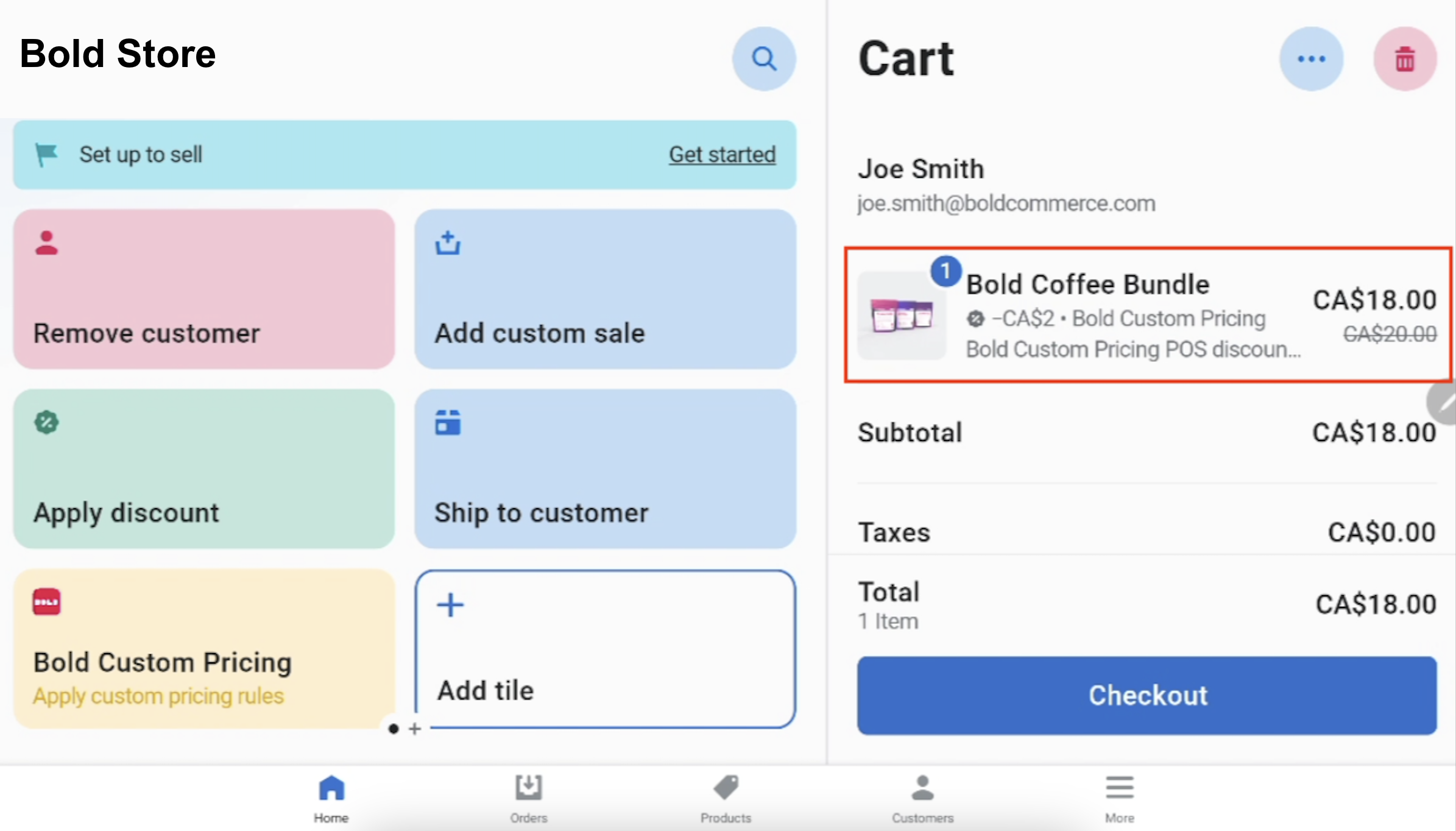
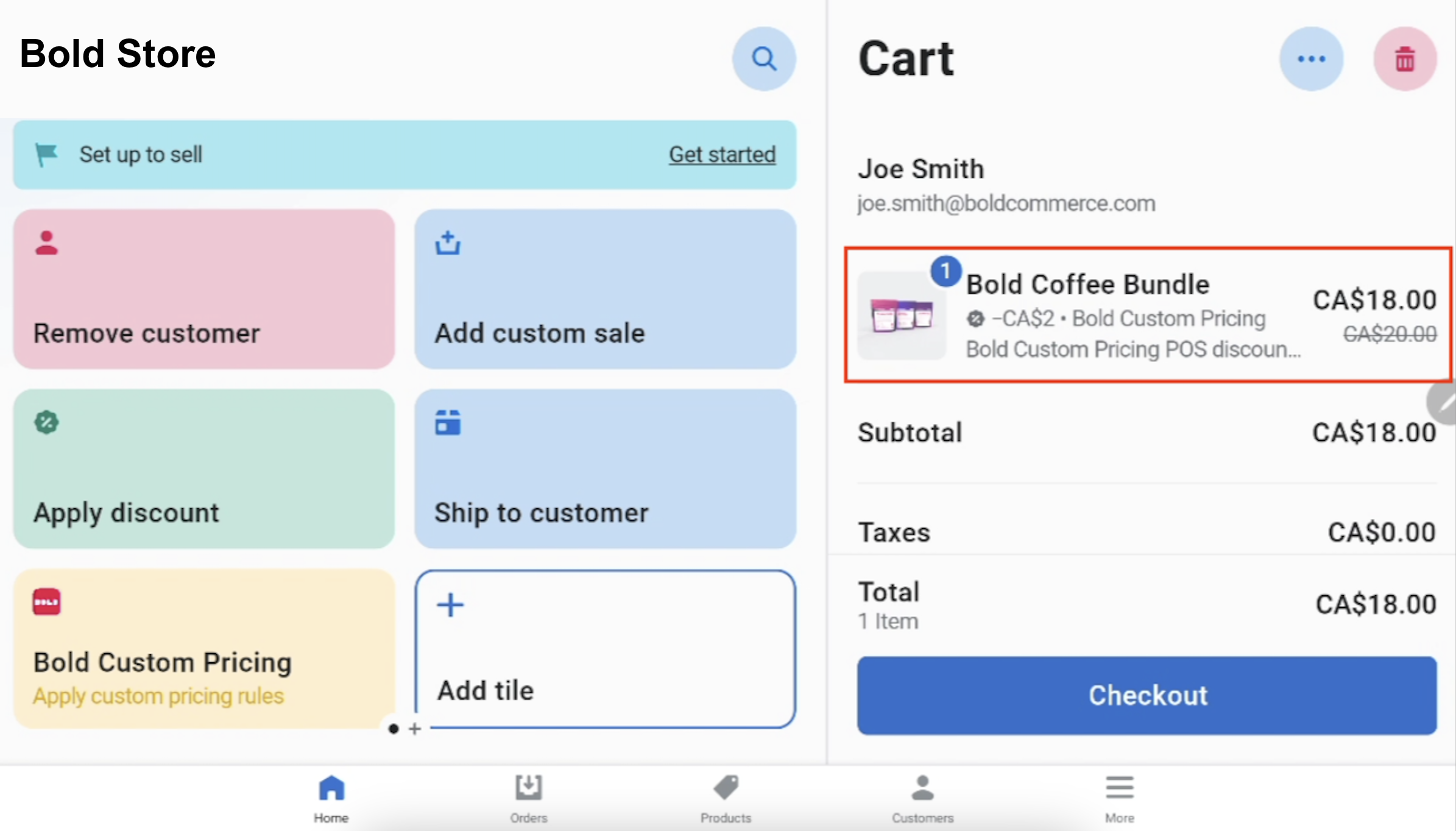
When the products and customers are added to the cart, the discount is applied and is noted as from Bold Custom Pricing. This note also appears on the order in the Shopify admin.
Important considerations
The last discount applied to an order will override all previously applied discounts — this includes Custom Pricing discounts.
Custom Pricing is not able to change the price of the product on the POS product page — discounts are only shown in the cart.
The quantity breaks grid is not able to display on the POS product page. Quantity breaks discounts are only shown in the cart when multiple products are added.
Setup
Video Walkthrough
There are two ways to integrate Custom Pricing with your Shopify POS app. You can add Custom Pricing to a specific POS location, or you can add it all POS locations from the Shopify admin. Please follow the instructions below based on your preferred method.
Method 1: POS app
To integrate Custom Pricing with a specific POS location, please follow the steps below.
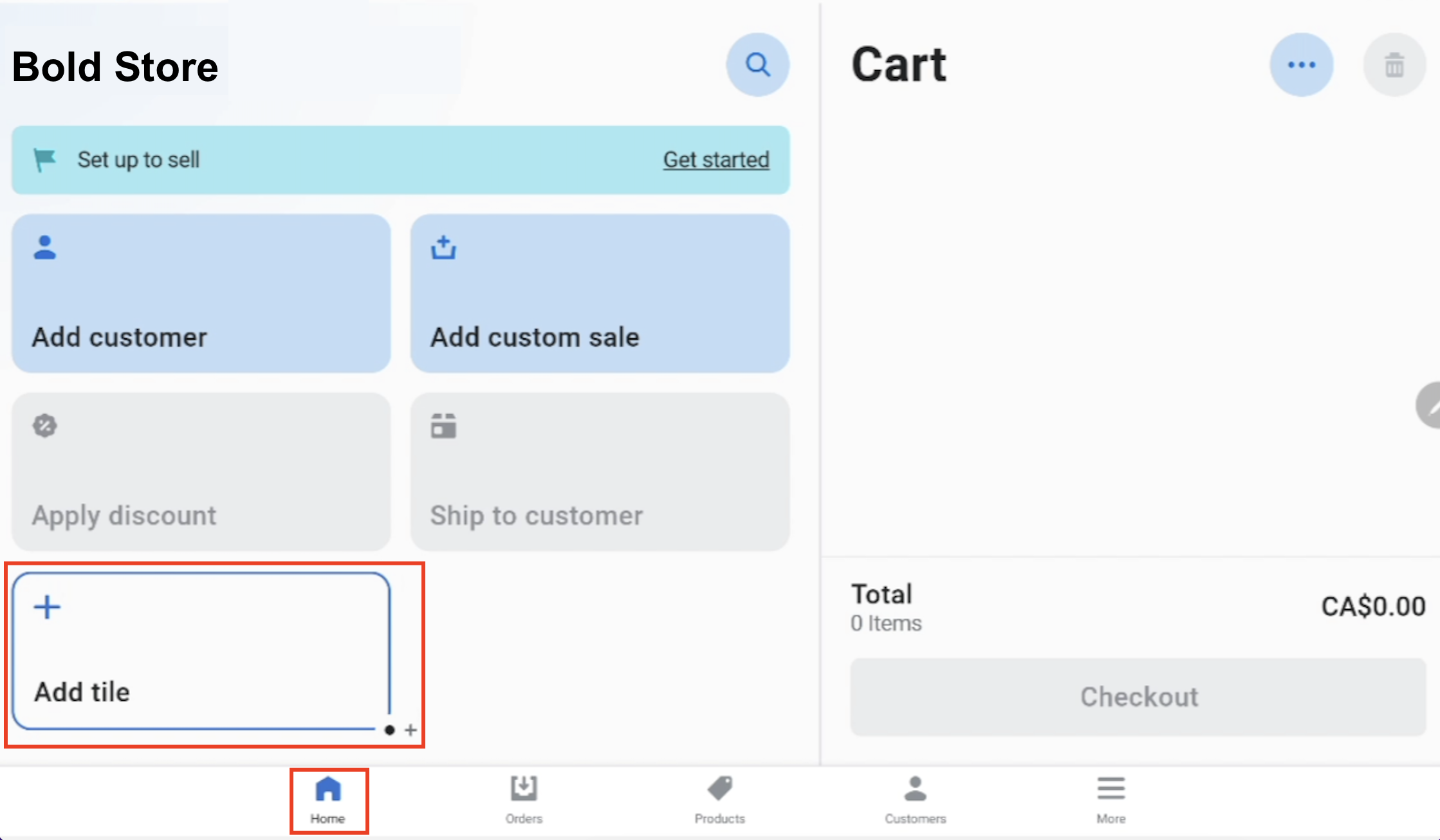
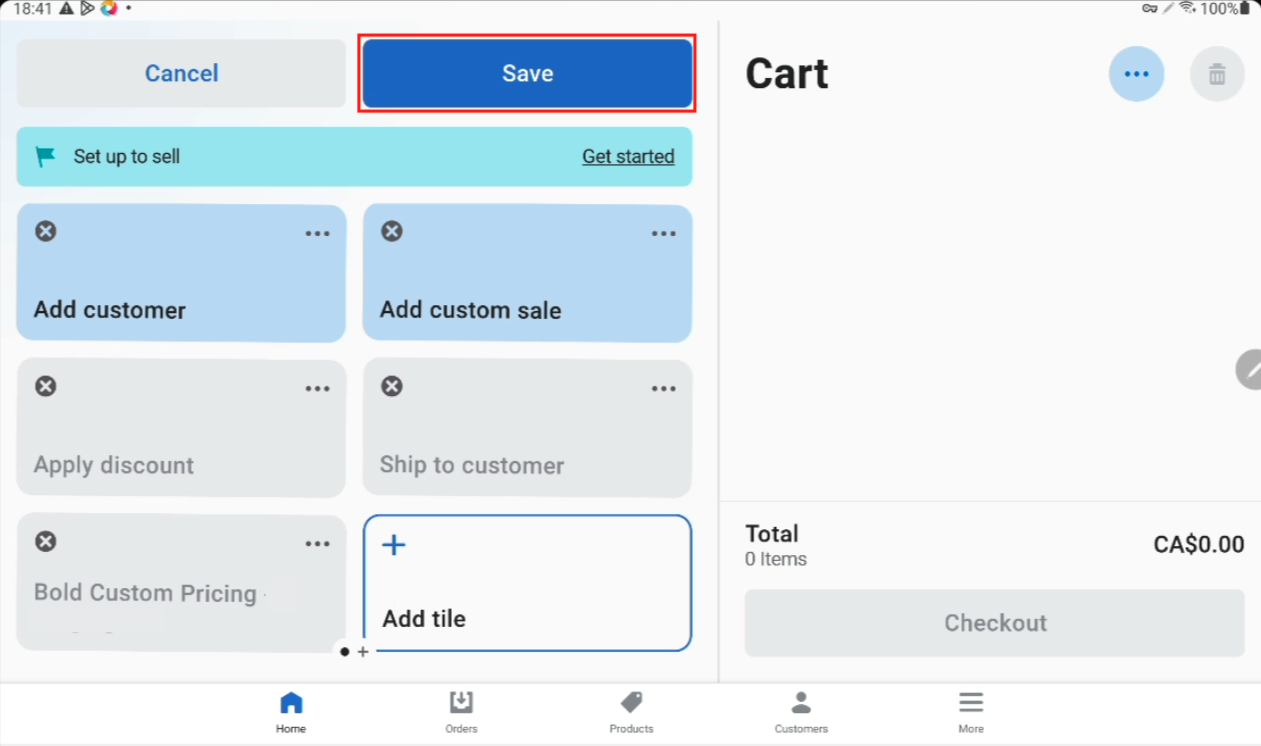
From the home page of the Shopify POS app, click Add tile from the menu at the bottom of the page.
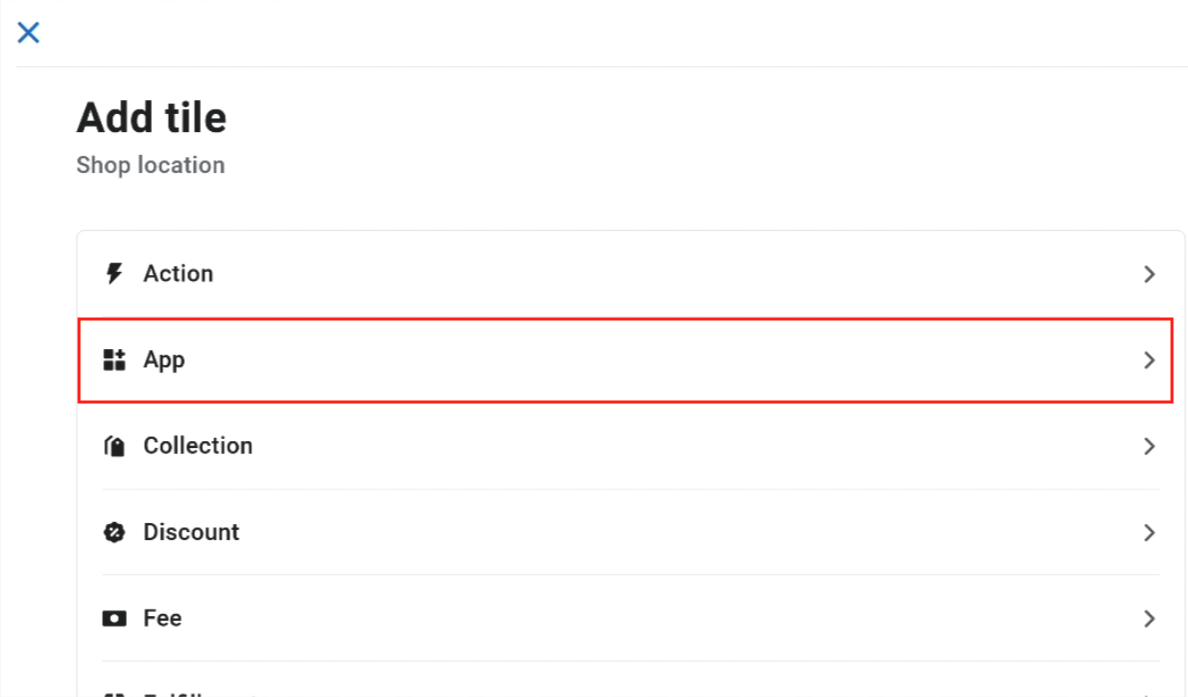
Select App.
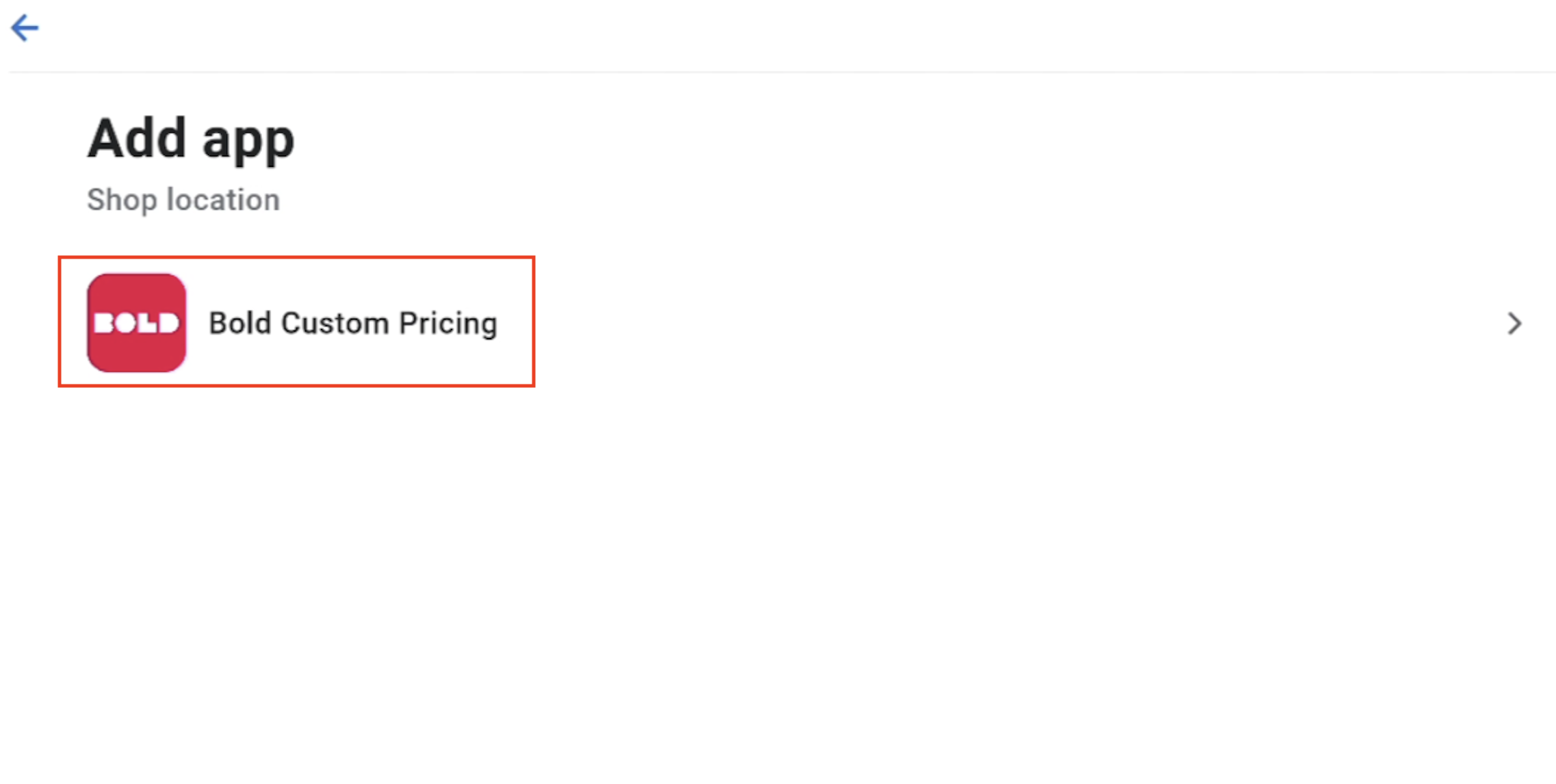
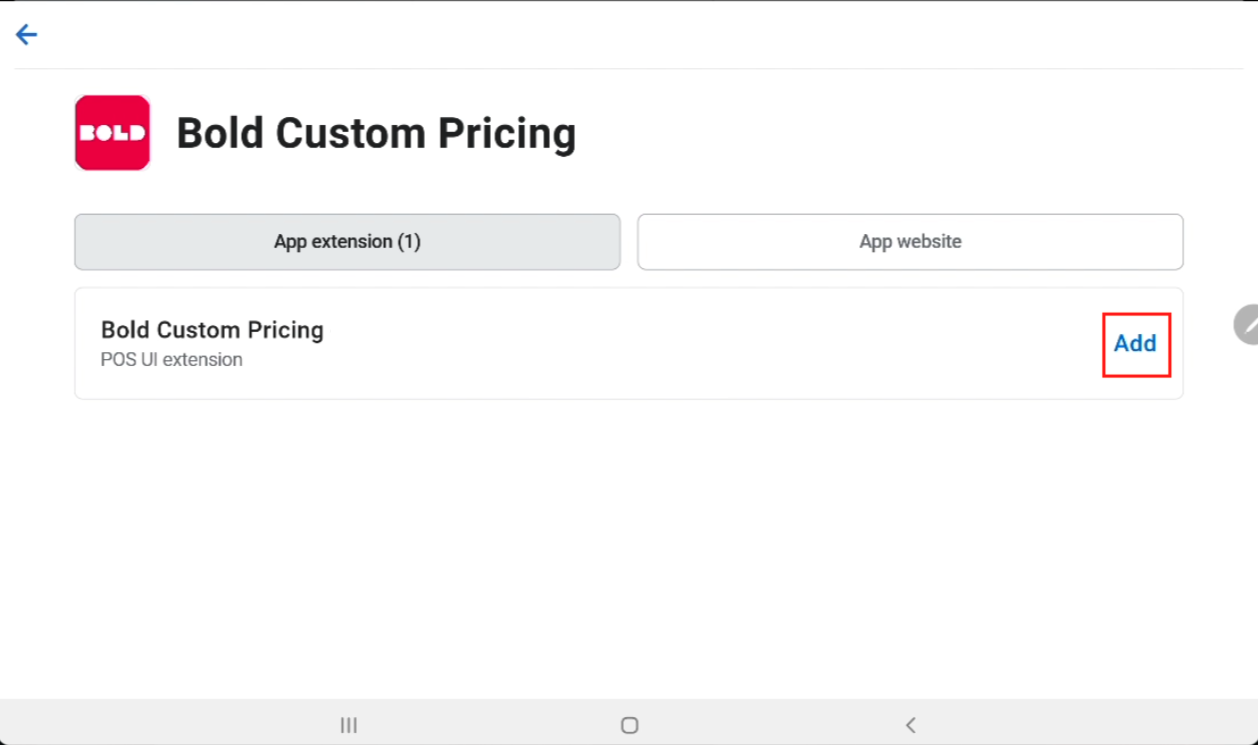
Select Bold Custom Pricing.
Click Add.
Click Save.
Method 2: Shopify admin
To integrate Custom Pricing with Shopify POS from the Shopify admin, please follow the steps below.
Note: Custom Pricing is added to all locations when enabled from the Point of Sale sales channel in the Shopify admin.
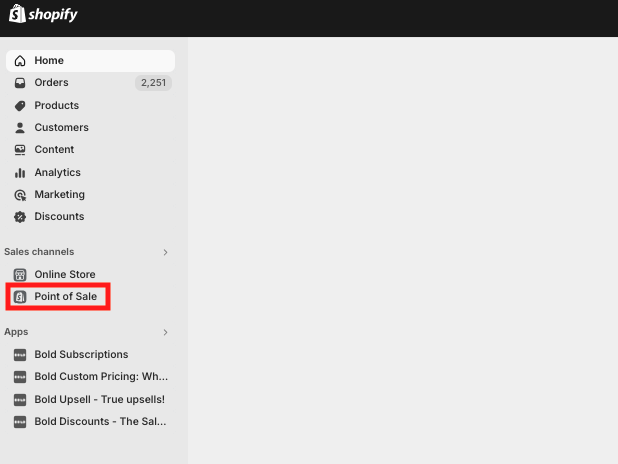
From your Shopify admin, click Sales channels > Point of Sale.
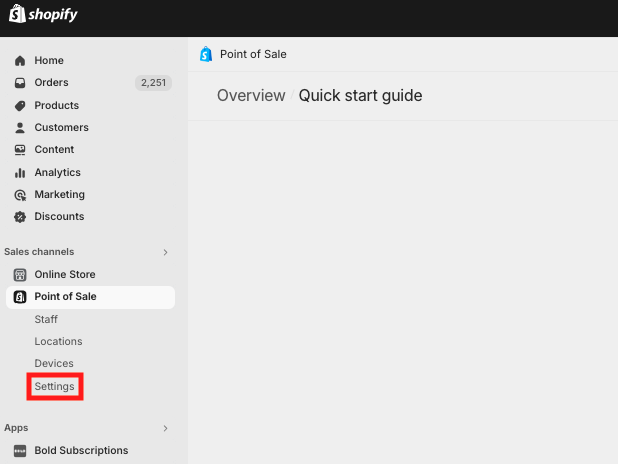
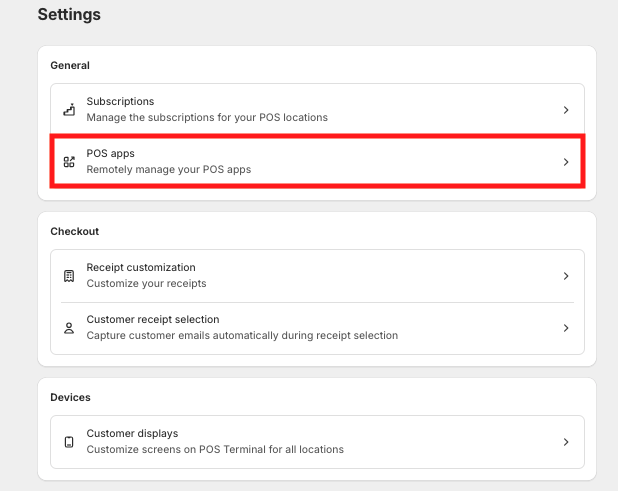
Click Settings.
Click POS apps.
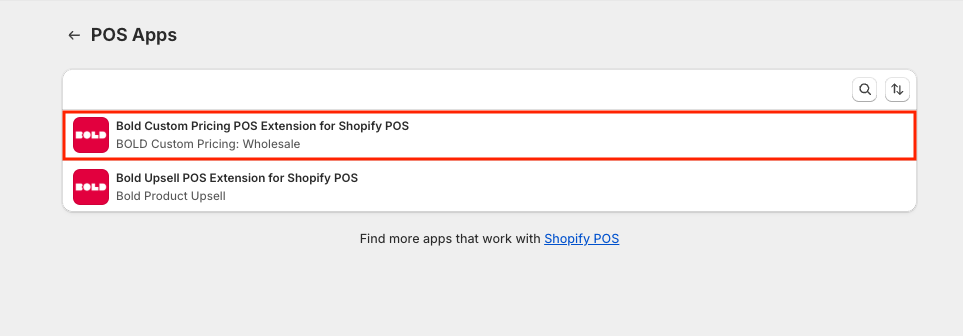
Click on Bold Custom Pricing POS Extension for Shopify POS.
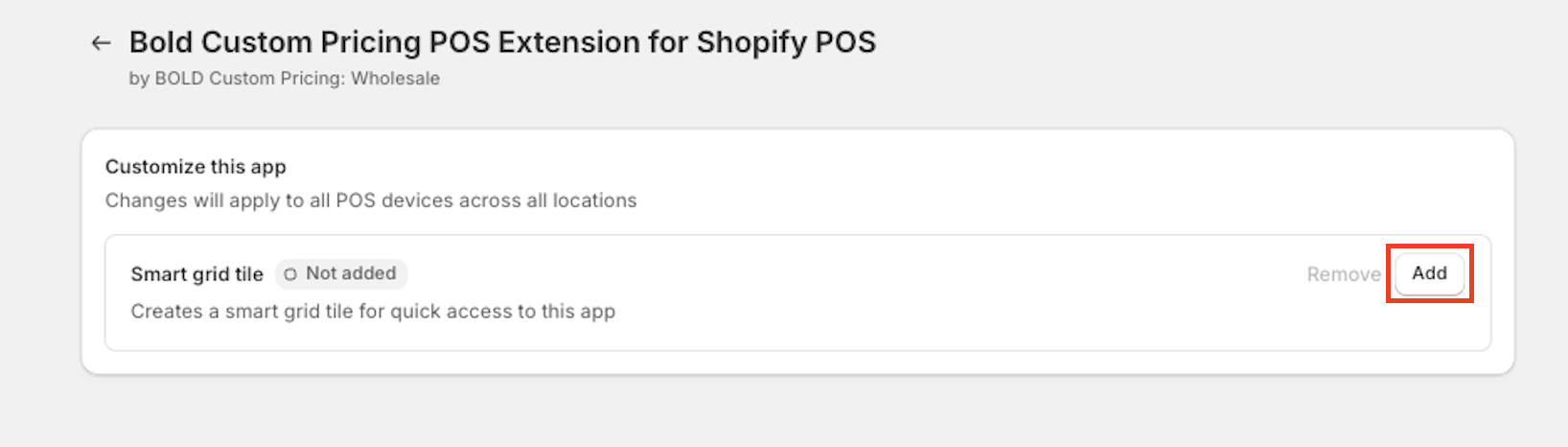
Click Add.
Click Save.
Apply a Custom Pricing discount to an order in POS
Alert: Please ensure your Custom Pricing discounts and tags have been created in Custom Pricing and the tags are applied to your customers’ accounts using the method relevant to your needs.
To apply a Custom Pricing discount to your customer’s order in Shopify POS, please follow the steps below.
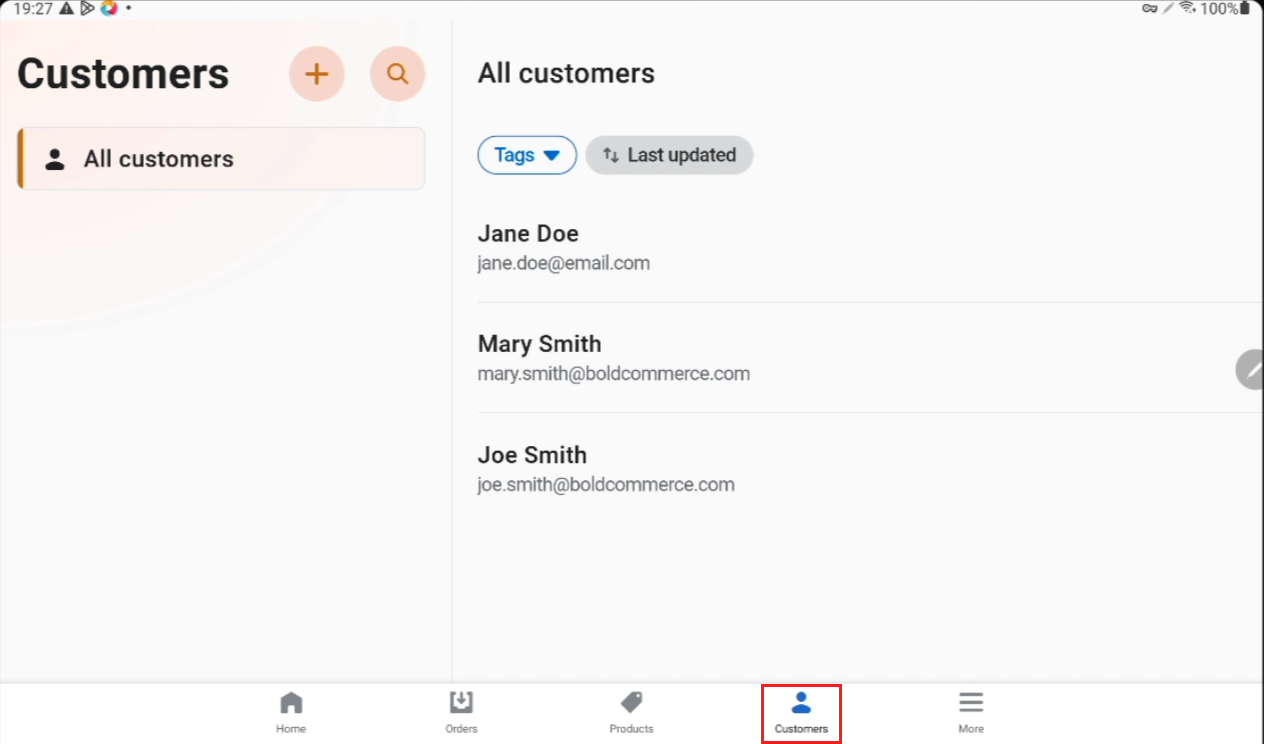
From the Shopify POS, navigate to the Customers page.
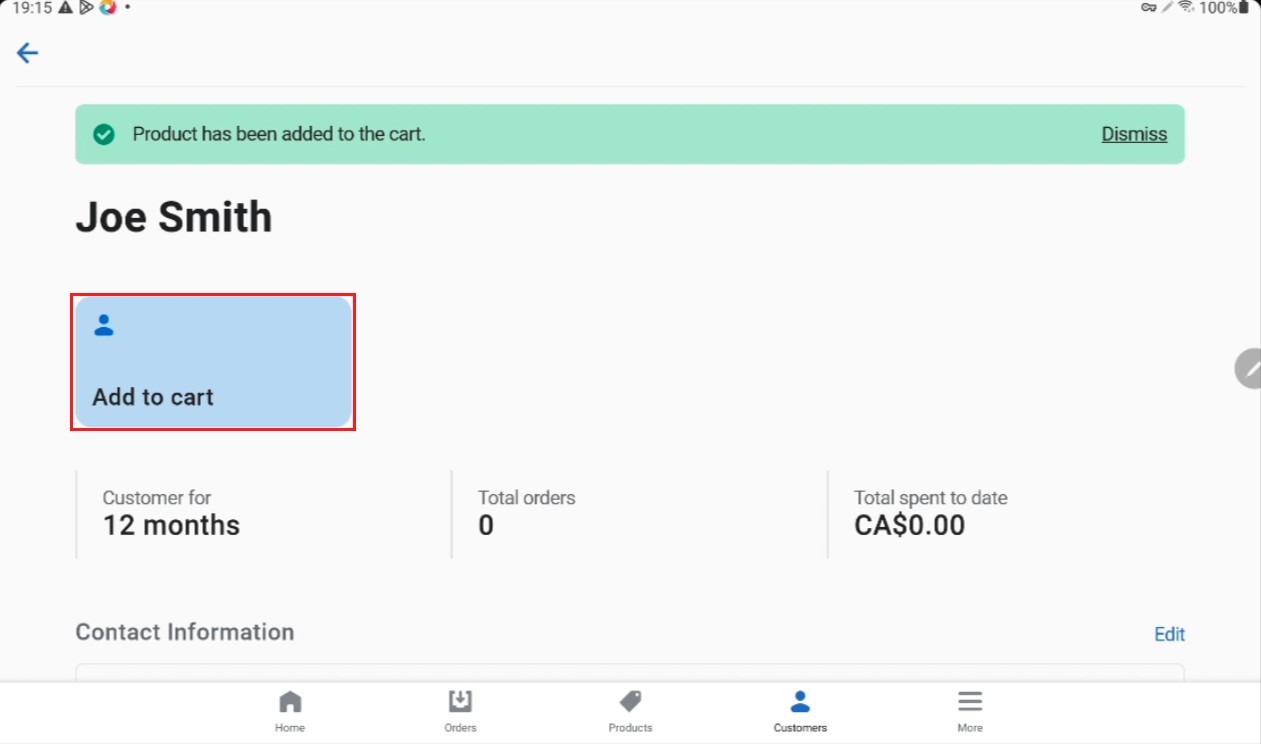
Click on a customer with a relevant Custom Pricing tag to select them.
Note: You can filter your customers by tag to ensure that customer has the relevant Custom Pricing tag.
Click Add to cart.
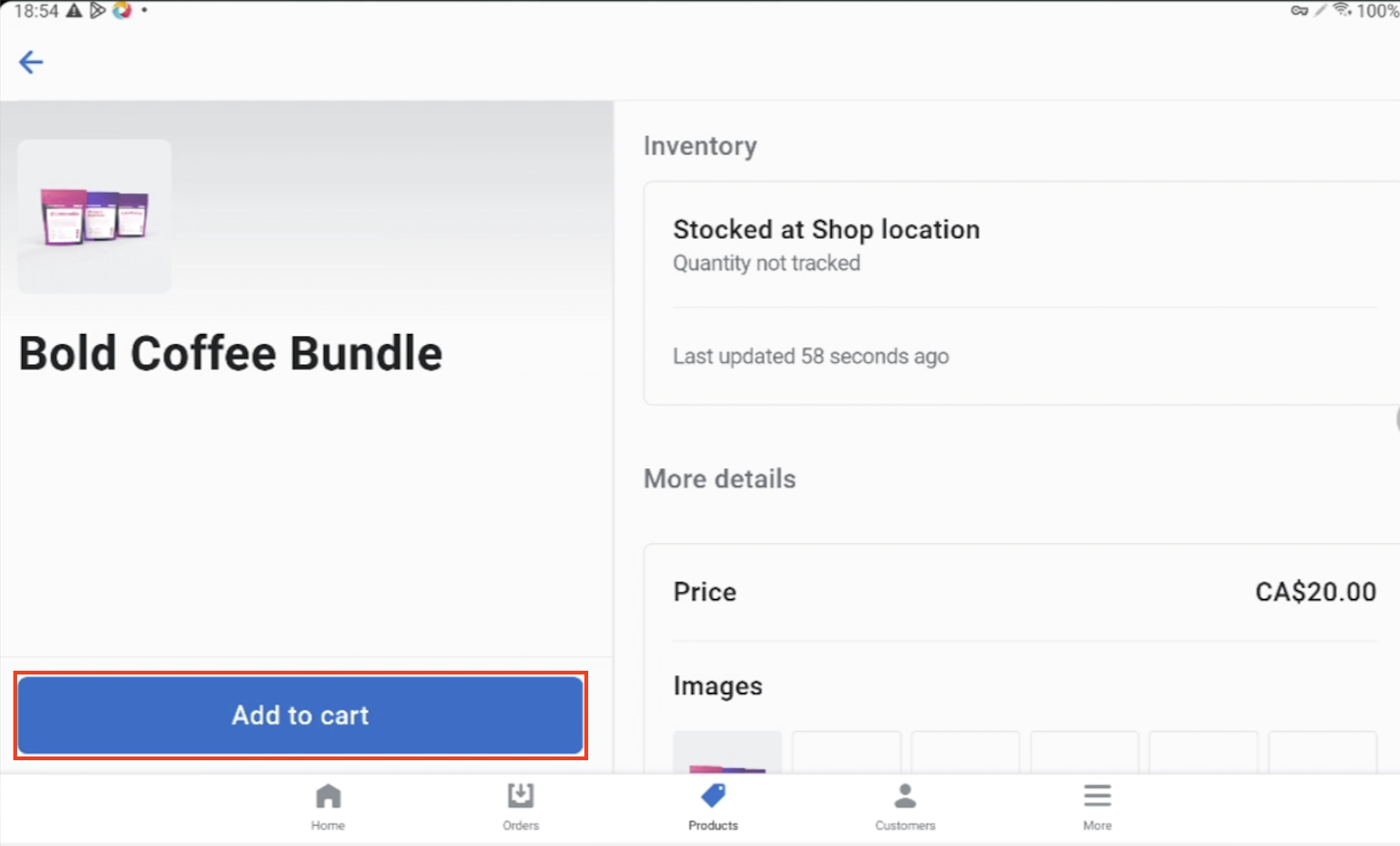
Navigate to Products.
Select a product with a discount in Custom Pricing, and click Add to cart.
Navigate to the Home page. You should see the Bold Custom Pricing discount automatically added to the order.
Checkout as normal.