
Set up Quantity Breaks Using Detailed Pricing
Custom Pricing allows you to set up your quantity discounts for your Detailed Pricing.
This gives you the flexibility to set specific quantity discounts for each product variant using percentage off, price amount off, or a fixed price.
You can select how your quantity break grid displays on your storefront from within Custom Pricing's Quantity Break Display tab. Visit Use the Custom Quantity Breaks Grid for more information.
Note: Detailed Pricing is available on the Complete plan. For more information, please visit Custom Pricing Pricing & Overview.
If you don't want to offer quantity discounts within Detailed Pricing, please visit Create, Edit or Delete Detailed Pricing and follow the steps in that guide.
Setup
To set up your quantity discounts with detailed pricing, please follow these steps:
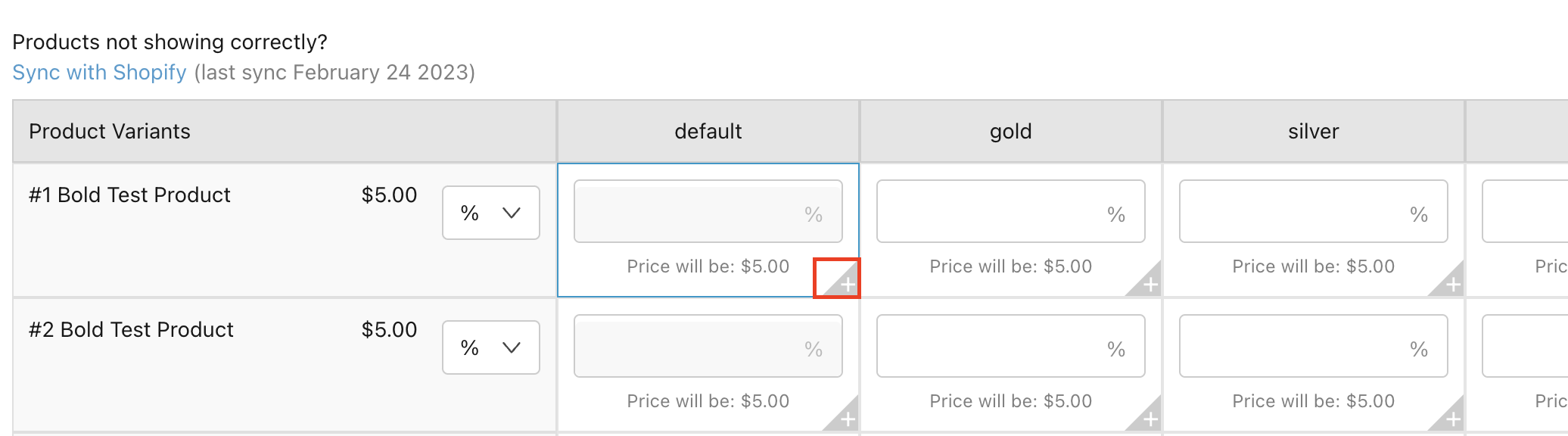
From within Custom Pricing, select Detailed Pricing.
Select the type of discount.
Note: Discount types are percentage off, amount off, or fixed price.
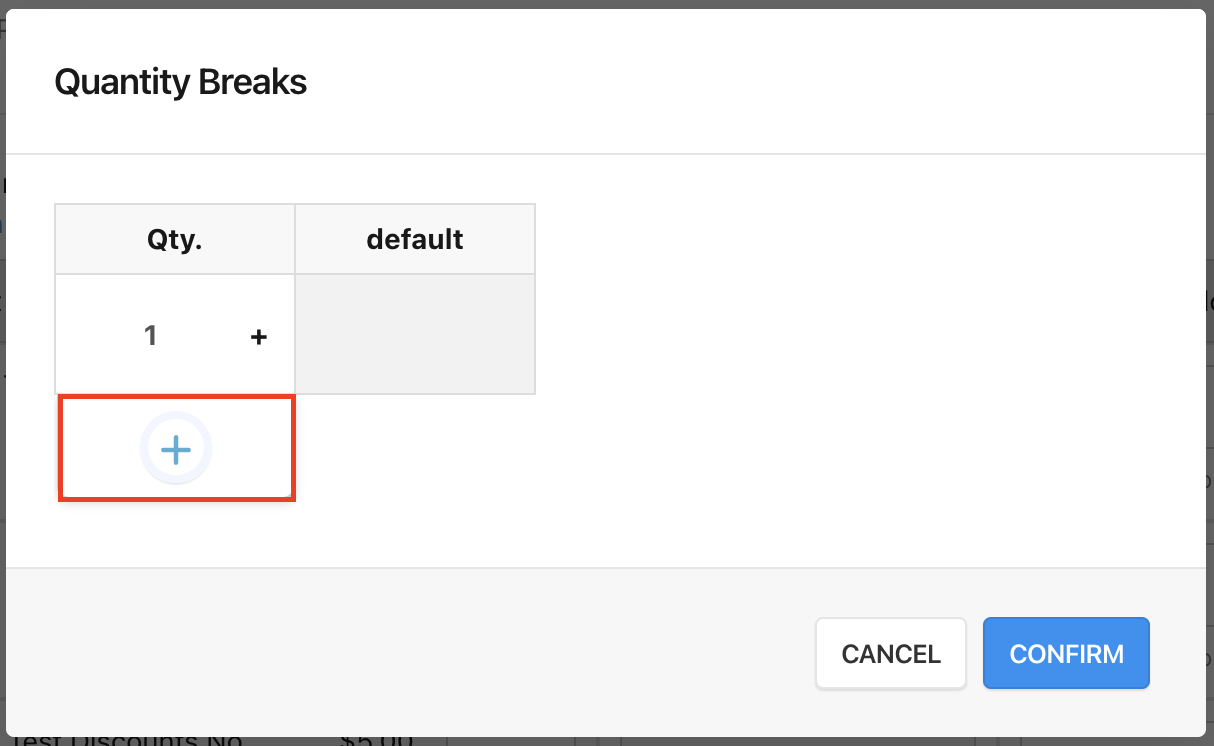
Select the plus symbol under your desired customer tag to access the quantity break settings for that tag.
Select the plus symbol to add quantity discounts.
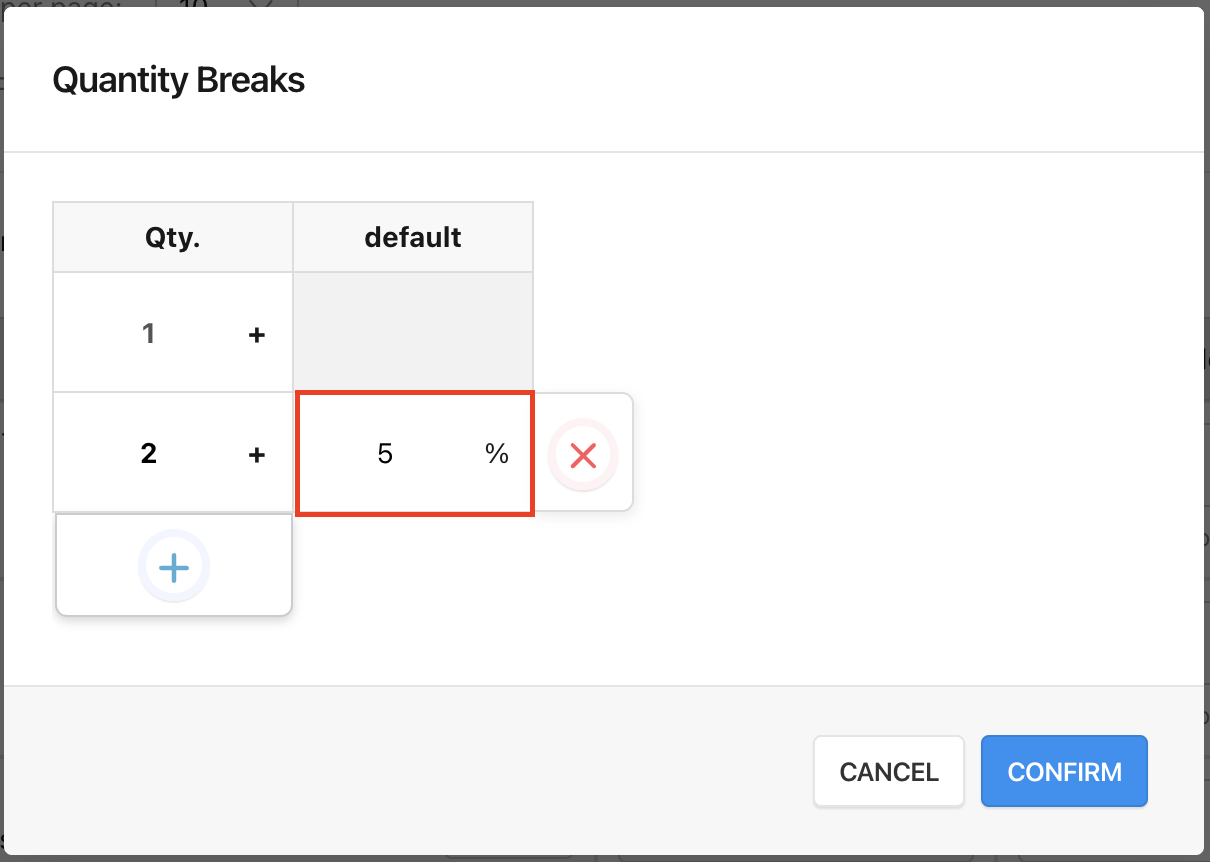
Enter the minimum number of products needed to qualify.
Specify the discount amount.
Select Confirm.
Repeat steps 4 to 8 to add more levels to your quantity breaks discounts.
Note: If you are planning to add quantity break discounts for a lot of products in the Detailed Pricing page, we recommend utilizing the Import/Export feature within Custom Pricing. Please visit Import & Export Prices into Custom Pricing for more information on bulk editing discounts within the app.