
Troubleshooting with Bold Custom Pricing
While using Custom Pricing, you may come across an issue with the display or performance of the app. Some of these issues can be corrected through an in-app setting, however, other issues might be related to an improper install or conflict in your theme.
This article outlines some common issues that can arise with Custom Pricing and the steps that can be taken to resolve them.
Note: Custom Pricing must be properly installed to your theme in order to reflect the discounts on the storefront. For step-by-step instructions, please visit our Installation Guide for Custom Pricing.
Discounts not appearing or prices not reflecting what's set in the pricing groups
If a Custom Pricing discount is not appearing or applying on the storefront on collection pages, product pages or on the cart page, this can often occur from one of the following below:
Incorrect tags or not logged in - Customers must be logged into their store account to see and access their pricing. The relevant tag (configured in Custom Pricing) must also be applied to their profile in Shopify. Tags are case sensitive and must be entered into the account exactly as it appears in Custom Pricing. For example, a tag titled Gold-VIP would need to be added as Gold-VIP into your customer account and not gold-vip.
Incomplete install - In order for the discounts to reflect on the storefront while logged into an account, Custom Pricing must be properly installed to your theme. If you have changed your theme, you must perform a new install on the new theme. If you are unsure if Custom Pricing is properly installed, please speak to a member of our Customer Success team.
Product(s) are not discounted in Custom Pricing - Ensure your product is being discounted in Custom Pricing. This can be done by setting a storewide discount on the Customer tag, creating a Product Pricing Group, or setting up Detailed Pricing. Please visit one of the relevant articles to configure your discounts:
Your fixed price in Custom Pricing is higher than the product price - If you are using a fixed price in Product Pricing Group or Detailed Pricing that is higher than the product price, the fixed price will be disregarded. Custom Pricing is designed to discount prices—it is not able to raise prices.
Discounts are not appearing in the checkout page
If a discount created in Custom Pricing is applying to the storefront but is not being carried over into the checkout, this can be caused by a conflict with a third party app. If the third party app uses a draft order to apply a discount in the checkout page, Custom Pricing is not able to generate a draft order and the discount does not appear in the checkout page.
To avoid this issue, it's best to reach out to the third party support team and have the support team remove the liquid code that interacts with the checkout page from your theme.
Please visit Custom Pricing 3rd Party Conflicts for a list of some apps that are not compatible with Custom Pricing.
If you are using a dynamic checkout button (Buy Now button) on the product page, this button needs to be removed from the product page, as the discounts from Custom Pricing cannot not be carried into the checkout page when this button is used.
Please visit Adding and removing dynamic checkout buttons for steps on disabling this button from your theme.
Product missing from product selector
If a product appears to be missing from Custom Pricing when performing a search in the product selector, there are a couple fixes you can try:
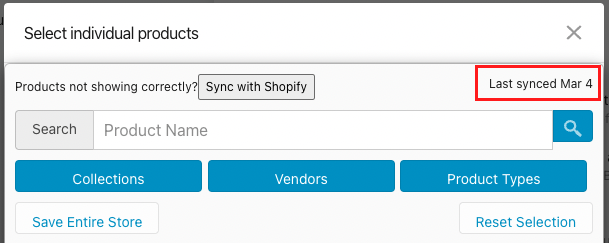
Check the date your Shopify products were last synced with Custom Pricing in the product selector.
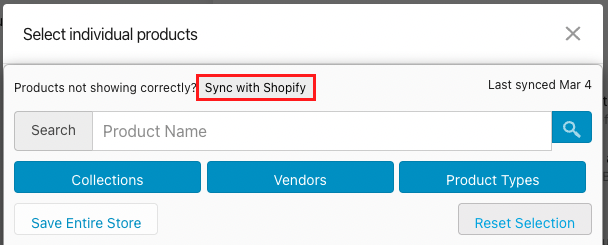
If you've added new products since that date, you need to perform a sync. Select the Sync with Shopify button in the product selector as shown below.
If you are searching for your product by name, you need to enter the full product name in order for the product to appear. Using only part of the product title does not yield results.
Discount codes are not working with Custom Pricing
If a discount code created in Shopify is not working with a product that has been discounted via Custom Pricing, it may be due to reasons related to your Custom Pricing discount method:
Note: If you are unsure of the discount method you are using, please visit Discount Methods and How to Switch.
Standard Method (V2)
This method allows discount code stacking only when Shopify Functions are enabled and Discount Stacking is configured, otherwise, only the highest discount will apply and shipping discounts will not apply. For more information and setup instructions, please visit Shopify Functions for Custom Pricing (Standard Method).
Accelerated Method (V3)
This version allows Discount Code Stacking from the cart page, however, not all discounts codes are supported. For more information and setup instructions, please visit Discount Code Stacking in Custom Pricing (Accelerated Method).
Variant Dependent Method (V1)
Incorrect tags or not logged in - If you are using a discount code that is set to work with specific hidden variants only (created via Custom Pricing V1), you need to log onto the storefront with an account that contains a Custom Pricing tag. Tags are case sensitive and must be entered into the account exactly as it appears in Custom Pricing. For example, a tag titled Gold-VIP would need to be added as Gold-VIP into your customer account and not gold-vip.
Product(s) are out of sync - If you have selected specific hidden variants for a discount code and the price group is turned off and back on in Custom Pricing, this causes the hidden variants to be removed from the discount code. To resolve this issue, you need to re-select the hidden variants within the discount code in your Shopify admin, once the price group has been re-enabled in Custom Pricing.
Discount code rule(s) not met - In order for the discount code to be applicable in the checkout page, all conditions that have been set within the discount code rules need to be met. Please ensure that all of the rules have been met and try the discount code again in the checkout page.
If you are still experiencing issues with discount codes not working with Custom Pricing, please speak to a member of our Customer Success team for further assistance.