
Create, Edit, or Delete Customer Tags
Customer tags allow you to control which of your customers receive the wholesale discounts created within your Product Pricing Groups and Detailed Pricing.
Video Walkthrough
For more information on setting up customer tags, please review the following information:
Create a customer tag
In Custom Pricing, select Manage Tags.
Click Add Tag, and enter a tag name in the Tag field.
Note: Tags are case-sensitive and must be exactly the same in both Custom Pricing and Shopify. For example, if the tag VIP is created in Custom Pricing, the tag must be entered into a customer's Shopify profile as VIP in order for Custom Pricing to apply the discounts correctly.
Optional: Enter a Discount percentage.
Expand the Charge Tax dropdown menu and select one of the following options:
No: Taxes will not be applied at checkout for customers with this tag (while logged in), regardless of your Shopify settings.
Note: Taxes are determined in your Shopify admin. This feature does not affect inclusive tax (tax included in the product prices).
Product default: Taxes are applied at checkout as per your Shopify settings.
Optional: Select Apply discount storewide.
Note: This applies the discount to all products storewide (for tagged customers) without the need to create groups. However, Product Pricing Group discounts will override these discounts if they are created.
Enter an internal tag Description.
Optional: Configure Auto tag by functionality using the instructions in Auto-tagging Rules & Country-specific Pricing after saving this group.
Note: This feature is available on the Standard and Complete plans.
Click Save.
If you do not have auto-tagging set up, then you must add the tag manually to your customer accounts within Shopify. For instructions, please see Apply a customer tag to a customer account below.
Edit a customer tag
In Custom Pricing, select Manage Tags.
Click the ellipsis (three dots) beside the tag you want to adjust, then choose Edit.
Make your desired changes, then select the checkmark to save them.
Delete a customer tag
In Custom Pricing, select Manage Tags.
Click the ellipsis (three dots) beside the tag you want to delete, then click Delete.
Apply a customer tag to a customer account
If you are on the Essential plan in Custom Pricing you must add the tag manually to your customer accounts within Shopify. To do this, please see the instructions below.
From the Shopify admin, select Customers.
Enter a Customer name in the search bar, then select their name.
In the Tags field, type in the Customer Pricing Tag.
Note: You must enter the tag it exactly how it appears in Custom Pricing.
Press Enter, then select Save.
FAQs
Can a customer have more than one Custom Pricing tag?
Customers should not have more than one Custom Pricing tag. This causes the discounts for each tag to be randomly applied.
If you wish to change the price group a customer falls into, remove the current Custom Pricing tag assigned to them and add the new tag.
Can I show specific pages to certain tagged users?
You can show specific content to tagged users, such as products, collections, and pages, when Custom Pricing is integrated with Bold Memberships.
For more information, please visit Custom Pricing & Bold Memberships Integration.
How do I calculate the number of customers associated with a specific tag?
Custom Pricing does not record customers within the in-app admin at this time. However, you can view customers by tag in your Shopify admin.
Use the steps below to view customers by tag in your Shopify.
In your Shopify admin, select Customers.
Enter the Custom Pricing tag in the search bar and click enter.
How do I restrict a tag from working with a particular product group?
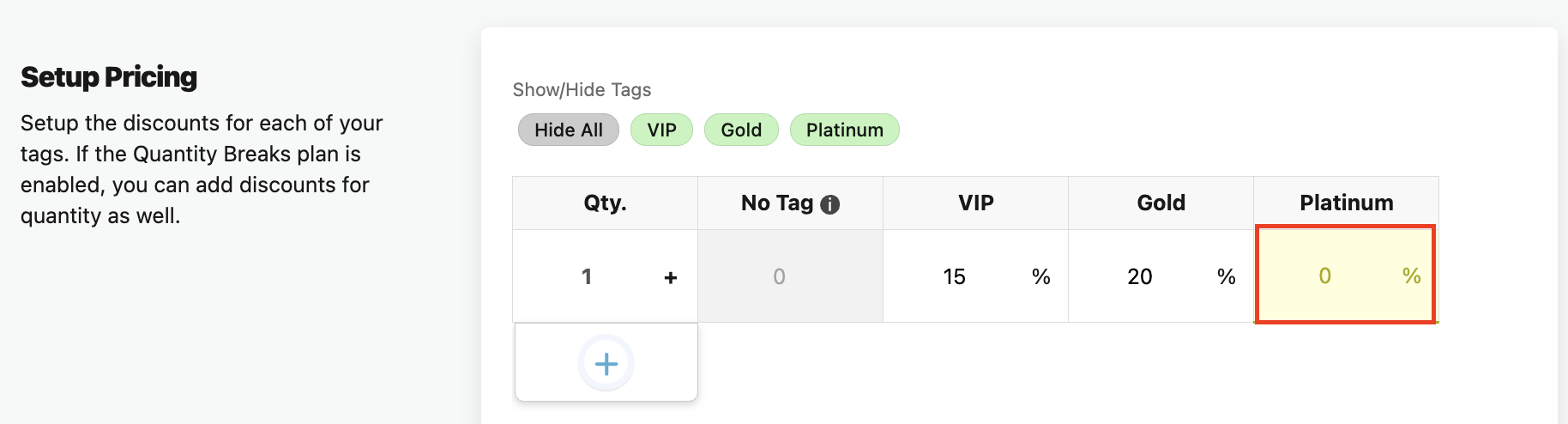
To prevent a tag from working for a particular customer pricing group, the discount for that tag should be set to 0.
This can be done when creating or editing your product pricing groups:
How many different pricing tiers or tags can I create?
If your Custom Pricing version is Standard Method (V2) or Accelerated Method (V3), you can create as many price tiers and customer tags as you need.
When using Variant Dependent Method (V1), Custom Pricing creates hidden duplicate variants for each tag and pricing tier assigned to a product. You can create as many pricing tiers as you need as long as you stay within Shopify's current variant limit of 2048 variants per product. Read more about this in Does my store's variant limit come into play?.
What happens if I delete a tag from a customer?
If you remove a tag from a customer, that customer no longer has access to the pricing tier associated with that tag. When they log into their customer account, they'll see the products' regular prices.