Discount Methods and How to Switch
Custom Pricing offers three different versions. Each version uses a different method to discount your products with varying benefits, limitations, and compatibilities.
It's important to identify which version of Custom Pricing is active on your store so you can determine if it's the right version for you.
Identify your Custom Pricing version
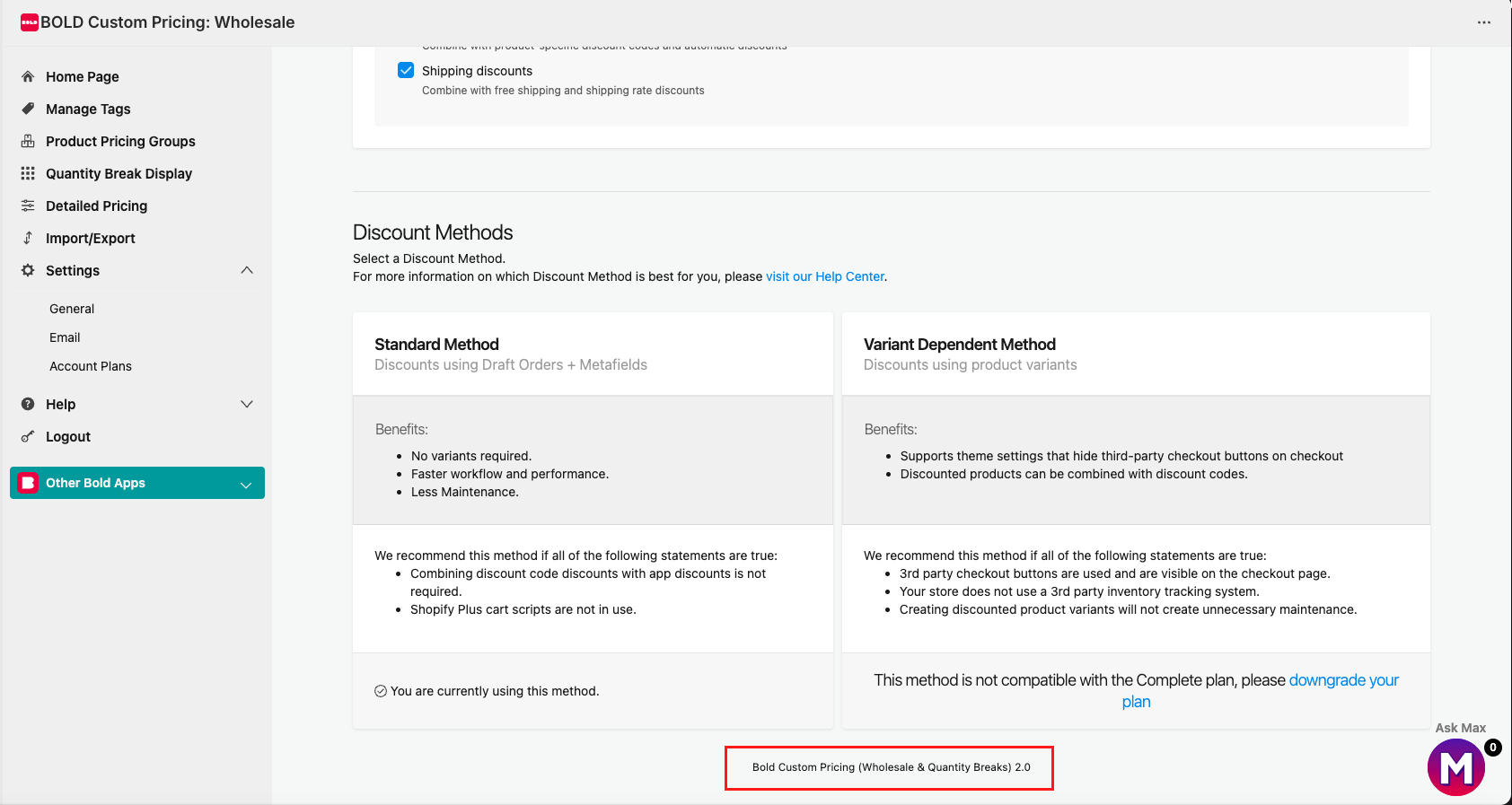
You can find the version of Custom Pricing at the bottom of any page in the app admin.
Example
Video Walkthrough
Understand the discount methods
Custom Pricing can discount your products using three different methods in the following three versions:
Variant Dependant Method - Version 1.0
Standard Method - Version 2.0
Accelerated Method - Version 3.0
Note: By default, Standard Method (V2) is supplied on new installs of Custom Pricing, with Shopify Functions enabled.
Please review each section below for more information on the discounting methods.
Variant Dependent Method (V1)
Variant Dependent Method (V1) discounts your products by creating duplicate variants for each customer group / tag associated with that product. These are an exact copy of the ones that already exist, but with the discounted price applied.
Benefits
Storefront product prices display instantaneously.
Allows checkouts directly from the cart page with third-party payment gateways (PayPal, Apple Pay, Google Pay, etc.).
Discount codes can be applied in addition to Custom Pricing discounts. This can be a benefit or limitation depending on your preference.
Known Limitations
Unable to hide discounts reliably from other apps (social media and other third-party Shopify apps).
Too many variants can become difficult for some stores to manage.
Does not support products where variant options are linked to metafields or metaobjects.
Subject to Shopify's 2048 variant per-product limit.
Longer wait times to keep discounts in sync with latest store prices.
Not compatible with most inventory management apps. This is because they see the discounted variants as individual product listings.
Standard Method (V2)
The Standard Method (V2) supports two different checkout modes:
Shopify Functions: Applies discounts directly in Shopify’s native checkout for a more reliable and streamlined checkout experience.
Draft Orders: Applies discounts by creating a draft order at checkout.
Note: Shopify Functions is enabled by default on all new Custom Pricing installations as of December 16, 2025. Existing stores using Draft Orders are not automatically migrated.
To learn more about Shopify Functions and how to enable or disable it, please visit Shopify Functions for Custom Pricing (Standard Method).
Benefits
No variants are created.
Significantly faster discount syncing than the Variant Dependent Method (V1), with Shopify Functions being faster than Draft Orders.
Allow Shopify discount codes to combine with Custom Pricing discounts with Shopify Functions.
Increased compatibility with inventory management apps.
Uses your Shopify out-of-stock rules.
Compatible with currency converters.
Note: This does not include Shopify Markets. To see how Custom Pricing works with Shopify Markets, please visit Custom Pricing General FAQs.
Products don’t have tag information appended to their name (i.e. large red shirt - gold-tier).
No need to pause all groups when importing or editing products in the Shopify admin.
Note: If the product you are updating is included in an active group, it is still recommended to pause that specific group.
Known Limitations
Buy Now and third-party checkout buttons (Amazon Pay, PayPal, Apple Pay, Google Pay, etc.) should be hidden on the cart page and only visible in the checkout.
When using Draft Order mode:
Discount codes cannot be used in addition to Custom Pricing discounts.
Draft orders will remain in your Shopify admin up to a year after a customer has checked out. These can be deleted manually.
Accelerated Method (V3)
Accelerated Method (V3) also uses draft orders but with Bold APIs to create and process a draft order with the discount when your customer selects the checkout button.
Benefits
No variants are created.
Even faster discount syncing than Standard Method (V2).
Optional feature to allow Discount Code Stacking in the cart page.
Compatible with most inventory management apps.
Follows Shopify's out of stock rules.
Price groups can be turned on and off automatically using a start and end date.
Products don’t have tagging information appended to the product name.
No need to pause all groups when importing or editing products in the Shopify admin.
Note: If the product you are updating is included in an active group, it is still recommended to pause that specific group.
Known Limitations
Third-party checkout buttons (i.e. Amazon Pay, PayPal, Apple Pay, Google Pay, etc.) should be hidden on the cart page and only visible in the checkout.
Third-party checkouts do not work correctly with Custom Pricing.
Most currency converters must be disabled before offering wholesale prices with Custom Pricing.
Hide Tag functionality is not compatible.
Shopify discount codes can not be applied in the checkout. This may be a benefit, depending on the sales you're offering. You can enable Discount Code Stacking in the cart, if desired.
Draft orders remain in your Shopify admin after a customer has checked out. These can be deleted manually.
Switch your discount method
Note: If the version you would like to switch to is not displayed as an option, please speak to a member of our Customer Success team. We are happy to make the necessary changes for you.
The steps to changing your discount method in Custom Pricing can depend on how you installed the app to your theme:
If you installed Custom Pricing using the app embeds, they must re-enabled in your theme editor. Please visit our Installation Guide for Custom Pricing for detailed steps.
If you installed Custom Pricing using Liquid code, you must add a some code to your theme relevant to the version you are switching to. Please visit our Installation Guide for Custom Pricing and add the code in Step 2: Edit Theme.liquid > Step 3 or 4.
To switch discount methods in Custom Pricing, please follow the steps below.
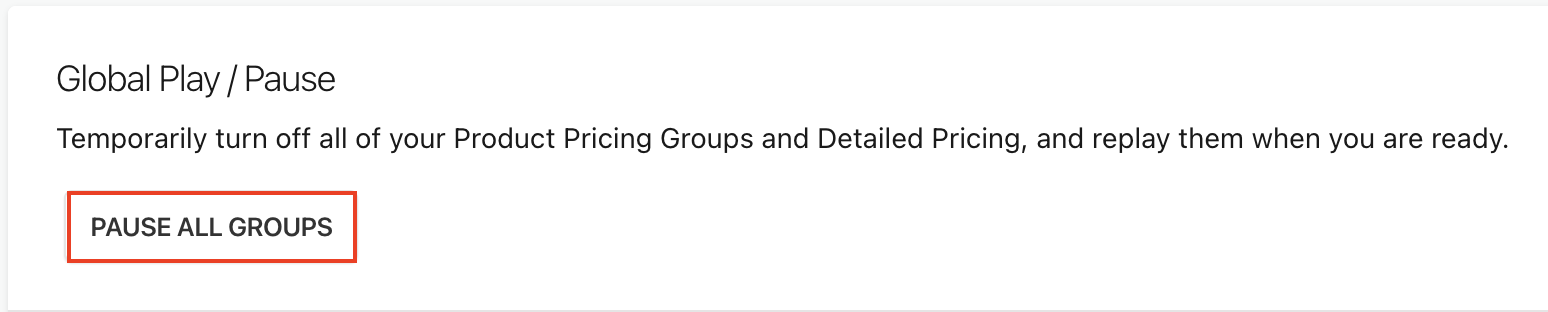
Within Custom Pricing, navigate to Settings > General. and select Pause all groups and allow the sync to complete.
Under Discount Methods, select Switch To This Method on the discount mode you want to use.
Note: Your product pricing groups automatically re-sync after the discount method is changed. The time it takes to complete the sync depends on the discount method you are switching to and the number of products in each group.