
Cancellation & Dunning Management in Subscriptions for Shopify Checkout
Subscriptions for Shopify Checkout offers flexible options for your cancellation and dunning management.
Cancellation management settings let you control the process your customers must follow to cancel their subscriptions within the customer portal. You can also configure customer retention actions to present targeted options like product swaps, discounts, and order delays to encourage customers to stay.
Dunning management helps you handle failed transactions and reduce subscription cancellations as a result.
Cancellation management
Bold Subscriptions gives you control over what happens when a customer attempts to cancel their subscription. Within the cancellation management settings, you can enable one of two optional flows:
Provide cancellation instructions
Customer retention flow
If neither option is enabled, customers can immediately cancel their subscriptions, provided you have enabled this permission within the customer portal settings.
Provide cancellation instructions
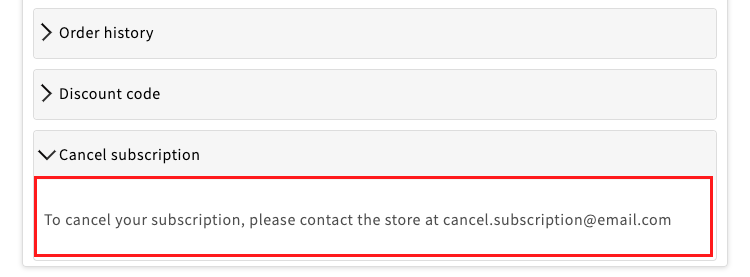
This option displays a custom message when a customer attempts to cancel. It's a good fit if you'd like customers to contact you before cancelling.
Example:
Customer view in the customer portal
Cancellation instructions setup
To provide cancellation instructions, please follow the steps below.
In Bold Subscriptions, go to Settings > Cancellation management.
Select Provide cancellation instructions.
Enter your message in the text editor.
Click Save.
Customer retention flow
This feature presents customers with a list of cancellation reasons they must choose from before cancelling. It's ideal if you want to give customers flexibility while gaining insight into why they're leaving.
You can build your own list of cancellation reasons and optionally associate a retention action with each one.
We recommend including the following reasons as a starting point:
I have too much of the product
Cost is too high
No longer interested
Will resubscribe in the future
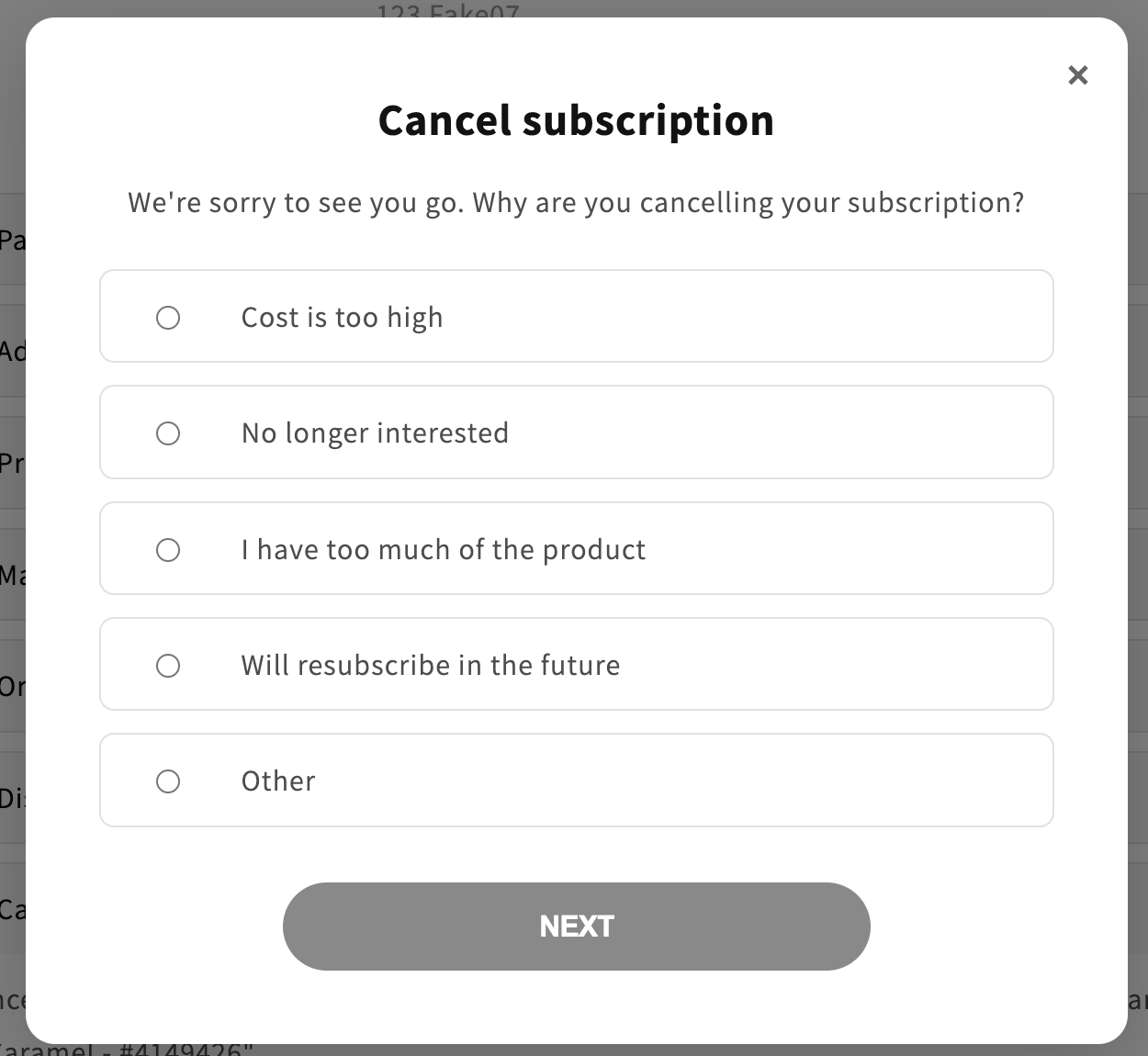
Once you add at least one reason, another option appears labeled Other. This opens a text field for customers to provide their own feedback. You can display this optionally.
Tip: To view your customers' cancellation reasons, create a Cancelled Subscriptions report. For more information, see Dashboard Analytics, Reports & Activity Logs.
Retention actions
You can optionally associate a retention action with any cancellation reason to present customers with a targeted incentive before they cancel. When a customer selects a reason that has a retention action assigned, they are guided through a short flow offering an alternative to cancellation.
The available retention actions are:
No action required: the customer proceeds to cancel without any offer. This is selected by default for each reason.
Instant swap: the customer is offered the option to swap a product in their subscription.
Skip/Delay: the customer is offered the option to skip their next order.
Update next order date: the customer is offered the option to reschedule their next order.
Apply discount: the customer is offered a discount to apply to their subscription.
For a full walkthrough of how each action appears to customers, see Customer view: retention actions in the cancellation flow.
Important considerations
The Instant Swap action displays the products that belong to the same subscription group as the customer’s current subscription product. If their product belongs to a subscription group that only contains one product, no swap options will be displayed. We recommend only using this action if your subscription groups contain multiple products customers can swap between.
Customer retention flow setup
Note: If you plan to use the Apply discount action, set up your Shopify discount code before completing the steps below. See Setting up a retention discount code (below) for requirements and recommendations.
In Bold Subscriptions, go to Settings > Cancellation Management.
Select Customer retention flow.
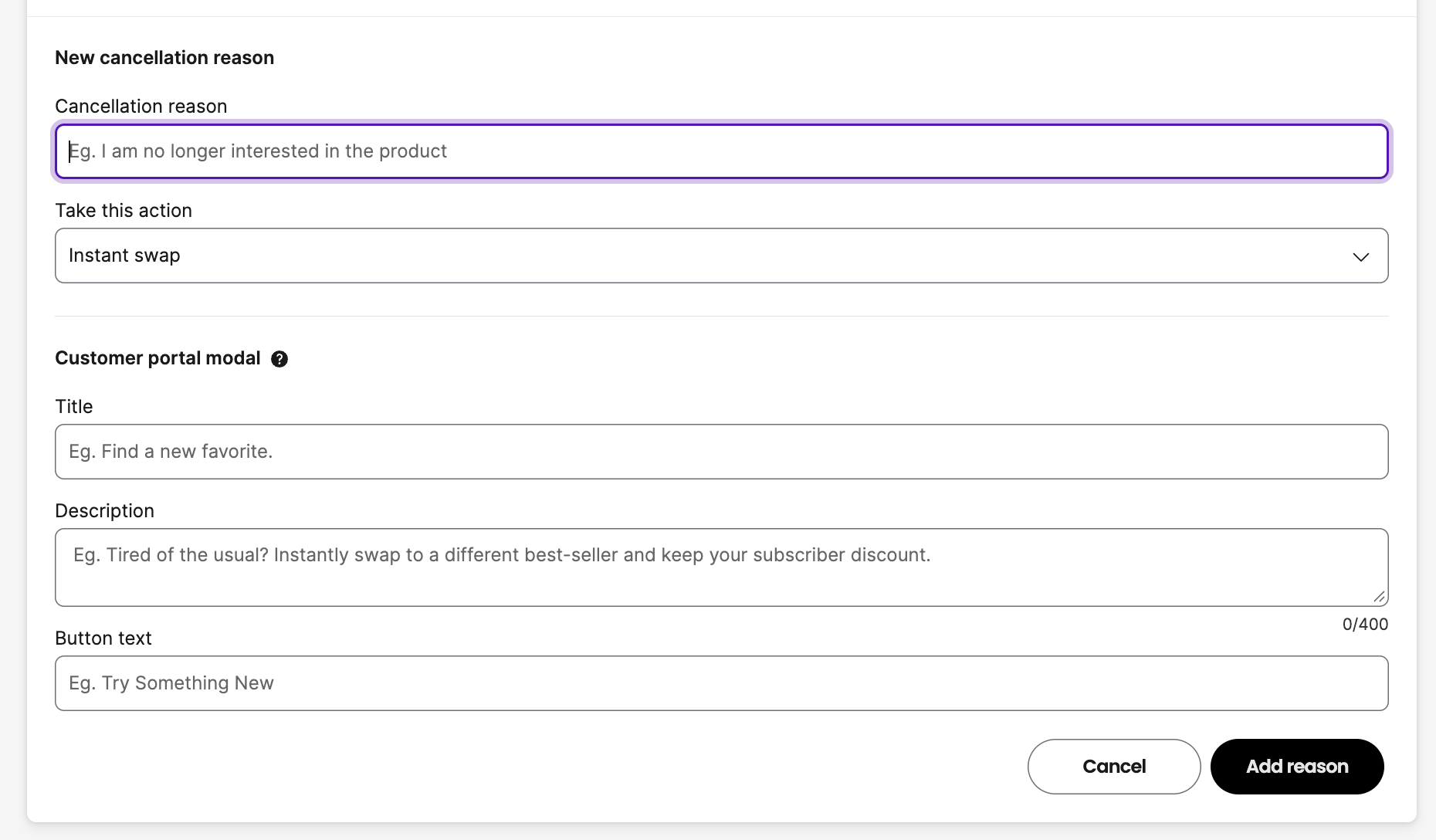
Click Add cancellation reason, enter your text, and click Add reason.
By default, No action required is selected for the reason. To associate a retention action, expand the Take this action dropdown and select an action.
Fill in the Title, Description, and Button text fields.
Some actions display additional fields (e.g., Apply discount shows a discount code field).
Click Add reason.
Repeat to add more reasons as needed.
Click Save.
Edit or delete customer retention flows
In Bold Subscriptions, go to Settings > Cancellation Management.
Select Customer retention flow.
To delete a reason, click the red X to the right of it.
To edit a reason, click the pencil icon, make your desired changes, and click Update reason.
Setting up a retention discount code
If you're using the Apply discount retention action, you'll need to set up a compatible discount code in Shopify before activating it in Bold Subscriptions.
Requirements
The following settings are recommended for the discount code to work with the retention flow:
The discount must be configured for the Subscription purchase type.
The discount must be set to apply to multiple recurring payments.
Recommendations
Limit the discount to 3 recurring payments to provide a meaningful incentive while protecting your margins.
Set the discount to a maximum of one use per customer to prevent the code from being reused.
Set no minimum purchase requirements for the best customer experience.
For steps on creating a discount code in Shopify, please visit the Shopify Help Center.
Dunning Management
Bold Subscriptions offers a few different options to help you manage situations when transactions fail. You can customize your dunning process to help reduce the number of subscription cancellations you receive due to failed transactions.
Your dunning management settings determine when the transaction is retried, how many attempts are made, and what happens when the subscription reaches the maximum number failures. You can choose to cancel, pause, or skip the order.
You can also send an email to your customer if the transaction fails due to a declined credit card or insufficient inventory. These can be enabled in the Settings > Email notifications. If you customer's credit card is declined, the email guides them to the customer portal to update their payment information.
If the reason for the transaction failure is corrected (the credit card updated or inventory restocked), the order will process at 12AM for your store's timezone based on your dunning management settings.
Pro-Tip: Your customer's failed transactions can be found in the Failing payments report. You can download a CSV file of this report from the Bold Subscriptions Dashboard > Reports. For more information, please visit Dashboard Analytics, Reports & Activity Logs, and view Reports.
Setup
To set up your dunning management process in Bold Subscriptions, please follow the steps below.
Step 1: Select a max number of retries
To choose how many times a subscription payment gets retried after a transaction has failed (between 1 to 15 attempts), please follow the steps below.
In Bold Subscriptions, navigate to Settings > Dunning Management.
In the Manage failed payment flow section, expand the dropdown menu under Retry attempts and select your preferred maximum number of attempts.
Step 2: Select the number of days between retries
Bold Subscriptions allows you to set the time in between transaction attempts. This gives your customers a chance to update their credit card or your team a chance to restock inventory without risking a cancelled subscription.
Expand the menu under Days before retrying and select a number.
Step 3: Decide what happens when the orders fail
By default, Bold Subscriptions automatically cancels the subscription once the maximum number of retries has been met. You can adjust these settings so that the order is paused instead, and when the issue is resolved, the order will resume.
To adjust these settings in Bold Subscriptions, expand the dropdown menu under Once the subscription reaches the maximum number of failures and select an option.
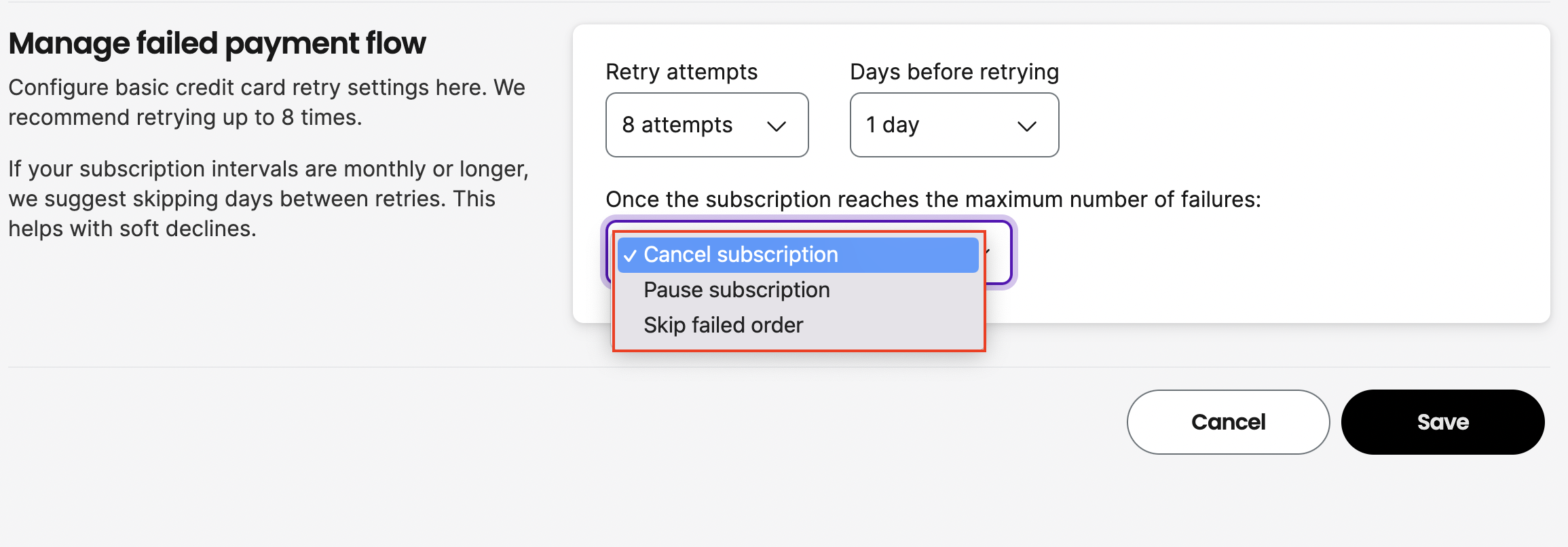
Cancel subscription: This moves the order to the inactive subscribers list. When your customers orders are moved here, they do not count towards your active subscriptions count in the in-app analytics.
Note: You need to reactive the subscription to allow your customers to update their payment information.
Pause subscription: The paused subscriptions still count toward your store's subscriptions analytics until they are cancelled. Your customers can update their payment information for a paused subscription.
Note: The order resumes after the customer has updated their payment information. Alternatively, you can resume the subscription in the admin.
Skip failed order: Skipping an order on your store is beneficial to give your customer more time to adjust their credit card information.