Customer View: Retention Actions in the Cancellation Flow
When a customer attempts to cancel their subscription, retention actions present them with a targeted alternative before the cancellation is processed. Depending on the action configured for the selected cancellation reason, customers may be offered a product swap, an order skip, a rescheduled order date, or a discount on their subscription.
This article walks through how each retention action appears to customers. To learn more about configuring retention actions in Bold Subscriptions, see Cancellation and Dunning Management.
Customer flow
When a customer selects a cancellation reason that has a retention action assigned, the flow follows the same general pattern: the customer selects their reason, clicks Next, and is presented with an offer based on the action configured for that reason.
What the customer sees next depends on the action (described below).
Instant Swap
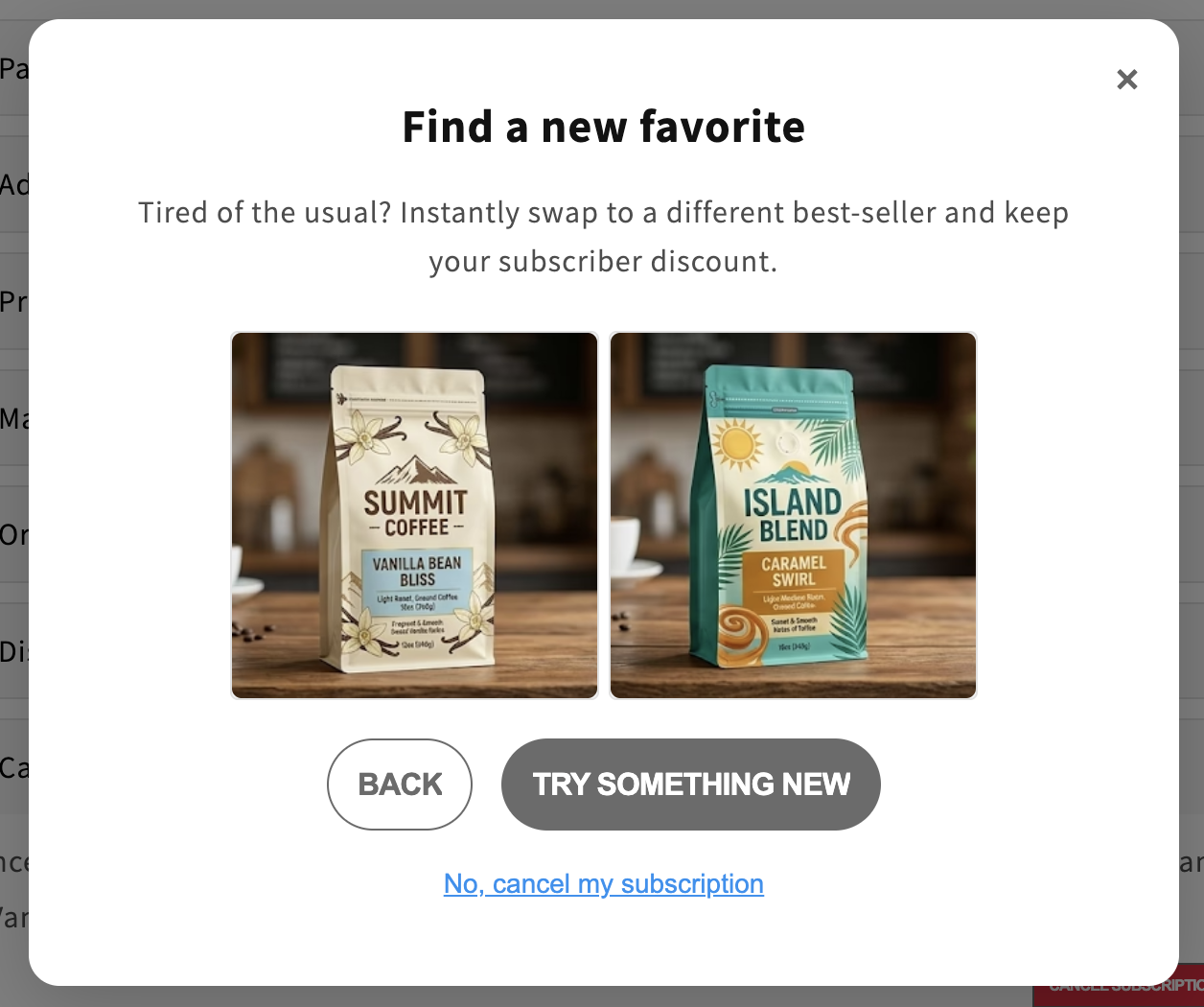
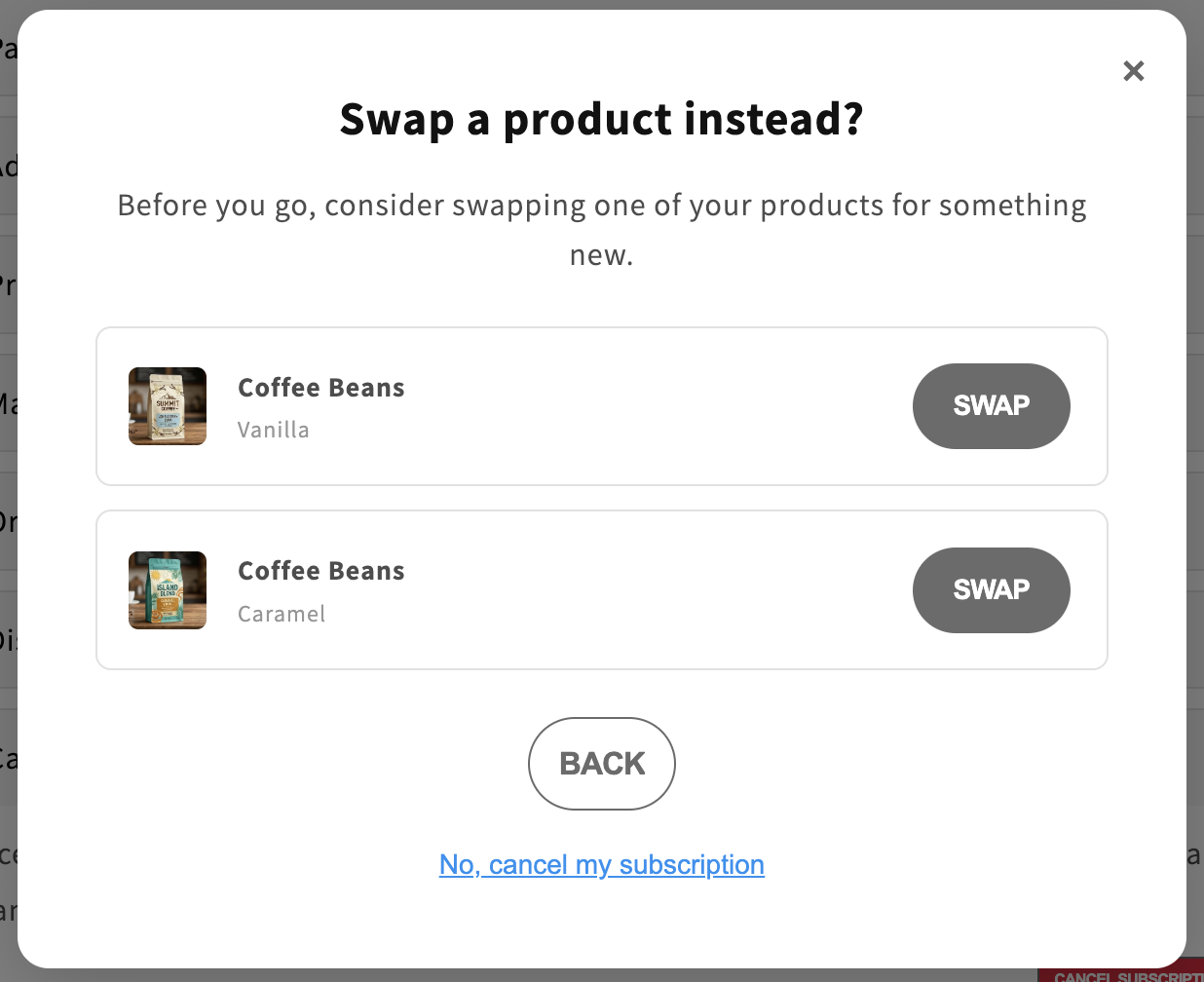
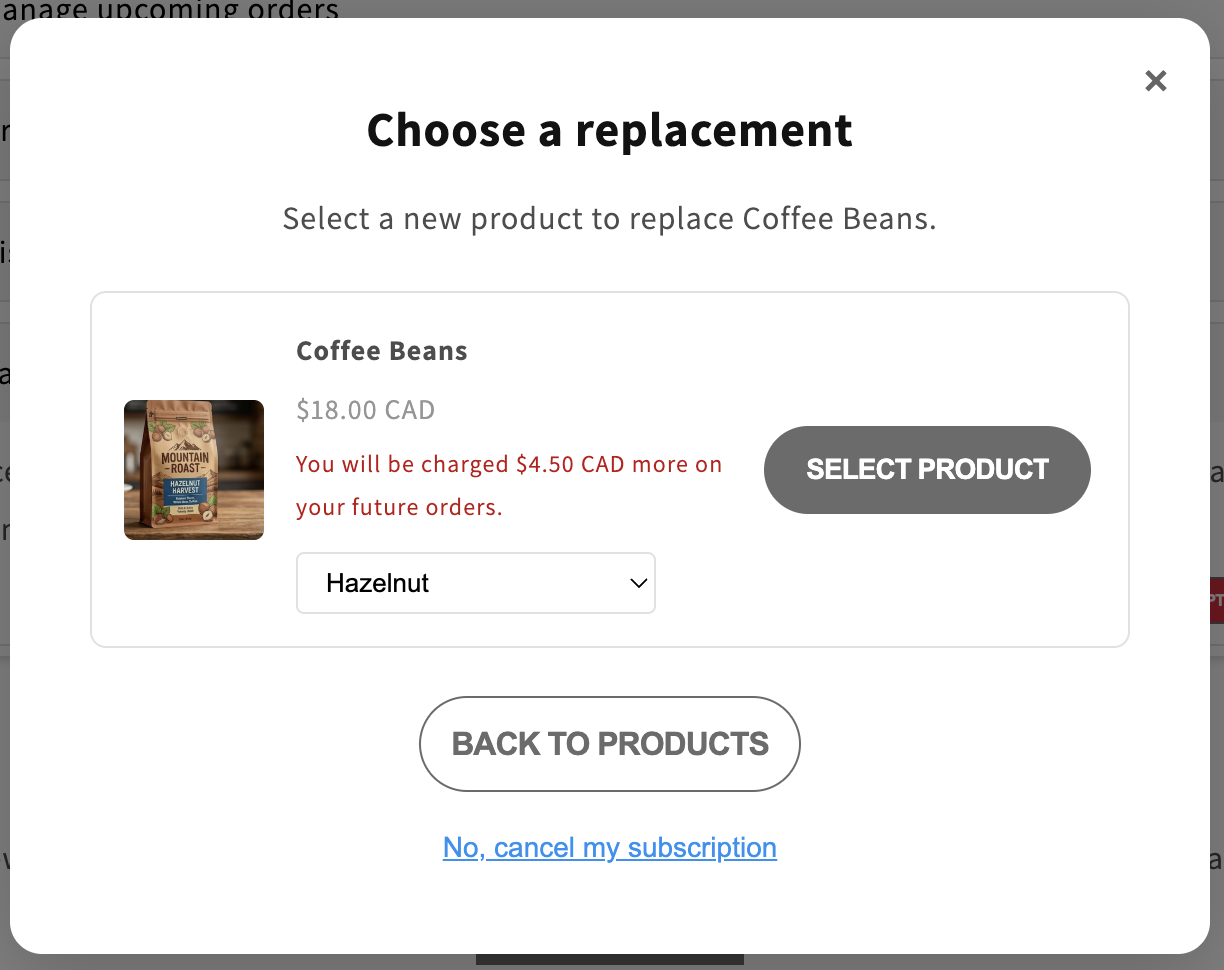
The customer sees the title, description, and button text configured for that reason. They can click the button (e.g., Try Something New) to begin the swap, then select which product in their subscription they'd like to replace. If the product has variants, they select the variant to swap in, then click Select product and confirm. The subscription is updated with the new product.
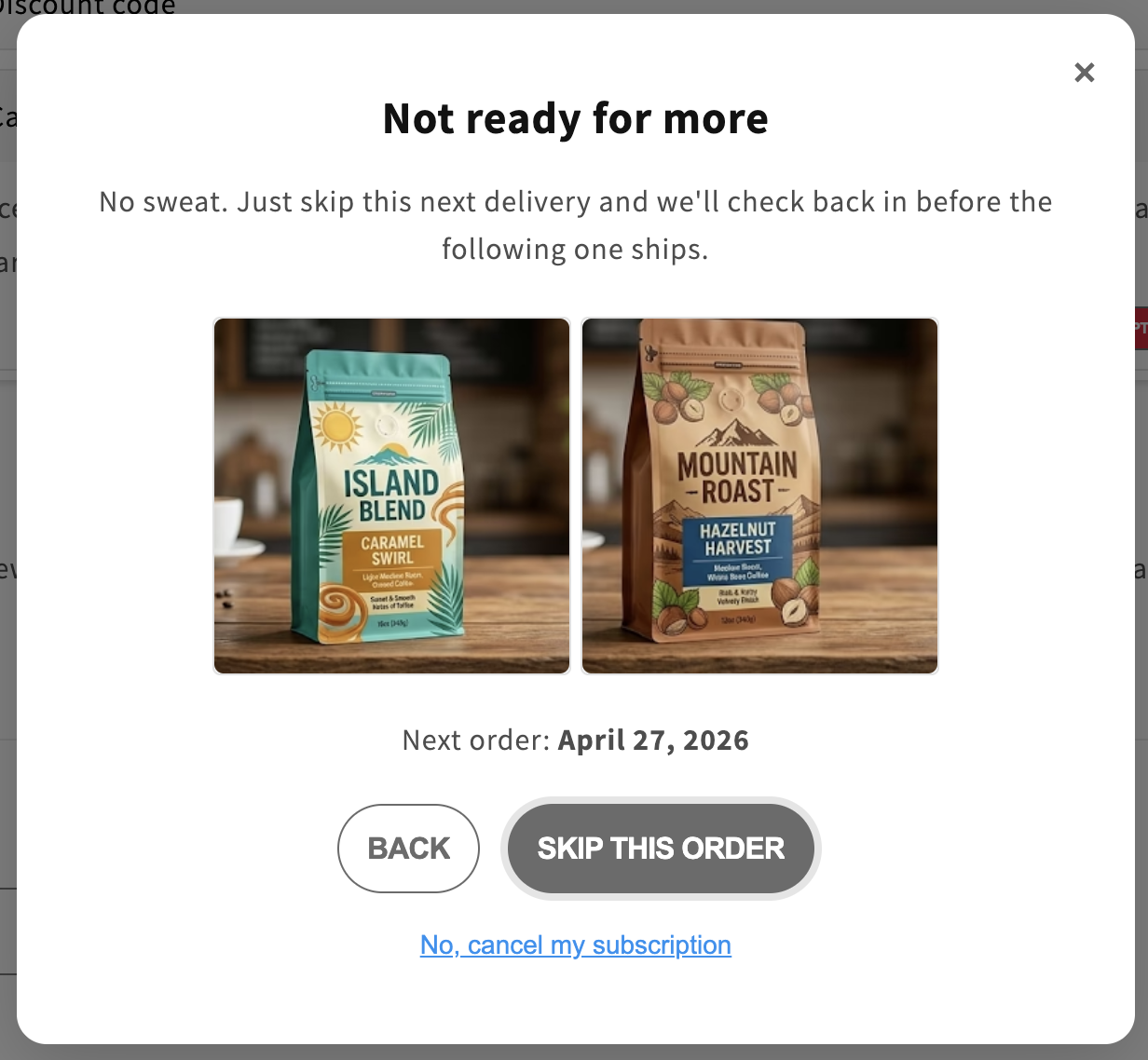
Skip/Delay
The customer is presented with the option to skip their next order. They click the configured button (e.g., Skip this order) and the next order is skipped.
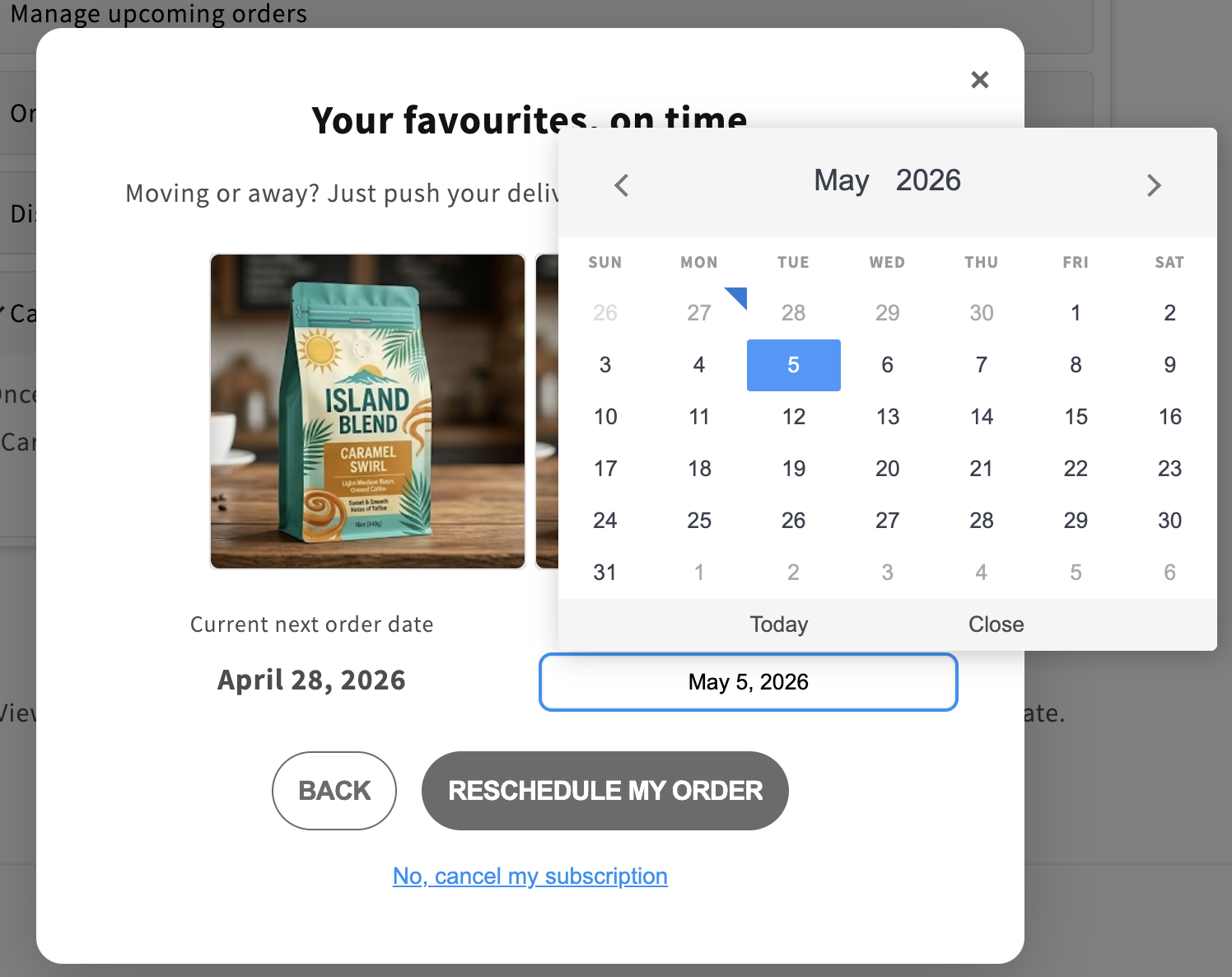
Update Next Order Date
The customer is presented with the option to update their next order date. They click the configured button (e.g., Reschedule my order) and the next order date is updated.
Apply Discount
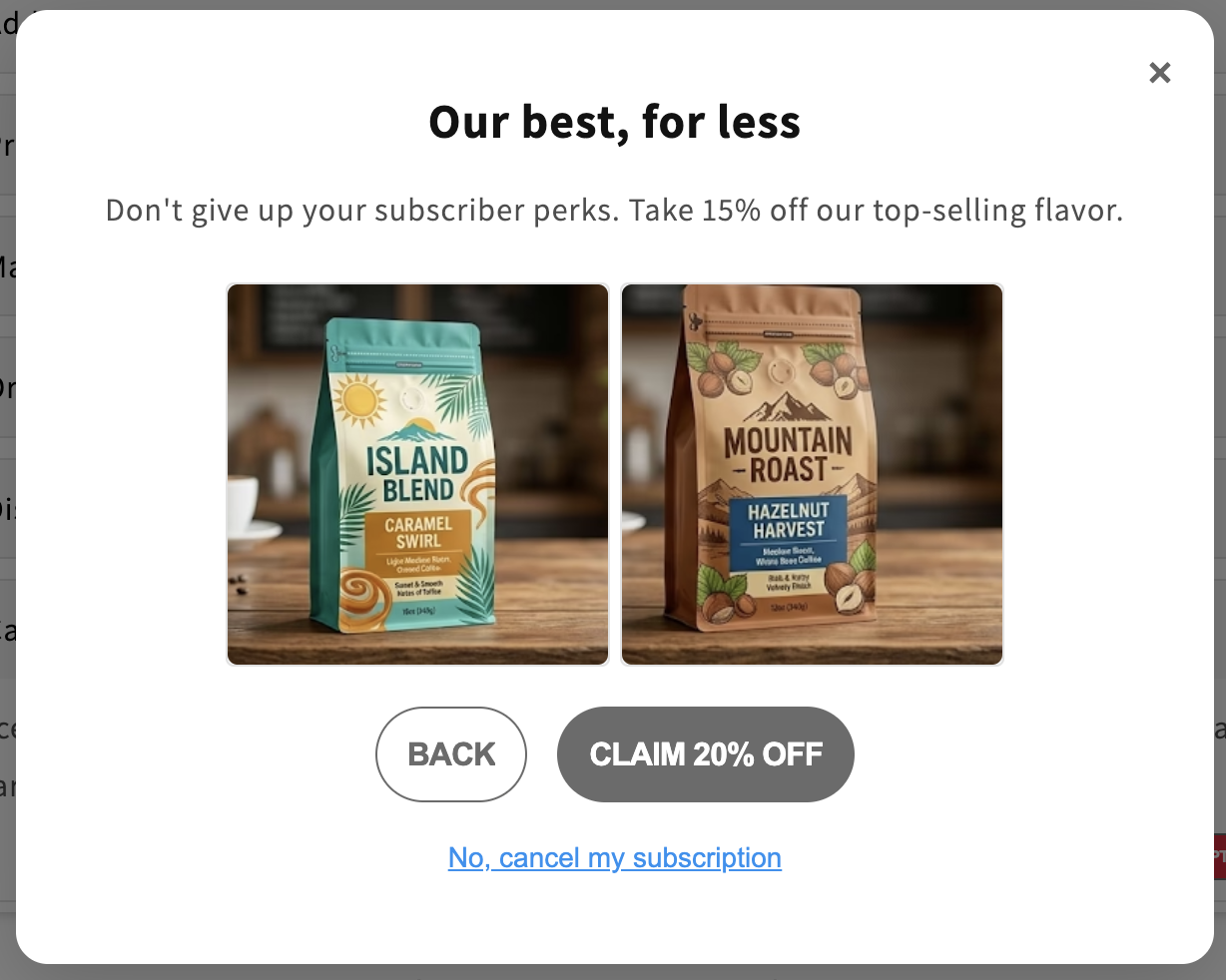
The customer is presented with the option to add a discount to their subscription. They click the configured button (e.g., Claim 15% off) and the discount is applied to their subscription.