
Allow Customers to Upgrade to Subscriptions at Checkout
Upgrade to Subscription lets customers instantly switch a one-time purchase to a subscription or revert back during the Shopify checkout experience.
Use this feature to convert more one-time buyers into subscribers by giving them the flexibility to choose recurring delivery and subscription savings right at checkout, without leaving the page or starting over.
How it works
When Upgrade to Subscription is active (enabled for all Shopify Plus merchants):
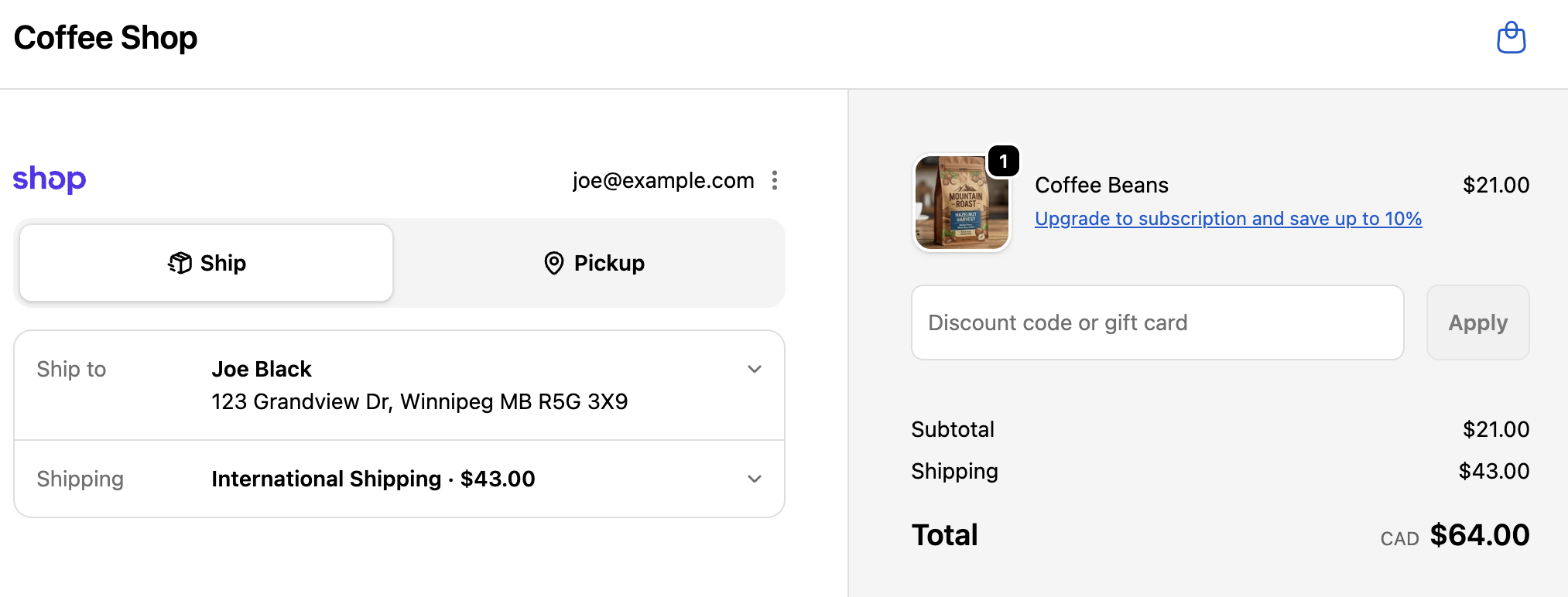
During checkout, if a customer selects a one-time purchase for a subscription-eligible product, an “Upgrade to subscription” option appears in the order summary.
Clicking the upgrade instantly changes the order to a subscription, applying the configured subscription discount, delivery frequency, and any other subscription settings.
Customers can also revert to a one-time purchase before payment.
What the customer sees
The experience is completely seamless and visual:
On a one-time purchase, customers see a clear link such as “Upgrade to subscription and save up to X%”.
Once upgraded, the checkout updates in real time to show subscription details with a link to change back to one-time if desired.
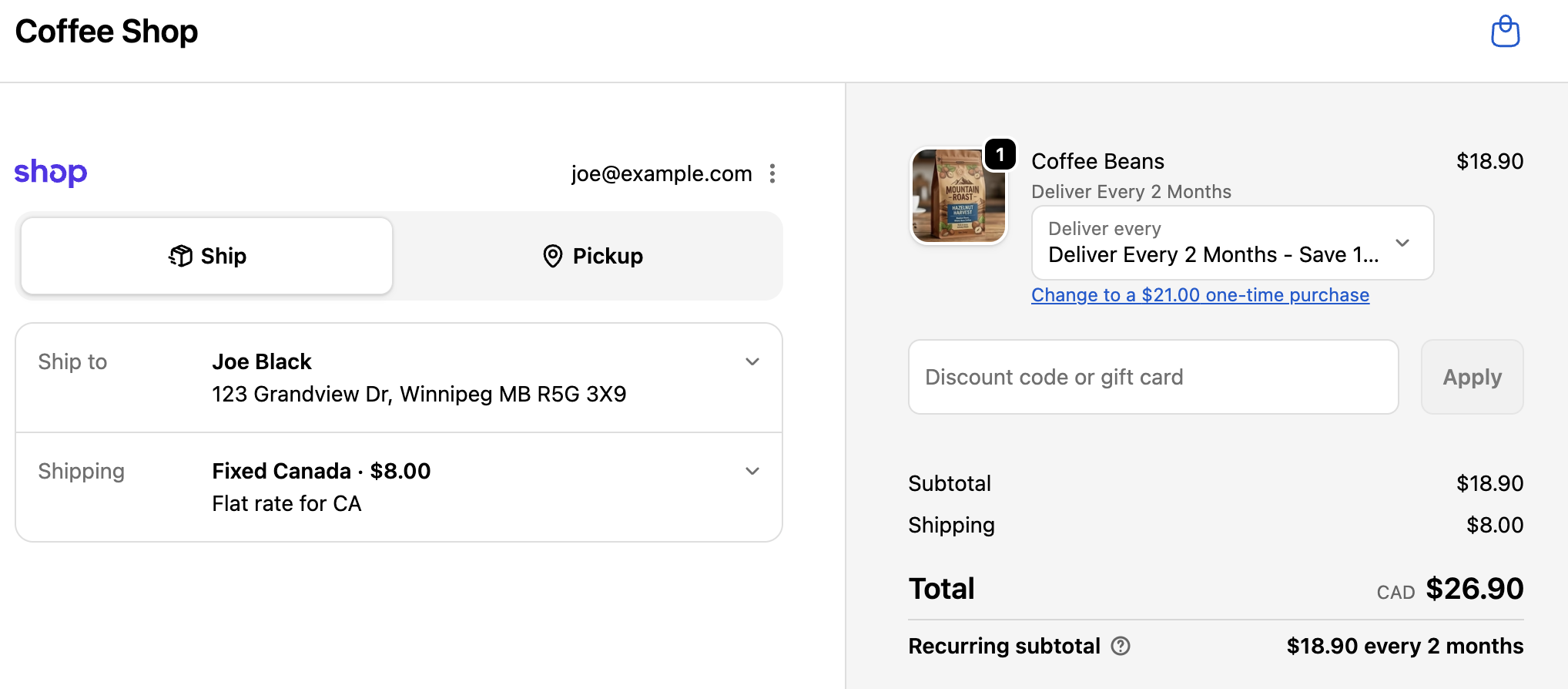
All pricing, totals, and recurring information update instantly so customers understand the benefit before completing the purchase.
Important considerations
This feature is available only to Shopify Plus merchants, as it uses native Shopify checkout capabilities that are not available on lower plans.
The feature works with any product that is part of an active Bold Subscriptions group with selling plans configured.
One-time purchases that are switched to subscriptions count as the first order for features such as Reward Programs and Customer Tagging.
Customers can upgrade or revert as many times as they want before completing checkout.
Setup
Open the Shopify Admin for your store
Customize your current theme
Use the drop down at the top of the page (it initial shows Home page), select Checkout and customer accounts
Click on the App icon in the top left
Click the + sign by the Upgrade Subscriptions on the Fly option
Click Add to: Checkout
Review the preview of the Upgrade Subscriptions on the fly extension on the checkout page
Click Save in the top right
Simply ensure your products are added to a subscription group with selling plans configured. The upgrade option will appear in Shopify Checkout for eligible items.
For complete instructions on creating of subscription groups, see: