
VIP Member Pricing with Bold Custom Pricing & Bold Subscriptions
VIP Member Pricing lets you reward your most loyal customers with exclusive discounts. By integrating Bold Subscriptions with Bold Custom Pricing, you can unlock special pricing for customers the moment they subscribe, creating a seamless VIP experience.
How VIP Member Pricing works
In Bold Subscriptions, you can use the customer tagging feature to automatically tag customers when they subscribe to specific products. These tags are then used in Custom Pricing to offer exclusive discounts to your subscribers.
Customer tags and exclusive VIP product discounts are configured in Custom Pricing. Discounts can be configured storewide or for specific products, and can be set to apply to one-time purchases, other subscriptions, or both.
Bold Subscriptions automatically manages subscriber tags so customers retain their tag and exclusive discounts for as long as their subscription remains active. You can also configure a tags grace period so tags remain in place if a transaction fails, giving subscribers time to update their payment method before they lose benefits.
For more information on how Bold Subscriptions manages subscriber tags, please visit Customer Tagging in Bold Subscriptions for Shopify Checkout.
This feature supports two main approaches:
Reward subscribers across your store. Automatically unlock exclusive discounts for any customer who subscribes to a product.
Create a VIP Membership product. Set up a dedicated membership product that customers must subscribe to in order to qualify for exclusive discounts.
To learn more about each app, please visit Custom Pricing Overview & Pricing and Subscriptions for Shopify Checkout Pricing & Overview.
Using Custom Pricing and subscription discounts together
Custom Pricing discounts can be used together with Subscription discounts. How they work together depends on the discount type used in Custom Pricing:
Percent discount: Subscription discounts are applied before Custom Pricing discounts.
Price discount: Subscription discounts are applied before Custom Pricing discounts.
Fixed price: The fixed price is used for both the one-time purchase and subscription price. Subscription discounts do not apply.
Note: For the best experience, we recommend using percent discounts in both Subscriptions and Custom Pricing. The dedicated VIP Member Pricing onboarding supports using percent discounts in Custom Pricing. To learn more about using other discount types in Custom Pricing, please visit Custom Pricing & Bold Subscription Integration.
Subscription widget & price display
When products are discounted in Custom Pricing, the final discounted prices are displayed to logged-in and tagged customers on the product page and across the storefront.
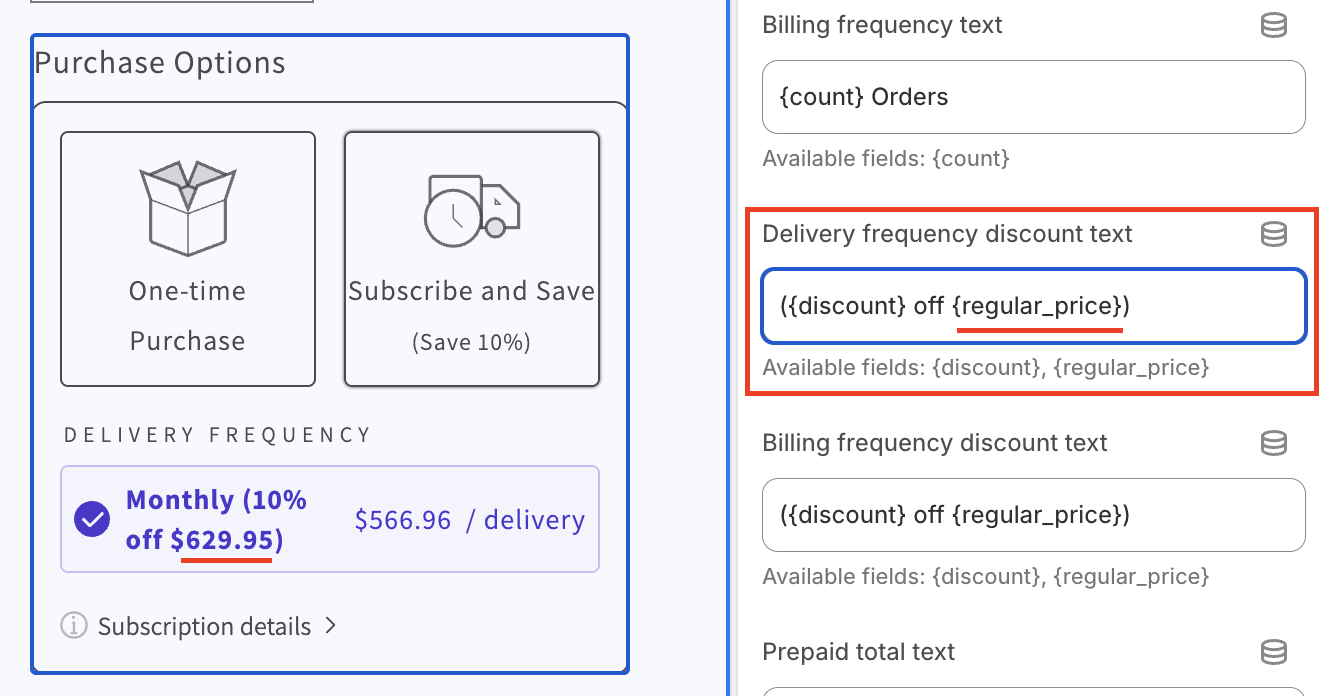
The subscription widget accurately displays the customer’s final price per delivery, however, the Subscribe and Save amount shows only the subscription discount (if one exists).
You can adjust the subscription widget language fields so that only the correct final price is displayed in the subscription widget. This helps align subscription discounts with customer expectations. For detailed instructions, please see Customize the subscription widget language fields below.
Example
Subscription discounts shown in red, the accurate final price in green:
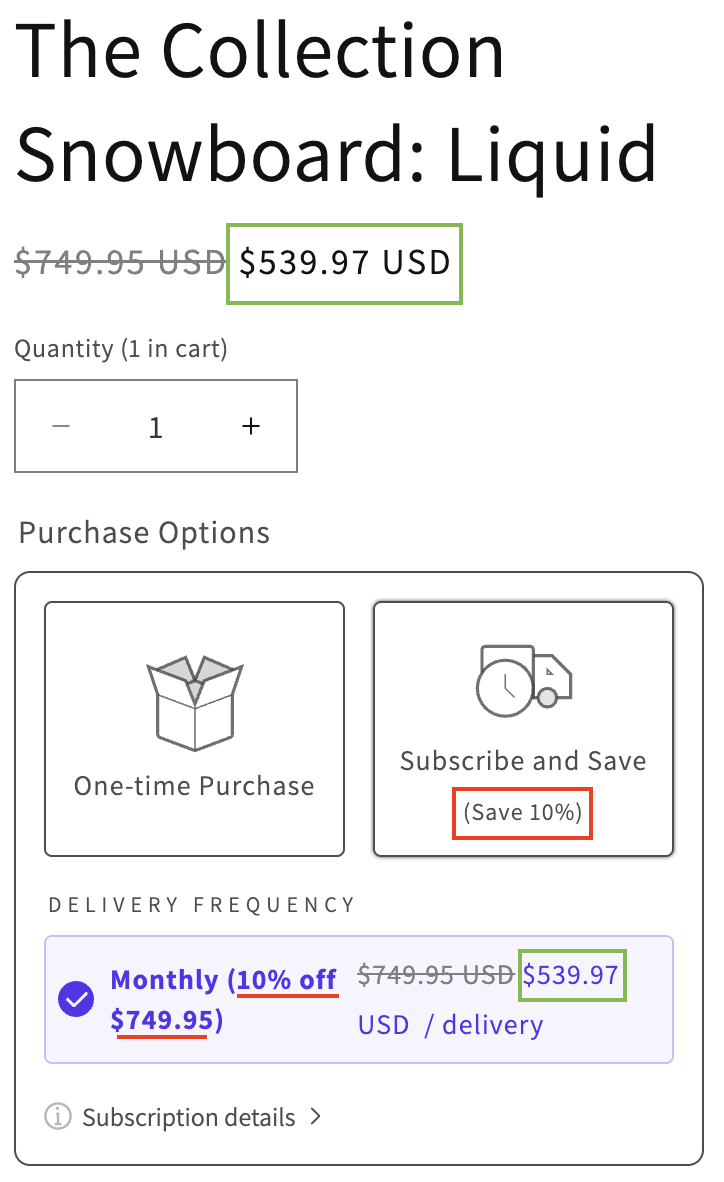
Pro-tip: By default, when tagged customers are logged into their store account, they only see the price available to them. To show both the original price with a strikethrough and the Custom Pricing price, you can enable compare-at pricing in Custom Pricing. For more information, please visit Display Regular Prices Beside Wholesale Prices.
Important considerations
Discount codes: Discount code should not be offered on subscriptions with Custom Pricing discounts. While they can be applied to the initial order, Shopify only allows the greatest discount per product, which may not be the Custom Pricing discount. If a customer later swaps their product, Custom Pricing discounts are automatically reapplied. This can lead to unexpected double discounting. Additionally, Custom Pricing discounts are not reapplied if a discount code expires.
Bold Upsell: Currently, Custom Pricing V2 does not integrate with Bold Upsell. Subscription related Upsells should not be offered to subscribers with Custom Pricing. Our team is working on supporting this integration.
Adding products to existing subscriptions: Products that are added to existing subscriptions from the customer portal or through the Express Add-Ons Widget won't display the Custom Pricing discount until added. Once added, the price reflects the discount.
Custom Pricing discounts in the customer portal: Custom Pricing discounts appear as discount codes in the customer portal unless a product is swapped, in which case the discount is applied directly to the product price and the code is removed.
Convertible subscription widget pricing: Custom Pricing is not able to display the correct final price on the Converts to price in the subscription widget. However, the correct price is applied to the product once the swap occurs.
Setup
Bold offers a dedicated VIP Member Pricing onboarding flow to help you configure your pricing and install Custom Pricing.
To launch the onboarding flow, please follow the steps below.
In Bold Subscriptions:
Go to the Dashboard page, and click the Install Custom Pricing button, or;
Go to Subscription groups and create or edit a subscription group.
Locate the VIP Member Pricing card (bottom of page) and click the arrow next to Try Custom Pricing for 14 days.
Click Begin trial.
Click Save changes to save your subscription group. This launches the install.
Click Install.
Select your Custom Pricing price plan.
Note: The Essential plan supports one tier of VIP pricing.
On the welcome screen, click Get started.
Step 1: Set up your VIP tag and discount
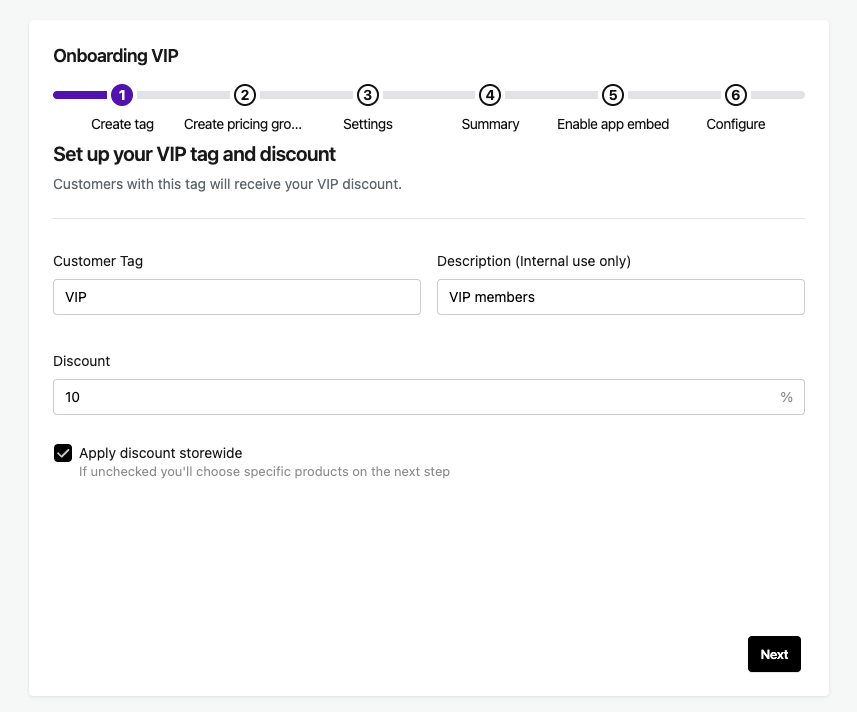
Enter a name for your Customer Tag.
Enter a Description (internal use only).
Enter a Discount percentage amount for customers with this tag.
Optional: Check the box next to Apply discount storewide if you want your VIP members to get this discount on all products on your store. If unchecked, you’ll be asked to choose specific products to discount on the next step.
Click Next.
Step 2 (a): Customize VIP discounts for specific products
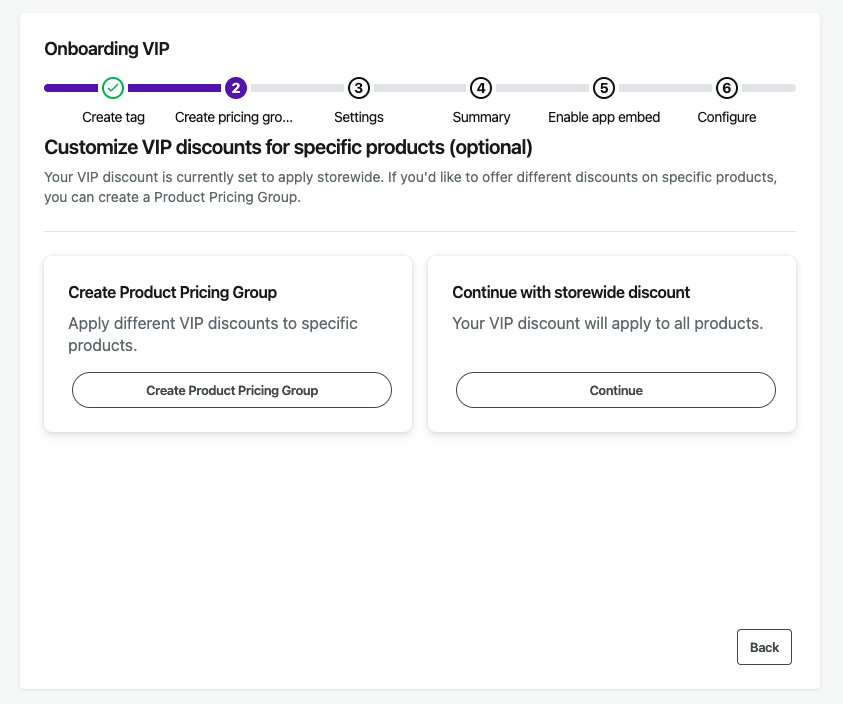
Note: You will only see this step if you checked the setting Apply discount storewide on the previous step.
Choose one of the following options:
If you want to configure different discounts for specific products, click Create Product Pricing Group and move to Step 2(b): Create a Product Pricing Group.
If you just want to Apply (your previously configured) discount storewide, click Continue, and skip to Step 3: Choose which purchase types get VIP discounts.
Step 2 (b): Create a Product Pricing Group
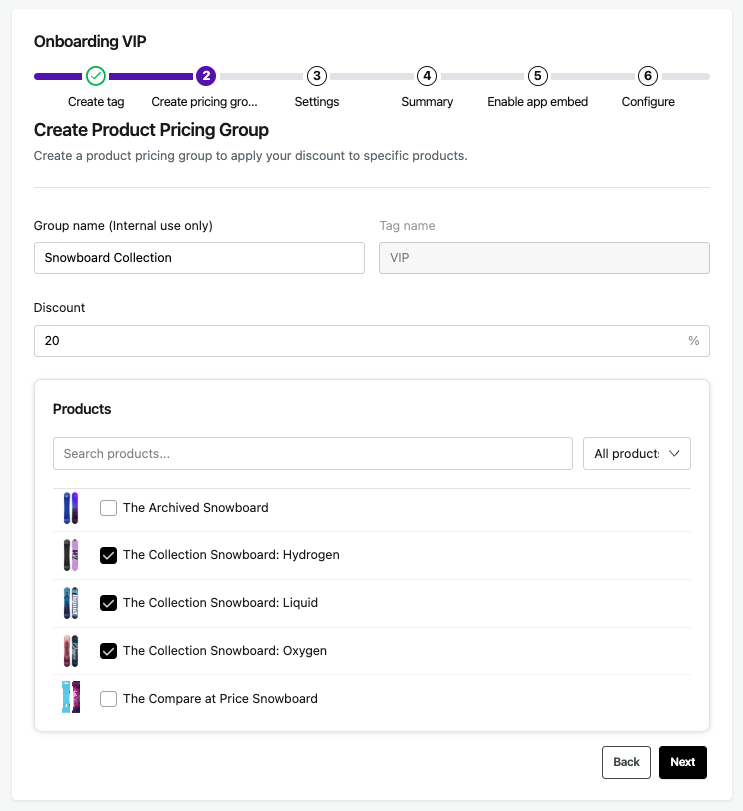
Enter a descriptive Group name (internal use only).
Enter the Discount percentage for this group of products.
Select your products.
Click Next.
Step 3: Choose which purchase types get VIP discounts
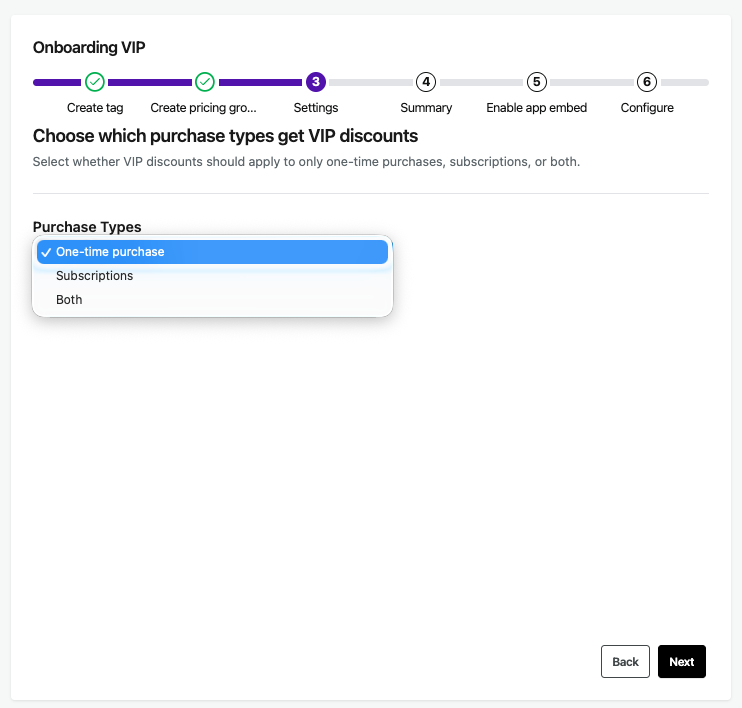
Expand the Purchase Types dropdown menu and choose whether VIP customers can receive these discounts on one-time purchases only, subscriptions only, or both.
Click Next.
Step 4: Summary
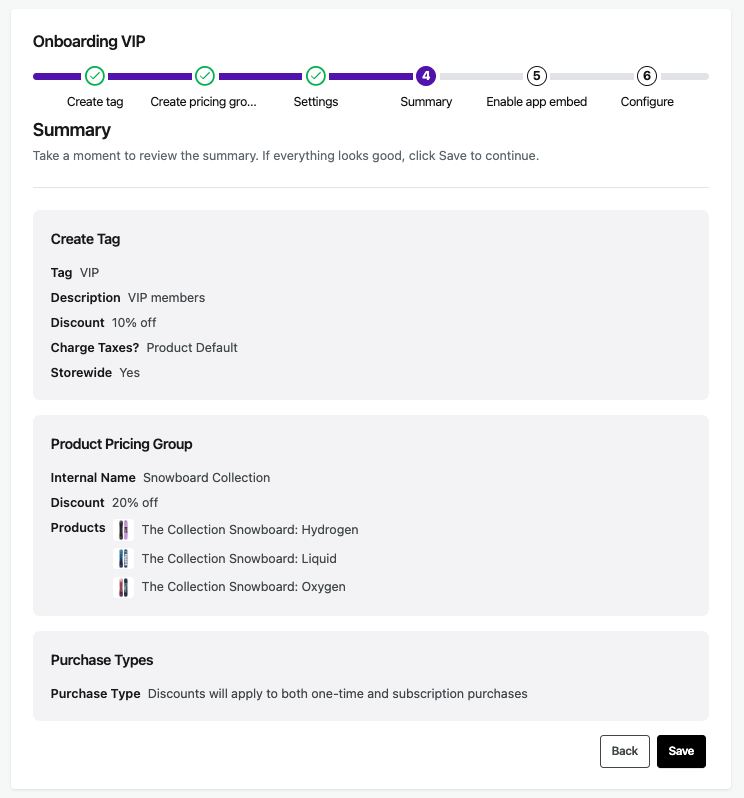
Check the Summary page to confirm your settings.
To make adjustments, click Back to move to back through the steps.
When you are done, navigate back to this step and click Save.
Step 5: Turn on the Bold Custom Pricing app embed
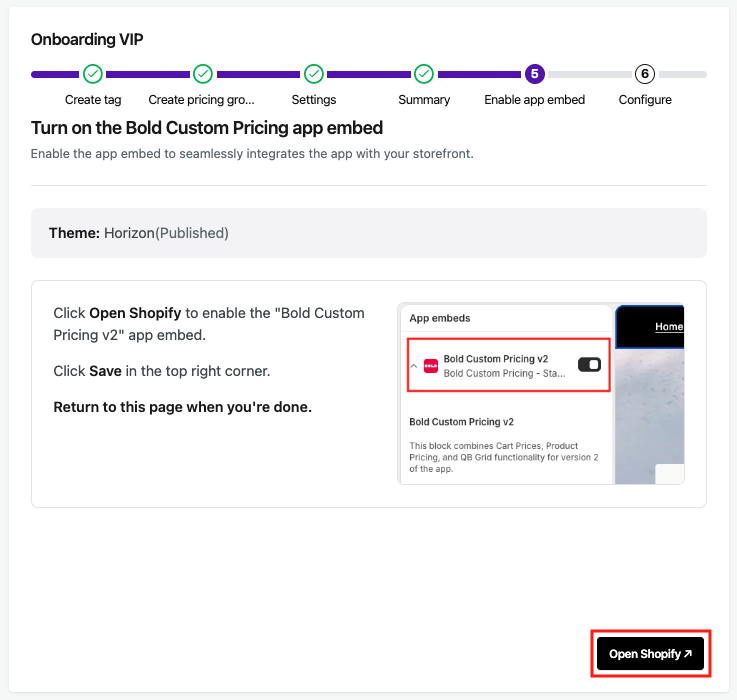
Click Open Shopify. This automatically opens your theme editor and enables the app embed.
Click Save in the top right corner.
Return to the onboarding flow.
Step 6: Configure the app embed settings
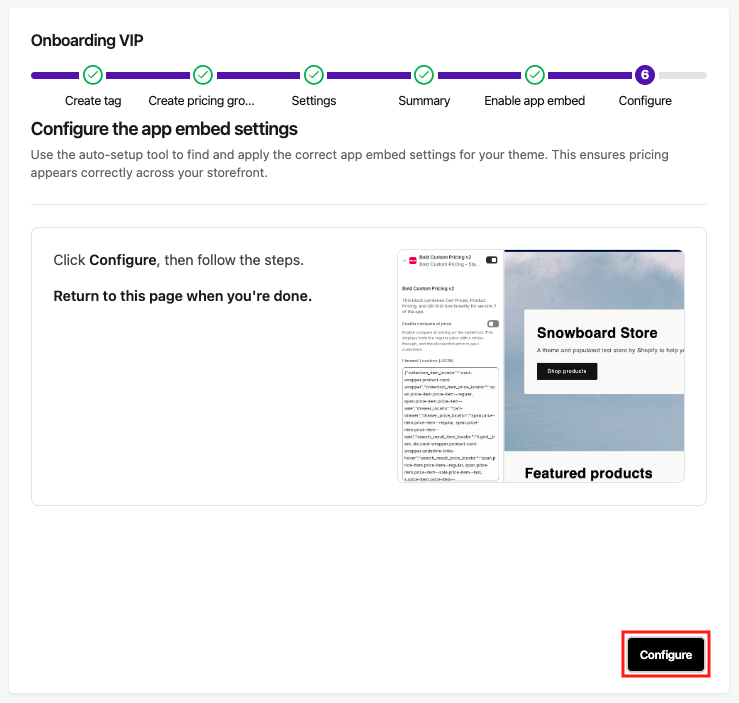
Click Configure to launch the auto-setup tool. This can take a few minutes to complete. Do not close the window.
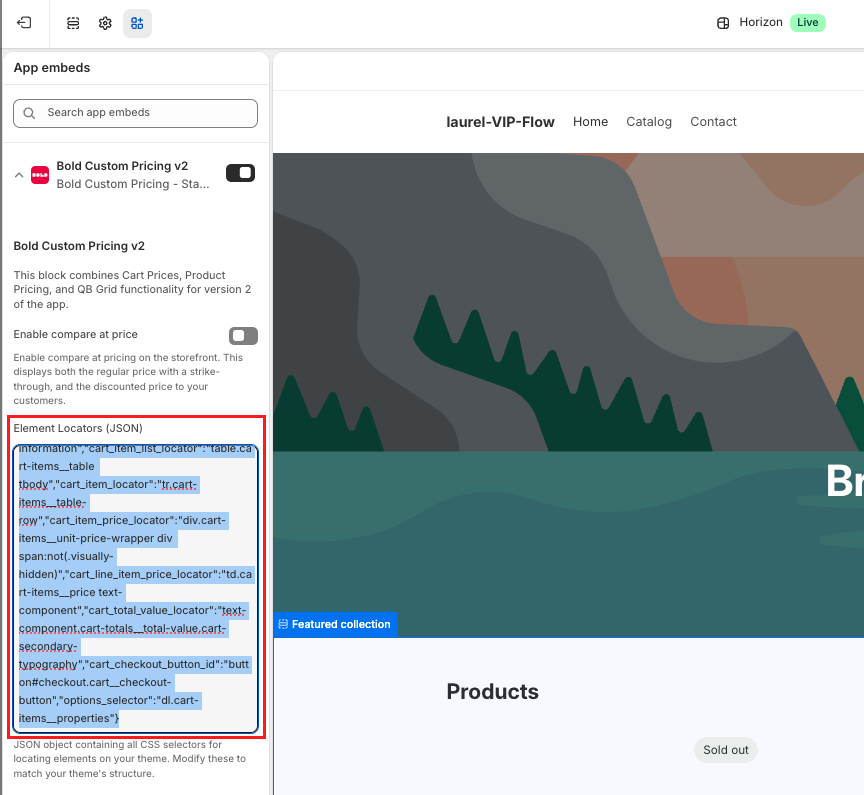
Once complete, click Copy and Proceed. This copies the required settings to your clipboard and directs you to the app embed settings in your theme editor.
Paste the results into the Element Locators (JSON) setting.
Click Save in the top right corner.
Return to the onboarding flow.
Congratulations, you’ve successfully installed Custom Pricing!
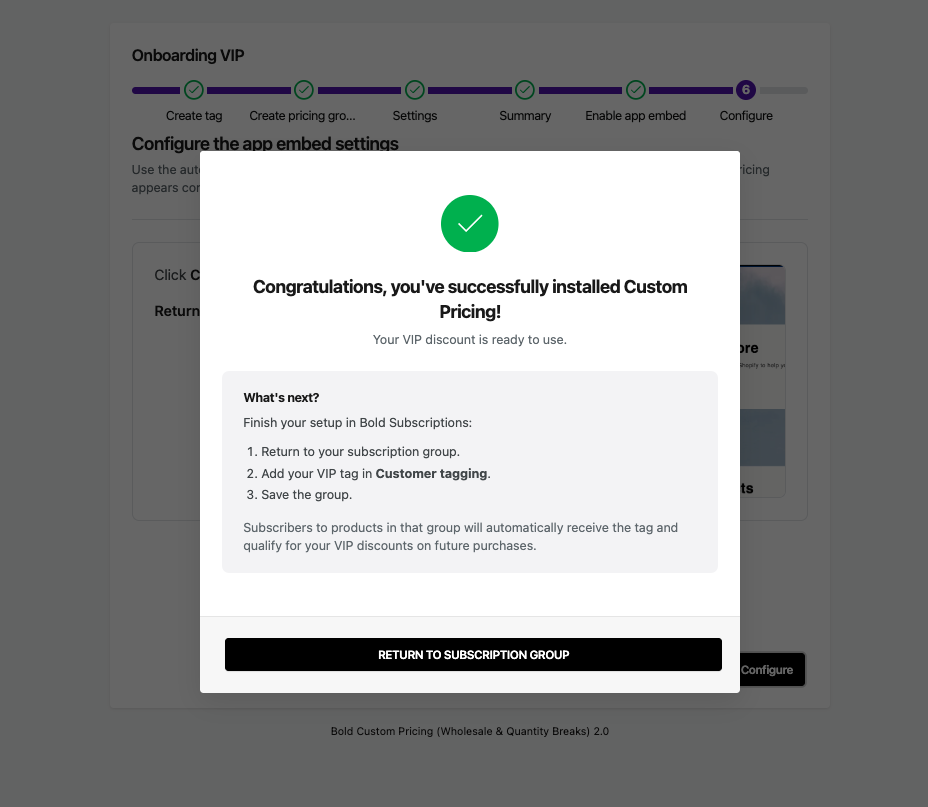
Click Return to Subscription Group to return to the Subscriptions groups page.
Add your newly configured VIP member customer tag to the subscription group of your choice.
Manually create or edit customer tags and discounts
Customer tags
If you want to configure more tags or edit your storewide discounts, you can do this in Custom Pricing. For detailed instructions, please visit Create, Edit, or Delete Customer Tags.
Caution: By default, changing your existing customers' tag names in Custom Pricing will remove VIP discounts for those customers until their next recurring order successfully processes. To resolve this, you can edit the subscription group to add the new tag name, and check the box next to Apply to previously created subscriptions.
Product Pricing Groups
If you did not configure your customer tag discount to apply storewide and/or choose specific products, you can edit the products in your group or discount in Custom Pricing. For detailed instructions, please visit Create, Edit, or Delete Product Pricing Groups.
Note: Quantity Breaks (available in Product Pricing Groups) is not supported with VIP Member Pricing at this time.
Customize the subscription widget language settings
To ensure the best experience for subscriptions with Custom Pricing, we recommend adjusting the language settings in the subscription widget so that only the correct final price appears in the widget.
These changes are recommended if using a percent discount in both Bold Subscriptions and Custom Pricing (this is configured in the VIP onboarding flow). If you have configured different discount types, please make the recommended changes as shown in Custom Pricing & Bold Subscripions Integration.
Follow the steps below to update the language settings.
From your Shopify admin, navigate to Sales channels > Online Store > Themes.
Click Edit theme.
Expand the top-center dropdown menu, and select the product template with the Subscription widget app block.
Click on the Subscriptions widget app block to expand the style and language settings.
Note: To see a live preview of the storefront subscription widget, view a product that belongs to an active subscription group. In the top-left corner of the theme editor, find the Default product, and click Edit to select a subscription product.
Make the following recommended changes:
Locate the Delivery frequency discount text language field and remove {regular_price}.
Note: The {discount} merge field can remain as the subscription percent discount provides a consistent experience when used with percent discounts in Custom Pricing.
Locate the Billing frequency discount text field (visible with prepaid subscriptions), remove {regular_price}.
Click Save in the top right corner.
If you configure different discount types later, please visit Custom Pricing & Bold Subscriptions Integration for recommendations on adjusting other language fields.
To make more customizations to the widget, please visit Customize the Subscription Widget App Block.